Yes, you can run a VPN from your home router, but it depends on one thing: your router or its firmware needs a built in VPN client, and you need the right configuration files from your provider. Once that’s in place, every device on your network gets covered, even smart TVs, game consoles, and other gadgets that can’t run VPN apps on their own.
TL;DR:
- Check your exact router model and firmware for VPN client support; ISP issued routers may block configuration, while WireGuard may require an update.
- Gather provider credentials and configuration files before setup: OpenVPN uses .ovpn, while WireGuard uses .conf; UDP is usually faster than TCP.
- Use device level routing to keep printers, smart home hubs, gaming, or streaming outside the VPN when local discovery, latency, or regional blocks matter.
- Verify your public IP and DNS after connection, and consider app based VPNs for mesh systems lacking client support or routers that cause sharp speed drops.
Table of Contents
- Router Compatibility and Firmware Requirements
- What You Need From Your VPN Provider Before You Start
- Step by Step Setup on a Router (OpenVPN Example)
- WireGuard Support, Firmware Updates, and Flashing Custom Firmware
- Choosing Which Devices Use the Router VPN
- Performance and Limitations of Router Based VPNs
- Verify and Troubleshoot: Confirm Your Router VPN Is Working
- TechStackToday Testing Notes and Security Essentials
- Detailed Guide on Split Tunneling Configuration Methods
- Handling Dual Band Routers and Guest Network VPN Access
- VPN Routers in Mesh Wi-Fi Systems
- VPN Protocols and Their Impact on Router Setup
- Troubleshooting Basics: Common Mistakes and Quick Fixes
- When Router VPN Is the Right Call
- Find a VPN Provider That Supports Router Setup
- FAQ
- Sources
Router Compatibility and Firmware Requirements
Before you touch a single setting, check whether your router can actually host a VPN client. Most modern routers list this under a menu called “VPN” or “VPN Client” in the admin dashboard, and vendor support pages make this easy to confirm before you buy or configure anything.
Some routers support this natively. Several TP-Link and ASUS models ship with a stock VPN client that handles OpenVPN, WireGuard, L2TP/IPSec, or PPTP, depending on the hardware. If your router lacks that feature, third party firmware like DD-WRT, OpenWrt, or Tomato can add it, though flashing comes with its own risks we’ll cover shortly.
A few things trip people up here:
- Your router might support OpenVPN but not WireGuard until you update to a newer firmware version.
- Routers issued directly by your internet provider often block VPN client configuration entirely, by design.
- Older routers may technically “support” a VPN client but lack the processing power to run it well.
Check your router’s model number against the manufacturer’s support site first. That single step saves most of the frustration people run into later.
What You Need From Your VPN Provider Before You Start
Gathering the right materials ahead of time can make a confusing setup more manageable. Don’t open your router’s admin panel until you have these ready.
- Your VPN account username and password, plus any provider-specific login details separate from your main account.
- The configuration file itself: a .ovpn file for OpenVPN or a .conf file for WireGuard, both usually small downloads (often under 20 KB for OpenVPN configs).
- The server address or hostname for the location you want to connect through.
- Confirmation of which protocols your provider supports, since OpenVPN, WireGuard, and L2TP/IPsec aren’t interchangeable across every router.
- A choice between UDP and TCP if your provider offers both. UDP is faster for most situations; TCP is more reliable on unstable connections.
Most providers list this information in their account dashboard under a section for router or manual setup. If you can’t find it, their support team can usually send it directly.
Step by Step Setup on a Router (OpenVPN Example)
This walkthrough mirrors the canonical process used across most vendor guides, including TP-Link’s own instructions. The exact labels vary by brand, but the flow stays the same.
- Log into your router’s admin panel. Common addresses include 192.168.0.1, 192.168.1.1, or tplinkwifi.net.
- Navigate to the VPN section and select “VPN Client.”
- Enable the VPN client toggle.
- Create a new server profile and upload your .ovpn file, or manually enter the server address and your credentials.
- Save the profile, then enable it.
- Apply the changes. Some routers require a restart to activate the VPN client fully.
- Check the router’s VPN status page for a “Connected” confirmation.
- If your router offers device level controls, decide whether to apply the VPN to all devices or select specific ones from the list.
Pro Tip: Take a screenshot of your original network settings before you start. If something doesn’t connect, you’ll want an easy way back to your previous working configuration.
Once you see “Connected,” you’re not quite done. Jump ahead to the testing section before you assume everything’s working the way you expect.
WireGuard Support, Firmware Updates, and Flashing Custom Firmware
WireGuard is newer and faster than OpenVPN, but plenty of routers need a firmware update before they’ll support it at all. ASUS support documentation confirms that WireGuard often requires a minimum firmware version, so check your vendor’s compatibility list before assuming your router simply can’t run it.
If your router has no native VPN client, flashing third party firmware like DD-WRT or OpenWrt is the usual workaround. A few things matter here:
- Flashing can void your manufacturer’s warranty, so check the fine print first.
- A failed flash can leave your router unusable (“bricked”), so only use firmware built for your exact model.
- Back up your current settings before you start, since restoring them later saves real time if anything goes wrong.
Pro Tip: Write down your router’s current firmware version and model number before flashing anything. Vendor support reps will ask for both if you need help recovering.
Choosing Which Devices Use the Router VPN
Routers with VPN client support usually let you pick between two modes: routing every connected device through the VPN, or selecting specific devices from a list in the admin panel. Both options typically live in the same VPN Client menu where you set up the connection.
Applying the VPN to everything makes sense for whole home privacy, but it isn’t always the right call for every device:
- Local devices like printers or smart home hubs sometimes lose network discovery features when routed through a VPN.
- Latency sensitive activities like online gaming can suffer from the extra routing distance.
- Streaming devices may trigger regional content blocks if the VPN server sits in another country.
For a finer level of control, our split tunneling checklist walks through deciding exactly which devices should stay inside the tunnel and which should route normally.
Performance and Limitations of Router Based VPNs
Router VPNs trade some speed for convenience. Because the router’s processor has to encrypt and decrypt every byte of traffic in real time, older or budget hardware can turn into a bottleneck fast. Independent testing has found that router based VPNs often run noticeably slower than the same VPN running as an app on a single device.
Most routers with a VPN client toggle offer no built in way to apply split tunneling, fast server switching, or app specific kill switches, features that device level apps handle natively.
A few signs your router is the limiting factor:
- Speeds drop sharply the moment you enable the VPN client, even on a fast internet plan.
- Multiple devices streaming at once cause noticeable lag or buffering.
- Switching from TCP to UDP, or trying a different server, improves speeds significantly.
If none of those fixes help, your router’s hardware may simply be underpowered for VPN encryption, and a newer model built for VPN throughput is the more reliable fix.
Verify and Troubleshoot: Confirm Your Router VPN Is Working
Don’t assume “Connected” means protected. Run these checks every time you set up or change your router VPN.
- Visit an IP checking site and confirm your public IP matches your VPN server’s location, not your home address.
- Run a DNS leak test to make sure your DNS requests are routing through the VPN, not your internet provider.
- If the IP or DNS doesn’t change, clear your browser cache and restart both your router and your device, then recheck.
- Double check your credentials and server address for typos. This causes more failed connections than any other single mistake.
- Confirm your router’s local network range doesn’t overlap with the VPN server’s network, since IP conflicts can silently break the connection.
If the connection still won’t hold after these steps, reach out to your VPN provider’s support team for the server specific settings, or your router vendor’s support page if the VPN client itself won’t activate.
TechStackToday Testing Notes and Security Essentials
When we test VPN setups, we follow a checklist: confirm the firmware version first, measure throughput on the local network versus through the VPN, run DNS and IP checks before and after enabling the client, and document the router’s original settings before changing anything.
On the security side, we lean on guidance the FTC publishes for home networks:
- Change your router’s default admin username and password immediately.
- Disable remote management, WPS, and UPnP unless you have a specific reason to keep them on.
- Enable WPA3 if your router supports it, or WPA2 as the minimum standard.
- Keep your firmware updated, since security patches often ship alongside new VPN protocol support.
Pro Tip: Save your router vendor’s support contact and your VPN provider’s setup page as bookmarks. You’ll want both close by if anything needs troubleshooting later.
Detailed Guide on Split Tunneling Configuration Methods
Split tunneling lets you decide which traffic goes through the VPN and which travels your normal connection. On routers that support it, this usually works one of two ways: a device list where you check boxes for which connected devices use the VPN, or rule based routing where specific traffic types or destinations bypass the tunnel.

Most consumer routers only offer the simpler device list method. You’ll find it in the same VPN Client menu where you set up the connection, often as a secondary tab labeled “Policy” or “Client List.” From there, you pick which devices on your network route through the VPN and leave everything else on your standard connection.
The benefits are practical rather than abstract. Routing your laptop and phone through the VPN protects your browsing and location, while leaving your smart TV or gaming console off the tunnel keeps streaming services working normally and avoids added latency during gameplay. Printers and smart home hubs often work better outside the tunnel too, since local network discovery can break when a device’s traffic routes through an external VPN server.
If your router doesn’t offer device level split tunneling, you still have an option: run the VPN only on the specific devices that need it through a dedicated app, and leave the router’s own connection untouched for everything else. For a closer look at setting this up correctly, our split tunneling checklist covers the configuration details router menus often leave out.
Handling Dual Band Routers and Guest Network VPN Access
Dual band routers broadcast separate networks on different frequency bands, but the VPN client setting usually applies at the router level, not per band. That means once you enable the VPN client and apply it to your main network, devices connected to either band route through the same tunnel.
Guest networks work differently. Most routers treat the guest network as an isolated segment specifically so visitors can’t access your main devices or files, and that isolation often means the VPN client doesn’t extend to guest connections by default. If your router’s admin panel includes a VPN section with a guest network toggle, enabling it routes guest traffic through the same tunnel as your main devices. If that toggle doesn’t exist, guest devices will use your regular internet connection even while your main network runs through the VPN.
This matters most if you’re hosting visitors and want them covered too, or if you’re deliberately keeping guest traffic separate from your VPN connection for simplicity. Check your router’s guest network settings menu directly, since the option to include or exclude it from the VPN client varies significantly between brands and even between firmware versions on the same model.
If you’re troubleshooting a guest network that won’t connect at all after enabling your VPN client, try disabling the VPN toggle for that network first and confirm regular guest access still works before re-enabling it.
VPN Routers in Mesh Wi-Fi Systems
Mesh systems complicate VPN setup because most consumer mesh routers, built by brands focused on simple whole home coverage, don’t include a VPN client at all. The convenience that makes mesh systems easy to set up (automatic node pairing, simplified apps, minimal manual configuration) often comes at the cost of advanced features like VPN client support.
If you already own a mesh system without native VPN support, you have a few realistic paths. Some mesh setups let you place a VPN capable router in front of the mesh network, with the mesh nodes operating in access point mode behind it. This routes all mesh traffic through the VPN at the entry point, though it adds another device to your network and another potential point of failure.
Other readers choose to flash third party firmware onto a mesh capable router model, though compatibility support for mesh specific features is inconsistent across firmware projects, and you may lose seamless roaming between nodes as a result.
The simplest alternative for many mesh households is running VPN apps directly on individual devices rather than trying to cover the whole mesh network at the router level. It sacrifices whole home coverage, but it avoids the added complexity and potential instability of forcing VPN support onto hardware that wasn’t designed for it.
Before buying a new mesh system, check the manufacturer’s spec sheet specifically for VPN client support if router wide coverage matters to you. It’s listed far less consistently than basic Wi-Fi specs.
VPN Protocols and Their Impact on Router Setup
The protocol you choose affects both your setup steps and your router’s performance, so it’s worth understanding the differences before you start.
OpenVPN is supported by many routers and VPN providers, and it can use UDP or TCP. UDP is often faster, while TCP may be more reliable on unstable connections. Most router VPN client menus ask you to choose between the two during setup. OpenVPN configuration files are typically supplied as a small .ovpn file, often under 20 KB, that you upload directly into the router’s VPN client settings.
WireGuard is newer and generally faster than OpenVPN, with simpler underlying code, but router support depends heavily on firmware version. If your router doesn’t list WireGuard as an option, check for a firmware update before assuming it’s unsupported outright. WireGuard setup uses a .conf file instead of .ovpn, and the router’s VPN client menu usually has a separate tab or protocol selector for it.
IKEv2 shows up less often in router level VPN clients, though it’s common in mobile VPN apps because it reconnects quickly after a dropped connection. If your router offers it, setup looks similar to OpenVPN: enter the server address and credentials, then save the profile.
For a closer comparison of how these protocols behave in practice, our protocol guide breaks down which one fits different router setups and use cases.
Troubleshooting Basics: Common Mistakes and Quick Fixes
Most router VPN problems trace back to a small handful of repeat mistakes, and most of them are quick to fix once you know where to look.
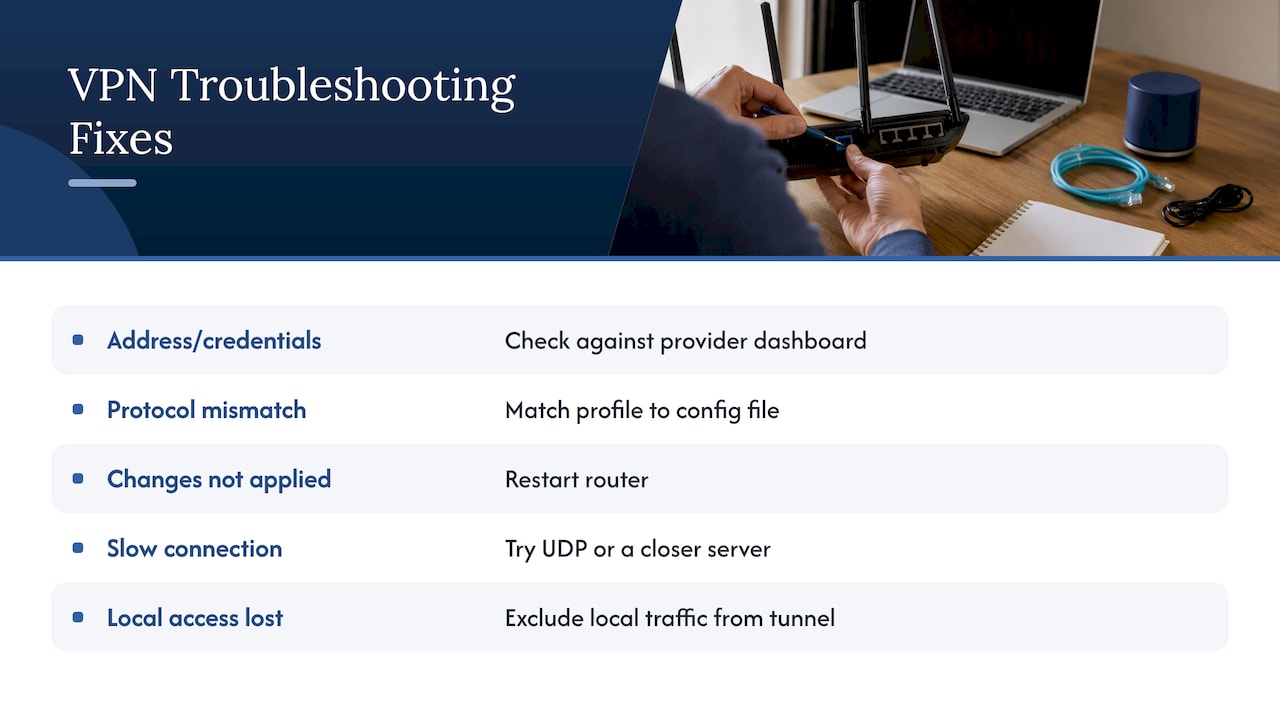
Typos in the server address or credentials can cause failed connections. Double check both against what your provider’s dashboard shows, since copy paste errors are easy to miss. A mismatched protocol selection is another common culprit: if your provider’s config file is built for WireGuard but your router’s profile is set to OpenVPN, the connection will fail silently or throw a generic error.
Forgetting to restart the router after applying VPN client changes is a frequent one too. Many routers require a reboot before the new settings take effect, even if the interface doesn’t say so directly.
If your connection works but feels painfully slow, try switching from TCP to UDP if your provider supports both, or test a different server location closer to you. And if devices suddenly lose access to local network resources like printers or shared drives after enabling the VPN, that’s usually the VPN client routing local traffic through the tunnel unnecessarily. Check whether your router’s VPN client settings include an option to exclude local network traffic from the tunnel.
When none of these fixes work, the router’s own system log (usually under “Status” or “System Log” in the admin panel) often shows the specific error your VPN client is hitting, which saves time when you do need to contact support.
When Router VPN Is the Right Call
We generally point readers toward a router level VPN when they’ve got a house full of devices that can’t run VPN apps on their own: smart TVs, consoles, and random IoT gadgets that never got a VPN option in the first place. It’s the simplest way to cover everything at once.
If you switch servers often or need split tunneling on specific apps, a device level app usually serves you better. Either way, check your router vendor’s support docs before making changes, and keep their contact info handy.
— TechStackTeam
Find a VPN Provider That Supports Router Setup
Not every VPN provider makes router setup easy. Some skip router configuration files entirely, leaving you stuck without the .ovpn or .conf file your router actually needs.

We assess providers as part of our hands-on reviews, including how clearly they document setup steps and how connections perform.
- Real-world speed tests measured through router based VPN connections, not just device apps.
- Compatibility notes on which providers work smoothly with common router brands.
- Direct links to provider documentation for router specific setup steps.
Check our VPN services reviewed and ranked page before you commit to a provider, especially if whole home coverage through your router is the goal.
If your setup also involves remote desktop access over your VPN connection, this partner guide to RDP over VPN covers the additional configuration steps worth knowing.
FAQ
Can a VPN Be Set Up on a Router?
Yes, as long as your router has a built-in VPN client or runs third party firmware like DD-WRT or OpenWrt that adds one. You’ll also need configuration files and credentials from your VPN provider to complete the setup.
Is It Worth Putting a VPN on a Router?
It’s worth it if you want every device on your network protected at once, including devices like smart TVs or consoles that can’t run VPN apps directly. The trade-off is reduced speed, since the router’s processor has to handle encryption for all traffic, which can be noticeable on older hardware.
Do Routers Have Built-In VPN Support?
Some do. Several TP-Link and ASUS models include a native VPN client, while many ISP-issued routers block this feature entirely. Check your specific model’s support page to confirm before assuming either way.
What Are the Drawbacks of Running a VPN on a Router?
The main drawback is speed, since router hardware often bottlenecks encryption and decryption for every connected device. Router VPNs also typically lack per-app features like split tunneling or fast server switching that device-level apps offer.
What Should I Check Before Choosing a Router VPN Setup?
Confirm your router supports the protocol your VPN provider uses, and check whether a firmware update is needed for newer protocols like WireGuard. It also helps to verify your provider publishes router-ready configuration files before you start.
Sources
- Consumer
- VPN on TP-Link Router | Set Up VPN Client
- How to install a VPN on your router: Step-by-step guide