Some VPNs do support port forwarding, notably ProtonVPN and Private Internet Access, but this is a connectivity feature, not a privacy upgrade. Port forwarding helps inbound connections for torrenting, gaming, and remote device access. It also widens your attack surface if the service behind that open port is not patched. Know what you are turning on before you flip the switch.
TL;DR:
- Support for port forwarding is limited to select providers like ProtonVPN and Private Internet Access, and often depends on specific plan tiers and server support.
- Forwarded ports can change on reconnection and require manual or automated updates in applications, especially with dynamic assignments from PIA and ProtonVPN.
- Proper setup involves confirming provider support, selecting the right server, matching protocols, and verifying connectivity through application status, not just toggling the feature on.
- Opening a port increases security risks, so maintaining updated services, firewall restrictions, and closing ports when unused are essential precautions.
- Most failures stem from selecting incompatible servers or unupdated port numbers; hands-on testing shows actual connectivity status is the key validation step.
Table of Contents
- What port forwarding is and how it works with a VPN
- Which VPN providers support port forwarding right now
- How to enable port forwarding and confirm it works
- Setting up ProtonVPN and Private Internet Access specifically
- Configuring your apps to use the forwarded port
- Security trade-offs and how to manage the risk
- Troubleshooting checklist when forwarding isn’t working
- What hands-on testing tells us about port forwarding
- Compare tested VPNs before you turn on port forwarding
- FAQ
- Sources
What port forwarding is and how it works with a VPN
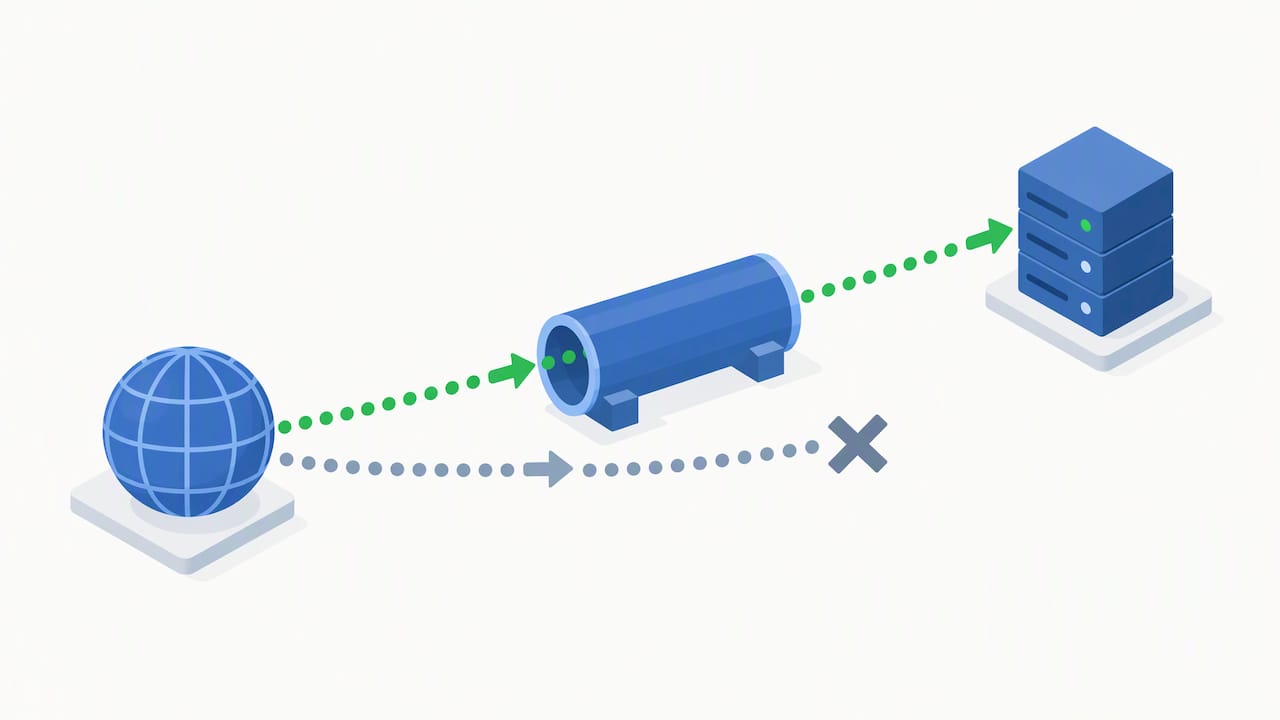
Port forwarding tells your VPN provider to send incoming internet traffic on a specific port straight to your device, even though that device is sitting behind the VPN’s network tunnel. Without it, most VPNs block unsolicited inbound connections by default. That is normally a good thing, but it stops torrent peers from reaching you and can stall certain games or remote access tools.
Here is the short version of how providers handle it:
- Some providers assign a port automatically through NAT-PMP, a protocol that negotiates the forwarded port for you.
- Others require a manual request through an account dashboard or app setting, and the port can change on reconnect.
- A forwarded port is different from router-level UPnP, which opens a port on your home network rather than inside the VPN tunnel.
Forwarding fixes a connectivity problem, not a security one. A torrent client with a forwarded port will find peers faster and seed better. A remote desktop tool will accept inbound connections without extra workarounds. None of that patches a vulnerable app sitting on the other end of that open port. If you want the basics on how VPNs route your traffic in the first place, this VPN explainer covers the fundamentals.
Which VPN providers support port forwarding right now
Not many mainstream VPNs offer this anymore, and the list has gotten shorter. Here is where things stand:
- ProtonVPN supports port forwarding on some subscription plans, using NAT-PMP on compatible servers.
- Private Internet Access assigns forwarded ports automatically and dynamically on supported servers, with no manual request needed.
- Mullvad removed port forwarding entirely, a change that affected plenty of users who relied on it for torrent connectivity, according to community documentation tracking the shift.
- Many large consumer VPN brands do not offer port forwarding, largely over abuse and security concerns.
Expect dynamic behavior even from providers that do support it. A port assigned today might not be the port you get tomorrow. PIA’s ports can shift on reconnect, and ProtonVPN’s assignment depends on which server you pick. If your setup depends on a stable port number, you will need either a script that detects the new port automatically or a manual check every time you reconnect.
This is also why community projects built around tools like Gluetun exist: they auto-detect the VPN-assigned port and feed it into containerized apps such as qBittorrent without you touching a config file. If you are running a home server or a seedbox, that kind of automation saves a lot of repeated manual work. Before picking a provider for this purpose, confirm support on the current plan tier, since forwarding is often gated behind a specific subscription level rather than included everywhere.
How to enable port forwarding and confirm it works
Do this in order. Skipping steps is where most setups break.
- Confirm your plan supports it. Check your provider’s plan tier and feature list. Port forwarding is often limited to higher tiers.
- Pick a compatible server. Not every server location supports forwarding, even within the same provider.
- Check your protocol. WireGuard and OpenVPN behave differently with forwarding on some providers, so match your client settings to what the provider recommends.
- Turn on the feature. This might be an app toggle, a dashboard setting, or an automatic assignment you just have to look up.
- Disable conflicting UPnP on your router. If your router is also trying to forward a port, the two can fight each other.
- Verify the forwarded port. Check the VPN app’s logs for a message confirming the port number, or query the provider’s API if one is available.
- Confirm application-side connectivity. In a torrent client like qBittorrent, check for the green “connectable” status, which documentation on verification steps treats as the clearest sign the port is actually working.
Pro Tip: Write down the forwarded port number right after you enable it. If it changes on reconnect, you will know immediately instead of troubleshooting blind.
Do not assume a toggle flipping to “on” means traffic is actually getting through. The only real proof is a connectable status in your application or a peer connection that completes successfully.
Setting up ProtonVPN and Private Internet Access specifically
These two show up most often because they are the most consistently documented options. Here is what each one actually requires.
- ProtonVPN needs a Plus or Visionary plan. Port forwarding runs on NAT-PMP, and you will need to pick a server that explicitly supports it, since not all of them do. Proton’s own support documentation walks through server selection and OS-specific BitTorrent client setup for Windows, macOS, and Linux.
- Private Internet Access assigns a port automatically and dynamically once you enable the feature in the app. No manual request step is required, but the port can change each time you reconnect, so plan for that if you are running an automated setup.
- Protocol compatibility matters for both. Confirm which protocol, WireGuard or OpenVPN, the provider recommends for forwarding on your chosen server before you troubleshoot anything else.
The most common failure point for both providers is server mismatch: picking a server location or node that simply does not offer forwarding. The second most common issue is plan confusion, where a user on a lower tier expects a feature that is gated to a higher one. Check both before assuming something is broken.
Configuring your apps to use the forwarded port
Getting the port forwarded is only half the job. Your application needs to know about it.
- Torrent clients: Set the listening port in your client (qBittorrent, Transmission, or similar) to match the forwarded port exactly, and turn off UPnP or NAT-PMP inside the client itself so it is not trying to negotiate its own port.
- Gaming: A forwarded port can improve your NAT type for certain games, but router-level forwarding or UPnP is still the right call when you are not running your console or PC traffic through a VPN.
- Remote access: If you are opening a port for remote desktop or a home server, use strong authentication and limit the number of services exposed. A reverse SSH tunnel or an authenticated proxy is often safer than leaving a port open around the clock, and the difference between a VPN and a proxy is worth understanding before you choose.
Mismatched settings are the top reason people think forwarding “isn’t working” when it actually is. The port is open, the application just does not know to use it.
Security trade-offs and how to manage the risk
Opening a port, by definition, gives something on the outside a way in. That is the trade you are making, and it is worth taking seriously.
- Keep whatever service is listening on that port patched and updated, since an old version is the easiest entry point for an attacker.
- Use a host firewall to restrict which addresses can even reach that port.
- Close the port when you are not actively using it rather than leaving it open permanently.
There is also a broader caveat worth knowing; for a broader look at contemporary cyber threats, see Tech News You Can’t Miss: VPN leaks, AI. Security researchers described TunnelVision, an attack that can push VPN traffic outside the encrypted tunnel on several operating systems, which undermines some of the protection a VPN is supposed to provide on a hostile network.
On untrusted networks, a VPN does not always keep your traffic inside the tunnel the way you’d expect. That single finding is the reason the EFF suggests treating a VPN as a routing tool rather than a full security suite, best paired with HTTPS and encrypted DNS rather than relied on alone.
Practical mitigations: avoid forwarding ports on public or untrusted Wi-Fi, isolate exposed services in a virtual machine or container, and consider an authenticated tunnel like reverse SSH or a mesh VPN for anything sensitive. Port forwarding inherently exposes a service to the wider internet, so the fewer ports you leave open, the smaller the target you present.
Troubleshooting checklist when forwarding isn’t working
Run through these checks in order before contacting support.
- Check the VPN app’s logs for a message confirming the forwarded port number.
- Check your application’s listening port and confirm it matches what the VPN assigned.
- Look for a “connectable” or similar status inside your torrent client or app.
- Confirm the server supports forwarding. Not every server does, even on supporting providers.
- Rule out UPnP conflicts between your router and your VPN client.
- Check your host firewall for rules blocking the port.
- Reconnect and recheck the port number, since dynamic assignment means it can change without warning.
- Contact provider support with log excerpts if the port still will not forward after a server or protocol switch.
Most failures trace back to one of two things: a server that does not support forwarding, or a port number that changed after reconnecting and never got updated in the application.
What hands-on testing tells us about port forwarding
Reviews run hands-on checks on real accounts across providers, confirming whether a forwarded port actually shows as connectable in a torrent client rather than just toggled on in a dashboard. That distinction matters more than most setup guides admit. Based on that testing approach, we recommend enabling port forwarding only when you have a specific need: seeding torrents efficiently, hosting a small home server, or running remote access regularly. For everyday browsing or streaming, it adds exposure with no real benefit. For a deeper technical breakdown of tunneling mechanics, our VPN tunneling explainer is a useful next read.
— TechStackTeam
Compare tested VPNs before you turn on port forwarding
Figuring out which provider actually supports forwarding on your plan, server, and protocol combination takes real testing, not just a features page. Hands-on checks across VPN providers are run and the findings updated monthly, so you can see which services hold up for torrenting, gaming, or remote access instead of guessing from marketing copy.

A VPN reviews hub breaks down port forwarding support, plan requirements, and current deals side by side. Check it before you commit to a provider, especially if forwarding is the feature you actually need.
FAQ
Does port forwarding work with a VPN?
Yes, but only with providers that specifically support it, such as ProtonVPN and Private Internet Access. The VPN assigns a port and routes incoming connections on that port to your device inside the tunnel, which most VPNs block by default.
Can the FBI see through VPNs?
A VPN encrypts your traffic between your device and the provider’s server, but it is not an absolute shield against all forms of investigation or legal process. Security researchers have also shown that certain network attacks, like TunnelVision, can push traffic outside the encrypted tunnel on some operating systems, which is one reason a VPN should not be treated as a complete security solution on its own.
Why avoid NordVPN?
This question usually comes up because some mainstream VPN providers do not support port forwarding at all, which can frustrate users who need it for torrenting or hosting. Whether a specific provider fits your needs depends on the features you actually require, so check a provider’s current documentation for forwarding support before assuming it is included.
Is there a risk to port forwarding?
Yes. Opening a port increases your attack surface because it creates a direct path for incoming connections from the internet, so any unpatched service behind that port becomes an easier target. Keeping services updated, using a host firewall, and closing the port when not in use are the main ways to manage that risk.
Sources
- Novel attack against virtually all VPN apps neuters their entire purpose (Ars Technica)
- A wider view on TunnelVision and VPN advice (Electronic Frontier Foundation)
- Port forwarding (Codecademy)
- Port forwarding documentation (Gluetun / Torrent VPN stack repo)