Split tunneling lets your VPN encrypt some traffic while sending the rest straight to the internet unprotected. The benefit is speed, compatibility, and access to local devices without dropping your VPN connection. The risk is real: anything excluded from the tunnel travels in the clear, visible to your ISP and anyone watching your network.
TL;DR:
- Split tunneling supports app-based, domain-based, split-include, and split-exclude modes, with inverse mode generally safer because it defaults to full protection.
- DNS leaks and kill switch blind spots pose significant security risks for excluded traffic, exposing your real IP and visit history if misconfigured.
- Windows and Android support split tunneling broadly, while macOS and iOS have limited or no support, making platform-specific checks essential before setup.
- Correct configuration involves setting clear rules for sensitive apps, testing IP and DNS leaks after changes, and using inverse mode to prevent accidental unprotected traffic.
- Reliable split tunneling features require current, hands-on testing of the provider’s app support and platform compatibility, not just promotional claims.
Table of Contents
- What Is Split Tunneling and How Does It Route Traffic?
- What Are the Different Types of Split Tunneling?
- What Are the Benefits of Split Tunneling VPN Use?
- What Are the Security Risks of Split Tunneling?
- Which Platforms Support Split Tunneling?
- How Do You Set Up VPN Split Tunneling?
- Best Practices for Configuring Split Tunneling Safely
- When Techstacktoday Uses Split Tunneling in Testing
- Find a VPN That Handles Split Tunneling Right
- Sources
- FAQ
What Is Split Tunneling and How Does It Route Traffic?
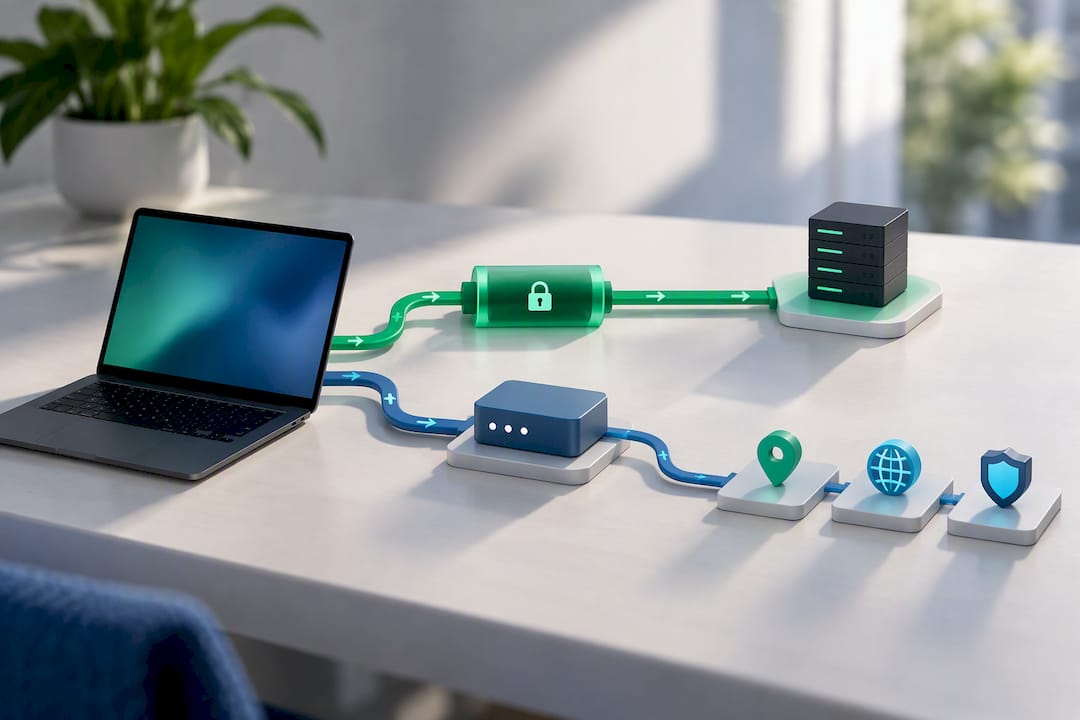
A VPN client normally forces every packet leaving your device through one encrypted tunnel to a remote server. Split tunneling breaks that rule on purpose. It builds two paths instead of one: an encrypted route through the VPN, and a direct route through your regular default gateway.
The National Institute of Standards and Technology defines split tunneling as a method that lets a device maintain a secure connection to one network while simultaneously communicating with an external network over a separate, unencrypted connection. That’s the technical heart of it: two live connections, one client, and a set of rules deciding which traffic goes where.
Those rules are what make split tunneling useful instead of chaotic. The VPN client checks each connection request against a policy you set, then routes it accordingly. Depending on the app, this happens in a few ways:
- App-based rules watch which program is generating the traffic (a game, a browser, a streaming app) and route based on that identity.
- Destination or IP-based rules look at where the traffic is headed, not which app sent it, so a specific website or server address stays outside the tunnel regardless of the program using it.
- A local routing table on your device gets updated in real time so packets matching your rules skip the VPN’s virtual network interface entirely.
For a deeper look at how the tunnel itself gets built at the network layer, how VPN tunneling works breaks down the encryption and interface mechanics behind this split.
What Are the Different Types of Split Tunneling?
Not all split tunneling behaves the same way, and picking the wrong mode is where most people get burned. Webopedia identifies four common variants, and understanding the difference matters more than most guides admit.
- App-based split tunneling lets you pick specific applications to route through the VPN or around it, app by app.
- URL or domain-based split tunneling routes traffic based on the website or domain being visited, regardless of which app or browser tab is making the request.
- Split-include sends only the apps or destinations you list through the VPN; everything else defaults to your regular connection.
- Split-exclude (inverse) sends everything through the VPN by default, except the specific apps or destinations you list as exceptions.
Inverse split tunneling is generally the safer default. If you install a new app or forget to add something to your list, it stays protected automatically because protection is the default state, not the exception. Split-include flips that logic: anything you forget to add is exposed by default.
That reversal explains one of the most common configuration mistakes. Setting up split-include when you actually meant split-exclude leaves the bulk of your traffic running unprotected, which is a frequent misstep security practitioners flag repeatedly. Check which mode you’re in before you trust the setup.
What Are the Benefits of Split Tunneling VPN Use?
Split tunneling exists because full-tunnel VPN use has real trade-offs, and sometimes those trade-offs aren’t worth it for every task on your device. PCMag calls it a way to balance privacy and performance, and the use cases back that up.
- Speed and bandwidth savings. Large downloads, cloud backups, and split tunneling VPN for gaming setups all benefit from skipping the encryption overhead and the extra hop through a remote server, which cuts latency for anything sensitive to lag.
- Access to local network devices. Printers, network-attached storage, and smart home hubs often live on your local subnet. A full-tunnel VPN can cut you off from them entirely; split tunneling keeps that traffic local while your browser stays protected.
- Compatibility with apps that reject VPN traffic. Banking apps, some streaming services, and government portals frequently block or flag VPN IP addresses. Routing just those apps outside the tunnel keeps them working without forcing you to disconnect the VPN altogether.
These aren’t edge cases. They’re the everyday friction points that push people to disable their VPN entirely, which is a worse outcome than routing one app around it.
What Are the Security Risks of Split Tunneling?
Here’s the trade-off nobody skips past fast enough: anything excluded from the tunnel is exposed exactly as if you had no VPN running at all. Your ISP and anyone else watching the local network can see that traffic in plain form, including your real IP address.
DNS leaks are the sneakiest failure mode. Even when your browser traffic runs through the tunnel, DNS lookups can sometimes route through your default network connection instead, revealing every domain you visit to your ISP even while the VPN looks “connected.” Split tunneling raises this risk because it deliberately keeps a second network path active at all times.
Kill switches don’t always save you either. A VPN kill switch typically blocks all traffic if the VPN connection drops, but most kill switch implementations only monitor tunneled traffic. Apps you’ve excluded were never inside the tunnel to begin with, so a dropped VPN connection doesn’t trigger any protection for them because there was nothing to protect in the first place.
A quick gut check: if an app is excluded from your VPN, no kill switch on the market will catch it when your network hiccups. Exclusion means invisible to the VPN, not just unencrypted.
For businesses, the stakes are higher. An employee’s excluded app can become the entry point for an attacker who then pivots past corporate gateway protections that assume all outbound traffic gets inspected. A single misconfigured laptop can undercut an entire network’s monitoring strategy.
- Real IP exposure on any excluded connection
- DNS queries leaking outside the tunnel
- Kill switch blind spots for excluded apps
- Endpoint compromise bypassing gateway-level defenses
Which Platforms Support Split Tunneling?
Platform support for app based split tunneling varies more than most users expect, and this is where OS design decisions really show. Webopedia’s platform breakdown makes clear that availability isn’t universal.
- Windows and Android offer the broadest support, with most VPN clients letting you pick individual apps to include or exclude.
- macOS support is inconsistent. Some providers offer it, others don’t, largely because of how Apple’s networking APIs restrict per-app routing.
- iOS rarely supports app-based split tunneling at all. Apple’s VPN framework wasn’t built for per-app routing, so most providers either skip the feature or offer limited URL-based workarounds.
- Browser extensions sidestep the OS limitation by handling split tunneling at the browser level, which works well for URL or domain-based rules even on iOS.
Before assuming a feature exists, check the specific client. A provider that supports full split tunneling on Windows may only offer a stripped-down version, or none at all, on your phone.
How Do You Set Up VPN Split Tunneling?
Configuring split tunneling follows roughly the same logic across providers, even though menu names differ. Here’s the general sequence:
- Decide what to include or exclude before opening any settings. Write down which apps are sensitive (banking, email, messaging) and which are safe to exclude (local printers, large downloads, region-locked streaming).
- Open your VPN client’s settings and find the split tunneling section. It’s often labeled “split tunneling,” “app exclusions,” or “per-app VPN,” depending on the provider.
- Choose your mode. Pick split-include if you only want specific apps tunneled, or split-exclude (inverse) if you want everything tunneled except your named exceptions.
- Add your rules app by app or by domain, depending on what your client supports.
- Save the configuration and reconnect the VPN so the new routing table takes effect.
On Windows, this typically lives under the client’s settings menu as a checklist of installed applications you can toggle on or off for tunnel inclusion. On Android, the same idea appears as an app list inside the VPN app’s settings, often under a name like “app exclusions” or “bypass VPN.”
Once it’s configured, test it. Check the IP address reported by an excluded app (a quick search for “what’s my IP” through that app’s browser or connection will show it) and confirm it matches your real, non-VPN address. Run a DNS leak test to confirm your lookups aren’t escaping the tunnel. Then disconnect your VPN deliberately and watch whether the kill switch behaves as expected for your tunneled apps.
Pro Tip: Test your setup right after configuring it, not a week later. Split tunneling rules can silently break after a client update, and you won’t notice until the one time it actually mattered.
Best Practices for Configuring Split Tunneling Safely
A safe split tunneling setup comes down to a short, deliberate policy rather than a sprawling list of exceptions. Default to inverse mode where your provider supports it, keep sensitive apps like banking and email inside the tunnel, and limit exclusions to traffic you’ve actually reviewed. Testing after configuration isn’t optional; it’s the only way to confirm the rules are doing what you think they’re doing.
| Practice | Why it matters |
|---|---|
| Use split-exclude (inverse) by default | Keeps forgotten or new apps protected automatically |
| Exclude only non-sensitive, local, or high-latency apps | Limits your exposure surface to traffic you’ve reviewed |
| Run a DNS leak test after every change | Confirms lookups aren’t escaping the tunnel unnoticed |
| Simulate a VPN drop to test kill switch behavior | Reveals gaps in coverage for excluded apps before they matter |
| Document your rules and recheck periodically | Catches drift after client updates or new app installs |
Treat this like a checklist you revisit, not a one-time setup. Client updates change default behavior more often than people expect.
When Techstacktoday Uses Split Tunneling in Testing
Reviewers lean on inverse split tunneling during hands-on testing to avoid leak risk while still measuring real-world speed. It reproduces how people actually use these apps, without exposing the sensitive traffic that matters most during a test run.
— TechStackTeam
Find a VPN That Handles Split Tunneling Right
Not every VPN client implements split tunneling the same way, and the gap between providers is bigger than most reviews let on. Split tunneling support is tested directly, checking whether app-based and inverse modes actually work as advertised, and documenting which platforms each provider covers without gaps.

That hands-on approach matters because a feature list on a pricing page rarely tells you whether split tunneling actually holds up on macOS or falls apart the moment you update your phone’s OS. The rankings are not influenced by affiliate payouts, and every review is updated regularly to reflect what a provider’s client does currently, not what it promised at launch. If you’re choosing a VPN specifically for reliable split tunneling, start with the VPN services reviewed and ranked hub to compare platform coverage side by side before you commit to a subscription.
Sources
Confirm your configuration with the NIST glossary definition for technical grounding, a DNS leak test tool, and an IP checker for excluded apps. Cross-check provider claims against documentation before trusting the feature blindly.
- split tunneling – Glossary | CSRC
- Split tunneling: what is it and how can it help you? | Palo Alto Networks community blog
- What Is Split Tunneling? The VPN superpower you’re probably not using | PCMag
- What Is VPN Split Tunneling? How It Works and When to Use It | Webopedia
FAQ
Should I Use Split Tunneling on My VPN?
Use it if you have a specific need, like keeping local devices reachable or speeding up a latency-sensitive app, and you’re comfortable knowing excluded traffic is unprotected. If you’re not sure which apps are safe to exclude, stick with a full tunnel or set up inverse split tunneling so most traffic stays protected by default.
Can the FBI Track a VPN?
Law enforcement generally cannot see encrypted VPN traffic directly, but split tunneling changes the picture for anything you’ve excluded from the tunnel. Excluded traffic is unencrypted and visible to your ISP and local network observers, which is a separate exposure risk from whatever protections the VPN itself provides.
What Is VPN Split Tunneling?
VPN split tunneling routes some of your device’s traffic through an encrypted VPN connection while sending the rest directly over your regular network connection. NIST defines it as maintaining two simultaneous connections, one secure and one direct, based on rules you configure.
Which VPN Has Split Tunneling?
Many reputable VPN providers include some form of split tunneling, though the naming and exact capabilities vary by provider and platform. Check a provider’s documentation for terms like “split tunneling,” “app exclusions,” or “per-app VPN,” and compare platform coverage on the VPN reviews hub before choosing one.