Passkeys beat passwords on security for nearly every account you own, because they resist phishing in a way no password ever will. The trade-off isn’t safety, it’s setup: you need a recovery plan before you lean on them. Turn on passkeys wherever your bank, email, or social accounts support them, and back up critical accounts with a second authenticator now, not after you lose your phone.
TL;DR:
- Passkeys significantly improve phishing resistance as they are cryptographically bound to the website origin, preventing them from being used on fake sites.
- Using multiple authenticators, such as a hardware security key and a backup device, is essential for recovery if a primary passkey device is lost or stolen.
- Cloud-synced passkeys concentrate risk on the sync account, so securing and maintaining a recovery plan for these accounts is crucial.
- Transitioning to passkeys involves enabling them on critical accounts, registering backups, and only then removing passwords to avoid lockout.
- Cross-device sign-in with passkeys can be seamless through ecosystem sync or via QR and Bluetooth prompts, but testing recovery methods immediately is recommended.
Table of Contents
- Passkeys vs Passwords: What a Passkey Actually Is
- Why Passwords Keep Failing You
- Security Comparison: Passkeys vs Passwords Under Real Attacks
- What Signing In Actually Feels Like With Passkeys
- Where Passkeys Still Have Sharp Edges
- How to Move From Passwords to Passkeys Without Locking Yourself Out
- What TechStackToday Found Testing Passkeys Hands-On
- Our Take: Adopt Passkeys Now, But Build the Safety Net First
- How TechStackToday Helps You Get This Right
- Sources
- FAQ
Passkeys vs Passwords: What a Passkey Actually Is
A passkey is a FIDO credential built on public-key cryptography, not a longer, fancier password. Your device generates two mathematically linked keys: a private key that never leaves your phone, laptop, or security key, and a public key that gets handed to the website or app. The service stores only the public half. Even in a total server breach, there’s no secret for an attacker to steal and reuse elsewhere, according to the FIDO Alliance.
The security payoff comes from origin binding. When you register a passkey, your device cryptographically ties it to the exact website domain you’re on. A phishing site at “paypa1-login.com” simply cannot request your real PayPal passkey. The browser and operating system check the origin before anything else happens, which is why MDN’s security documentation calls passkeys origin-bound by design, not by policy.
Passkeys live in a few places:
- Device secure enclave or TPM chip, built into modern phones and laptops
- Hardware security keys, physical USB or NFC devices you carry separately
- Cloud-synced providers, like Apple’s iCloud Keychain, Google Password Manager, or Microsoft Authenticator, which copy your passkey across your signed-in devices
The WebAuthn standard, developed alongside FIDO2, is what lets your browser talk to whichever authenticator you’re using without every site building its own custom system.
Pro Tip: Register at least two authenticator types per critical account. If your phone is your only passkey and it’s lost, stolen, or bricked, you want a hardware key or a second device already enrolled as backup.
Why Passwords Keep Failing You
A password is a shared secret: you know it, and the service stores a hashed version of it to check against later. That single design choice creates most of the trouble. Because you have to remember it, you reuse it. Because it’s just text, it can be typed into a fake login page without your device noticing anything wrong.
Three failure points show up again and again:
- Phishing works because a password looks identical whether typed into the real site or a convincing clone.
- Reuse and weak choices happen because memorizing dozens of unique, complex passwords is unrealistic without help. Our breakdown on why password reuse is risky covers how one leaked account can cascade into many.
- Server breaches expose hashed passwords that attackers can still crack offline, especially when the underlying password was short or common, a problem we cover in detail in why password length matters.
Password managers fix a lot of this by generating and storing unique credentials, but they can’t stop you from typing a real password into a fake site, and they do nothing to prevent credential stuffing once a breach happens elsewhere.
Security Comparison: Passkeys vs Passwords Under Real Attacks
Line these two up against the threats that actually cause breaches, and the gap is stark.
Phishing resistance is where passkeys separate themselves completely. Origin binding means a passkey physically cannot authenticate to the wrong domain, no matter how convincing the fake page looks. A password has no such check built in. Independent testing from PCWorld found passkeys consistently outperform passwords on phishing resistance and everyday convenience, while flagging recovery and sync-provider risk as the main things to watch.
Credential stuffing and reuse disappear as a threat category with passkeys, because each one is generated fresh per site. There’s no shared secret to leak from Site A and replay against Site B. Passwords, by contrast, are the entire reason credential stuffing exists as an attack.
Server breach impact flips in the defender’s favor. A breached password database gives attackers something to crack. A breached passkey database gives them a pile of public keys that are useless without the matching private key sitting on your device.
Device theft and unlock risk is the one place passkeys inherit a new kind of exposure. If your phone is stolen and unlocked, whatever authentication method you use to unlock it (PIN, face, fingerprint) becomes the real gatekeeper. A weak device PIN undermines a strong passkey.
Here’s how the two stack up across the threats that matter most:
| Threat | Passwords | Passkeys |
|---|---|---|
| Phishing resistance | Low, no origin check | High, cryptographically bound to domain |
| Credential stuffing / reuse | High risk, secrets get reused | Effectively eliminated |
| Server breach impact | Hashes crackable offline | Public keys, unusable without private key |
| Device theft (unlocked) | Not directly relevant | Risk shifts to device lock strength |
| Usability / speed | Typing, often slow | Biometric or PIN tap, faster |
On the regulatory side, NIST’s digital identity guidelines recognize a properly implemented passkey, one where the server enforces local user verification, as meeting Authenticator Assurance Level 2 (AAL2), the bar most consumer and business SaaS logins need to clear. Passkeys don’t automatically reach AAL3, the tier reserved for high-value regulated operations like certain financial transfers or government systems, according to NIST SP 800-63B. If a service skips proper WebAuthn validation or doesn’t enforce user verification, the multi-factor property can quietly disappear, a gap outlined in a threat-model analysis of passkeys and MFA. Federal guidance from CISA pushes organizations toward phishing-resistant authenticators like FIDO2 and away from SMS codes, which remain interceptable through SIM swapping and similar tricks.
What Signing In Actually Feels Like With Passkeys
The daily experience is where passkeys win over most skeptics fast. Instead of typing a password and possibly a one-time code, you tap your fingerprint, glance at your phone, or enter a short device PIN. That single gesture does the job of a password plus a second factor, cutting sign-in time dramatically compared to typing anything.
Cross-device sign-in is the part that trips people up at first. Here’s how it typically works:
- Same-ecosystem devices sync automatically. An iPhone passkey shows up on your Mac through iCloud Keychain; an Android passkey syncs through Google Password Manager.
- Cross-ecosystem sign-ins use a QR code and Bluetooth. Signing into a Windows laptop with an Android phone, for instance, triggers a QR prompt, and your phone confirms the login over a local Bluetooth connection, a flow Microsoft documents in detail for Windows and Microsoft Authenticator.
- Hardware security keys work across any ecosystem, since they plug in or tap via NFC regardless of the operating system.
Password managers haven’t become obsolete here, they’ve adapted. Many now store and sync passkeys alongside traditional passwords, giving you one vault instead of juggling platform-specific ecosystems. Our guide on how password managers store credentials securely breaks down what to look for if you want a single tool managing both.
Pro Tip: If you use multiple operating systems day to day (say, a Windows PC at work and an iPhone personally), test the QR/Bluetooth cross-device flow before you delete any backup passwords. It works well, but the first attempt should not be during an emergency.
Where Passkeys Still Have Sharp Edges
Passkeys solve phishing and reuse, but they introduce new failure modes you need to plan around before you go all in.
Lost device recovery is the big one. If your only authenticator is a single phone and it’s gone, you’re locked out unless you registered a backup. MDN’s own deployment guidance recommends enrolling multiple authenticators specifically for this reason, register a hardware key or a second device the same day you set up your first passkey.
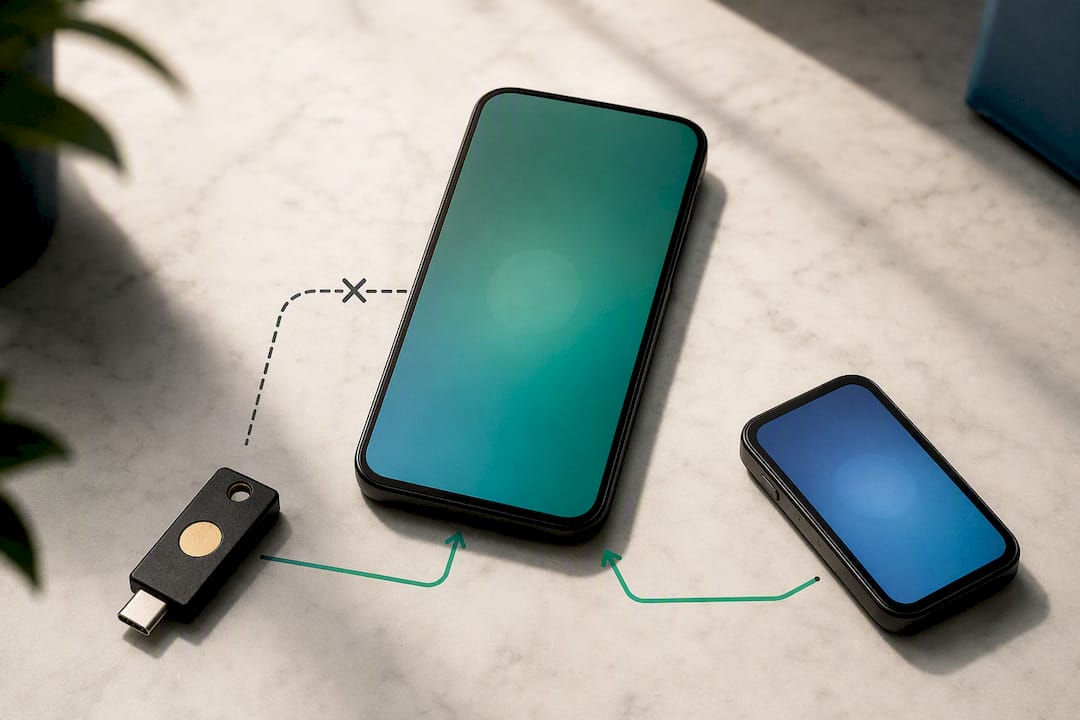
Cloud sync concentrates risk, so reviewing an app’s privacy and security practices before trusting it is wise. If your passkeys sync through your Apple ID or Google account, that account becomes the master key to everything downstream. Industry analysis from the FIDO Alliance notes this risk shift directly: protect the syncing account with its own strong recovery plan, because compromising it compromises every synced passkey at once.
A few other things worth knowing:
- Not every site supports passkeys yet, so you’ll run mixed passkey/password logins for years.
- Some older or niche services have no passkey option and no near-term plans to add one.
- Device-bound hardware keys (not synced to the cloud) are the safer pick for your highest-value accounts, since there’s no sync provider to compromise, even though they’re less convenient day to day.
Pro Tip: Keep one hardware security key in a safe place strictly as a break-glass recovery method for your email and password manager accounts. It’s the cheapest insurance against a lost-phone disaster.
How to Move From Passwords to Passkeys Without Locking Yourself Out
Not every account needs to convert today. Prioritize by blast radius: email first, since it resets everything else; then identity accounts like your Apple ID, Google account, or Microsoft account; then financial accounts; then everything else.
The migration itself follows a simple sequence:
- Enable the passkey option in account security settings (most major platforms now offer it directly).
- Register a second authenticator immediately, a hardware key or another device, before you rely on the first one.
- Set and test a recovery route, whether that’s a backup code, a trusted contact, or a secondary email.
- Sign out and sign back in to confirm the passkey actually works before removing anything.
- Only then consider deleting the old password, and only on services that let you fully disable password login.
MDN’s transition guidance specifically recommends keeping both passwords and passkeys active during the switch, since running both temporarily avoids accidental lockout while you confirm everything works.
A few situations still call for keeping a password around:
- Legacy internal business systems with no WebAuthn support
- Shared or kiosk devices where biometric enrollment isn’t practical
- High-risk operations (large transfers, admin account changes) that should trigger step-up verification regardless of your primary method
What TechStackToday Found Testing Passkeys Hands-On
Our evaluation approach focuses on real-world authentication scenarios: setting up accounts on multiple device types, deliberately simulating lockout to test recovery, and timing sign-ins against traditional password entry.
A few patterns held up consistently:
- Biometric passkey sign-ins were reliably faster than typing a password plus retrieving a one-time code from an authenticator app.
- Cross-device flows (QR and Bluetooth) worked smoothly between recent devices but got noticeably clunkier on older hardware or outdated browsers.
- Recovery success depended almost entirely on whether a second authenticator had been registered in advance. Accounts with only one enrolled passkey and no hardware key backup were the ones that caused real headaches during lockout testing.
Pro Tip: Test your recovery method the same week you enable a passkey, not months later. Log out completely and try signing back in using only your backup authenticator. If it fails, you want to know now.
We don’t accept payment to rank authentication tools, and these observations reflect direct testing rather than vendor marketing claims.
Our Take: Adopt Passkeys Now, But Build the Safety Net First
Passkeys are the better default for nearly everyone reading this, and the case only gets stronger as more services roll them out. The FIDO Alliance’s adoption tracking shows momentum building across major platforms, though plenty of smaller and legacy services still lag behind. Passwords haven’t disappeared, and won’t for years, but treat them as the fallback, not the plan.
— TechStackTeam
How TechStackToday Helps You Get This Right
Getting passkeys right depends on where you store backup credentials and how you manage the transition, not just whether you turn the feature on. We review password managers based on observed sync reliability and recovery performance rather than vendor marketing.

If you’re choosing a vault to manage passkeys alongside legacy passwords, our best password managers rankings compare how each option handles passkey storage, cross-device sync, and recovery workflows under real testing conditions. Our explainer on how password managers store credentials securely walks through the encryption and storage models worth understanding before you commit to one vault for everything. For a broader look at securing your digital footprint while you make this switch, our guide on how VPNs protect against surveillance covers the other half of a solid privacy setup. Visit our password manager reviews to compare passkey support side by side before you pick your primary vault.
Sources
- NIST digital identity guidelines (SP 800-63 series / authenticator guidance)
- FIDO Alliance — Passkeys
- MDN — Passkeys
- Microsoft support — Passkeys in Windows
FAQ
What Are the Disadvantages of Passkeys?
The main disadvantages are recovery complexity and sync-provider concentration: if you lose your only registered device without a backup authenticator, you risk lockout. Cloud-synced passkeys also mean the account you use for syncing (Apple ID, Google account) becomes a single point of failure, a risk the FIDO Alliance recommends mitigating with a strong, separately protected sync account.
Should I Use a Passkey Instead of Passwords?
For most everyday accounts, yes, a passkey is generally stronger against phishing and credential stuffing than a password. Keep both enabled during the transition period, as MDN recommends, until you’ve confirmed your recovery method actually works.
What Is an Example of a Passkey?
An example is signing into your Google account by unlocking your phone with Face ID instead of typing a password. Your phone holds the private key, confirms it’s really you with the biometric check, and sends a cryptographic proof to Google, which only ever sees the matching public key.
Can I Still Use My Password If I Have a Passkey?
Yes, most services let both methods coexist during the transition, and many don’t force you to remove your password immediately. Keep the password as a fallback until you’ve tested your passkey recovery flow at least once, then decide whether to disable password login entirely.