Children’s accounts are prime targets for identity theft, fraud, and unauthorized access. Password protection is the first and most practical line of defense you have. Identity theft involving children under 19 has increased substantially, with gaming platforms among the primary targets. And over one-third of parents report their children start using digital devices before age five, which means the window for establishing safe habits opens earlier than most parents expect.
Here is why password protection matters for your child right now:
- Prevents unauthorized access to accounts on gaming platforms, school portals, and social media
- Blocks identity theft before it damages your child’s credit history and reputation
- Stops cyberbullies and scammers from impersonating your child or accessing private conversations
- Protects linked family accounts that share payment information or personal data
- Builds lifelong digital security habits when started early, before bad habits take hold
Strong passwords are not just a technical fix. They are a parenting decision. The habits your child learns now will follow them into adulthood.
What happens when children’s accounts have no password protection?
Unprotected accounts do not stay unprotected for long. Attackers scan for easy targets, and children’s accounts consistently rank among the easiest to compromise. A weak or reused password on a gaming account can expose not just in-game purchases, but stored payment details, linked email addresses, and even your home address.

Compromised child accounts cause long-term digital footprint damage that goes well beyond a single data loss event. A hacked account can be used to post harmful content, send phishing messages to your child’s contacts, or build a fraudulent credit profile in your child’s name. Because children rarely check their credit reports, this kind of theft can go undetected for years.
Gaming platforms deserve special attention. Children invest real time and real money into in-game assets, skins, and currency. These assets have genuine resale value, which makes gaming accounts attractive to attackers who specifically target young users. Social engineering plays a big role here. Attackers pose as friends, moderators, or game developers to trick children into handing over login credentials.
⚠️ Key risk: Weak or reused passwords across multiple accounts mean a single breach can cascade. If your child uses the same password for their school login and their gaming account, one compromised platform unlocks both.
The risks extend to your family accounts as well. Many children’s profiles are linked to a parent’s subscription service, streaming account, or payment method. A breach of the child’s account can become a breach of yours.
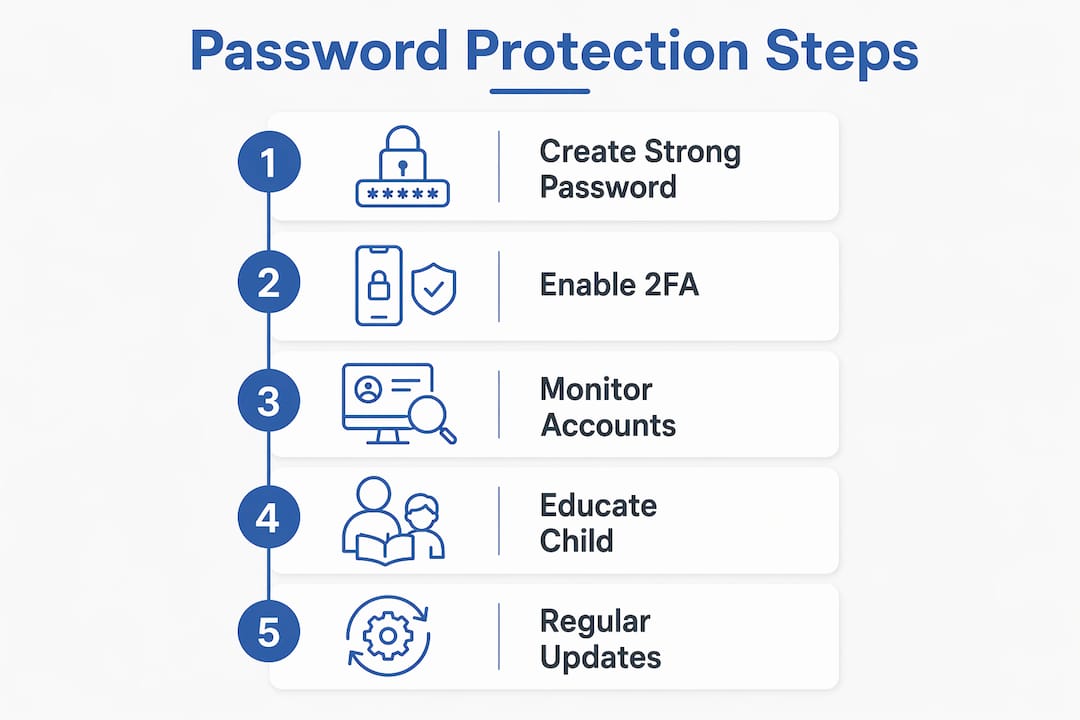
How to implement password protection and parental controls effectively
Start with the basics: every account your child uses needs a unique, strong password. Cybersecurity experts recommend 15–16 character minimums for children’s accounts to resist brute-force attacks, matching guidance from privacy offices internationally. Short passwords, even clever ones, fall to brute-force attacks in seconds.
Step-by-step setup for parents:
- Audit every account your child uses. List every platform, app, and device login. You cannot protect what you have not mapped.
- Create unique passwords for each account. Never reuse passwords across platforms. A family password manager generates and stores these automatically.
- Enable two-factor authentication (2FA) on every account that supports it. Link the 2FA to your own phone number or email, not your child’s. Google Family Link, for example, lets you manage your child’s Google account and receive security alerts directly.
- Activate parental controls at the platform level. Apple Screen Time and Google Family Link both offer content filtering, screen time limits, and app approval controls.
- Set a device password immediately on any new phone, tablet, or laptop your child receives. A device without a lock screen is an open door.
- Review account activity monthly. Look for unfamiliar logins, new linked devices, or purchases you did not authorize.
- Establish family rules about password sharing. Passwords stay within the family. Your child should never share login credentials with friends, classmates, or online contacts.
Tools worth using:
- Google Family Link: Free, integrates with Android and Chromebook, gives parents approval control over app downloads and account settings
- Apple Screen Time: Built into iOS and macOS, manages content restrictions and communication limits
- Family password managers: Family-wide password managers allow parents to maintain security while gradually transferring password responsibility to children as they mature
Pro Tip: Link all 2FA for your child’s accounts to your own device. If your child’s account is ever compromised or they forget a password, you retain recovery access without needing to contact the platform’s support team.

How to teach your child about passwords and online privacy
Children learn best when they understand the “why” before the “how.” Start with an analogy they already get: a password is the key to their digital house. Just like they would not hand their house key to a stranger, they should not share their password with anyone outside the family. Children who understand passwords as keys to their personal treasures are more motivated to keep them secure.
Age-appropriate teaching makes a real difference. For younger children, focus on the concept of privacy: some things are yours alone, and a password keeps them that way. For older children and teens, you can introduce more specific concepts like phishing, account hijacking, and why reusing passwords creates risk.
Practical teaching methods:
- Make password creation a game. Challenge your child to build a passphrase from three random words plus a number and symbol. “BlueTaco!River7” is both memorable and strong.
- Role-play phishing scenarios. Pretend to be a “game moderator” asking for their password. When they refuse, explain exactly why that was the right call.
- Teach the signs of a compromised account: unexpected logouts, messages they did not send, friends receiving strange links from their account.
- Model the behavior yourself. Children watch what you do. If you use a password manager and practice good habits, they will too.
Parental modeling of password management is one of the most effective digital parenting strategies research has identified. Telling your child to use strong passwords while writing yours on a sticky note sends the wrong message entirely.
Pro Tip: Tie password updates to events your child already tracks, like the start of a new school year or their birthday. Linking updates to milestones reduces resistance and builds the habit naturally over time.
What experts and research say about children’s password security
The research on children’s password habits reveals a consistent gap: children often understand that passwords protect their accounts, but they significantly underestimate what a weak password actually costs them. A NIST study on children’s password knowledge found a clear gap between what children know about password best practices and what they actually do. Knowing that longer passwords are stronger does not automatically translate into using them.
“Children’s understanding of passwords as protective tools is a starting point, not a finish line. The gap between knowing and doing is where parents and educators need to focus their energy.” — Cybersecurity education researchers, as summarized in PMC peer-reviewed literature on children’s password mental models
The table below reflects expert-backed password guidelines for children’s accounts:
| Age Group | Recommended Password Length | Suggested Approach | 2FA Recommended? |
|---|---|---|---|
| — | 15–16 characters | Parent-managed, stored in family password manager | Yes, linked to parent’s device |
| — | 15–16 characters | Parent-created, child memorizes with help | Yes, linked to parent’s device |
| 13–15 | 15–16 characters | Supervised use of password manager | Yes, transitioning to child’s device |
| 16+ | 16+ characters | Independent use of password manager, parent oversight | Yes, child’s device with parent backup |
Emerging technologies are starting to shift the conversation. Passkeys, which replace traditional passwords with device-based cryptographic authentication, are gaining traction as a more secure option for children’s accounts on platforms that support them. Google and Apple both support passkeys on their platforms, and security researchers increasingly recommend them for younger users who struggle with password complexity.
The research also underscores the long-term stakes. Compromised accounts create lasting damage to a child’s digital footprint, affecting their reputation and identity well into adulthood. This is not a recoverable situation in the way that a forgotten password is. Fraudulent accounts, posted content, and stolen credentials can persist online for years.
Practical steps to help your child own their digital security
Empowering your child does not mean handing over full control. It means building their skills gradually, with guardrails in place until they are ready. The goal is a teenager who manages their own passwords responsibly, not a child who has no idea what a password manager is.
Start with these steps:
- Set clear rules about password sharing. No sharing with friends, ever. Explain that even a trusted friend can accidentally expose a password.
- Introduce passphrases early. Three or four unrelated words strung together with a number and symbol are easier to remember than a random string and just as strong. “GreenPiano!Rocket4” works.
- Bring teens into the password manager. Around age 13, supervised use of a family password vault teaches the tool while keeping you in the loop. Family password managers are specifically designed for this kind of controlled, gradual handoff.
- Schedule password reviews. Pick two dates per year, like the first day of school and January 1, and review all account passwords together. Make it a routine, not a reaction to a crisis.
- Teach account compromise signals. Your child should know to tell you immediately if they see messages they did not send, friends asking about strange links, or unexpected logouts.
- Keep the conversation open. If your child encounters something suspicious online, you want them to come to you, not hide it out of fear. Respond calmly when they do.
- Protect their digital footprint proactively. Strong passwords are one layer. Pairing them with privacy settings, limited personal information sharing, and careful app permissions builds a fuller defense.
The transition from parent-managed to child-managed passwords should happen in stages, not all at once. A 10-year-old needs you to manage their accounts. A 16-year-old should be managing their own, with you as a backup. The years in between are where the teaching happens.
Key Takeaways
Password protection is the single most practical step parents can take to guard their children’s digital identities, prevent identity theft, and build security habits that last a lifetime.
| Point | Details |
|---|---|
| Start before age five | Over one-third of children use devices before age five, making early password education a priority. |
| Use 15–16 character passwords | Experts recommend 15–16 character minimums for children’s accounts to resist brute-force attacks. |
| Link 2FA to your device | Connecting two-factor authentication to a parent’s phone ensures recovery access if a child’s account is compromised. |
| Model the behavior | Children learn password habits by watching parents; using a password manager yourself is the most effective teaching tool. |
| Transfer control gradually | Family password managers allow a structured handoff of password responsibility as children mature into their teens. |