A password manager is software that generates, stores, and autofills strong, unique passwords inside an encrypted vault, all unlocked by one master password. Tools like 1Password, Dashlane, and Google Password Manager have made this technology accessible to everyday users. Reused or weak passwords remain the leading cause of account compromises, which makes a password manager one of the most direct fixes available. Most options cost between $0 and $5 per month, so price is rarely a barrier. If you have ever reused a password or written one on a sticky note, this guide is for you.
What is a password manager and how does it protect you?
A password manager is a secure application that acts as a digital vault for every login credential you own. You create one strong master password to open the vault. The app handles everything else, including generating new passwords, filling them in automatically, and syncing them across your devices.

The core benefit is simple. You stop reusing passwords because you no longer need to remember them. Each account gets a long, random, unique password that you never have to type. That single change eliminates the most common path attackers use to break into accounts.
Dr. Suelette Dreyfus describes password managers as a “secure vault and personal assistant” that fundamentally changes how people handle credentials. That framing is accurate. The tool removes the memorization burden entirely and replaces it with a system that works automatically in the background.
How do password managers work?
Password managers rely on two core technologies: AES-256 encryption and zero-knowledge architecture. Understanding both helps you trust the tool.
The encrypted vault explained
When you save a password, the app encrypts it before storing it. AES-256 encryption is the same standard the U.S. government uses for classified data. That level of protection means your vault is unreadable to anyone who does not have your master password.
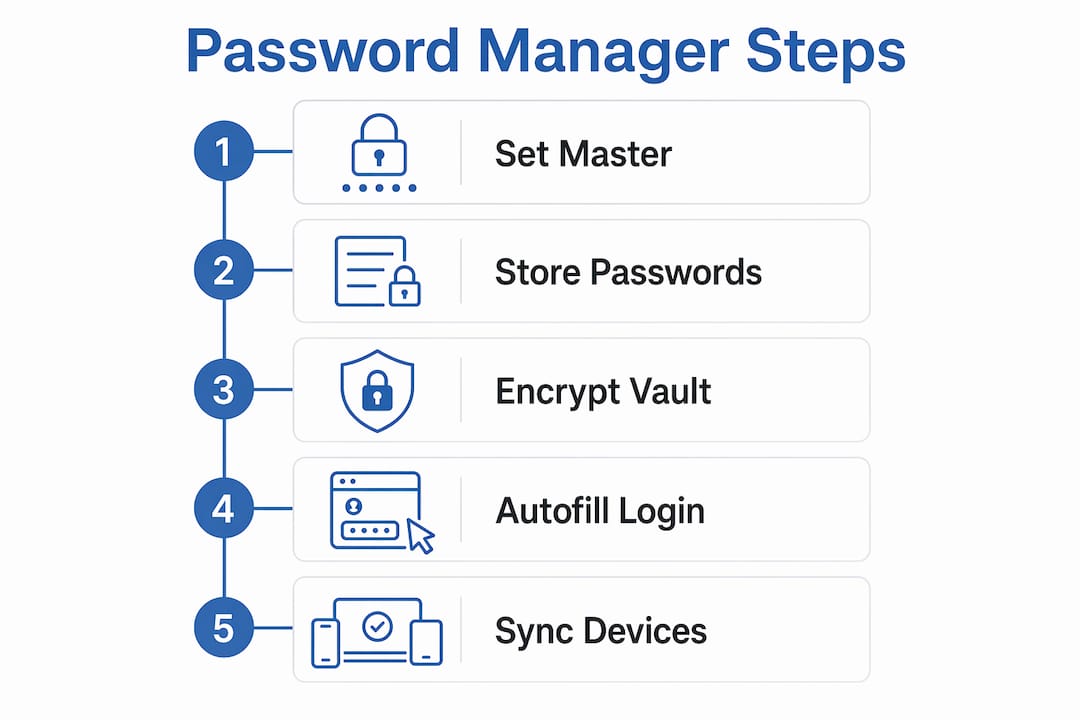
Zero-knowledge architecture takes this further. Providers never see your unencrypted passwords. The vault is encrypted and decrypted locally on your device only. Even if a company’s servers were breached, attackers would get nothing but scrambled data.
How your master password becomes an encryption key
Your master password does not directly unlock the vault. Instead, a key derivation function (KDF) transforms it into an encryption key first. KDFs like Argon2id and PBKDF2 are intentionally slow to run. That makes brute-force attacks computationally expensive and practically infeasible. One password becomes the key to everything, so the math behind it has to be strong.
Setting up a password manager: step by step
Getting started takes less than 30 minutes. Follow these steps:
- Download the app on your phone or computer (1Password, Dashlane, and Bitwarden are widely used options).
- Create your master password. Make it long, memorable, and unique. A passphrase like four random words works well.
- Install the browser extension so the app can autofill credentials on websites.
- Log into your existing accounts and let the manager save each password as you go.
- Update weak or reused passwords one account at a time using the built-in password generator.
This gradual transition approach is the recommended method for 2025 and beyond. You do not need to change everything at once.
Pro Tip: Start with your most critical accounts first: email, banking, and any account tied to your phone number. These are the highest-value targets for attackers.
What are the benefits of using a password manager?
The security gains are real and measurable. Here is what you actually get:
- Unique passwords for every account. No more reuse. If one site is breached, your other accounts stay safe.
- Phishing protection. Password managers only autofill on URL-matched sites. If you land on a fake login page, the autofill stays silent. That silence is your warning.
- Breach alerts. Many paid plans monitor the dark web and notify you when your credentials appear in a known data leak.
- Secure password sharing. Tools like 1Password and Dashlane let you share credentials with family or teammates without revealing the actual password.
- Reduced cognitive load. You stop wasting mental energy on passwords. You remember one thing and the system handles the rest.
“Password managers shift the burden of remembering passwords to a secure automated system, changing security behavior at a fundamental level.” — Dr. Suelette Dreyfus, cybersecurity researcher
The phishing protection point deserves extra attention. Most people think phishing only catches careless users. That is wrong. A convincing fake login page can fool anyone visually. The password manager does not rely on your eyes. It checks the URL against the saved domain. If they do not match, it does not fill. That is a layer of protection your memory cannot replicate. Learn more about why password managers beat memory when it comes to both security and convenience.
Browser-built-in vs. third-party password managers: which is better?
You already have a password manager if you use Chrome or Safari. The question is whether it is good enough.
| Feature | Browser-built-in (Chrome, Safari) | Third-party (1Password, Dashlane, Bitwarden) |
|---|---|---|
| Cross-browser support | No (locked to one browser) | Yes (works across all browsers) |
| End-to-end encryption | Partial (tied to Google/Apple account) | Full AES-256, zero-knowledge |
| Independent security audits | Rarely published | Standard for reputable tools |
| Dark web monitoring | No | Yes (paid plans) |
| Secure sharing | Limited | Full feature support |
| Cost | Free | Free tier or $3–$5/month |
| Platform support | Limited to ecosystem | Windows, Mac, iOS, Android, Linux |
Browser-based managers are convenient but carry real limitations. They lock you into one ecosystem. If you use Chrome at work and Safari on your iPhone, your passwords do not sync cleanly. Third-party tools solve this by working across every browser and operating system.
The Electronic Frontier Foundation recommends looking for four key indicators when evaluating any password manager: end-to-end encryption, autofill support, independent security audits, and random password generation. Browser-built-in tools often fall short on audits and cross-platform support.
Pro Tip: If you use devices across multiple ecosystems (Android phone, Windows laptop, iPad), a third-party manager is the only option that keeps everything in sync without gaps.
How to choose and use a password manager effectively
Picking the right tool comes down to a short checklist. Do not overcomplicate it.
What to look for before you commit
- AES-256 encryption with zero-knowledge policy. This is non-negotiable. Prioritize managers with this combination as it is nearly unbreakable.
- Independent security audits. Reputable tools publish third-party audit results. If a company does not, treat that as a red flag.
- Autofill with URL matching. Confirms the phishing protection works correctly.
- Random password generation. The tool should create passwords you could never guess or remember on your own.
How to use it well after setup
- Enable two-factor authentication (2FA) on your password manager account. This adds a second lock on the vault itself.
- Run a password health check. Most tools flag reused, weak, or old passwords inside the vault dashboard.
- Update flagged passwords immediately. Prioritize email, banking, and social media accounts.
- Store your master password recovery code in a physically secure location, not digitally.
- Review your vault every few months and delete accounts you no longer use.
The setup and maintenance process is straightforward once you understand the structure. The vault does the heavy lifting. Your job is to keep the master password strong and 2FA active. Techstacktoday’s password manager reviews can help you compare specific tools before you decide.
Key takeaways
A password manager is the single most effective tool for eliminating weak and reused passwords, which remain the leading cause of account compromises.
| Point | Details |
|---|---|
| Core function | Generates, stores, and autofills unique passwords inside an AES-256 encrypted vault. |
| Zero-knowledge security | Providers never see your passwords; vaults are decrypted locally on your device only. |
| Phishing defense | Autofill only works on URL-matched sites, blocking fake login pages automatically. |
| Cost and access | Free tiers cover basic use; paid plans average $3–$5/month for advanced features. |
| Choosing wisely | Look for end-to-end encryption, independent audits, autofill, and random password generation. |
Why I think most people are still underestimating password managers
After testing dozens of security tools at Techstacktoday, the pattern is consistent: password managers deliver more protection per minute of setup than almost any other security tool available. Yet adoption stays low because people assume the technology is complicated or risky.
The biggest misconception I see is the fear of putting all your eggs in one basket. The logic sounds reasonable until you examine what the alternative actually is. Reusing passwords across 40 accounts is not spreading risk. It is multiplying it. One breach anywhere exposes everything. A password manager with zero-knowledge encryption and 2FA is categorically safer than memory or a spreadsheet.
The second mistake is treating the master password casually. Your master password is the one thing the system cannot protect for you. Make it a long passphrase. Write the recovery code on paper and store it somewhere physical. That is the only step where human discipline still matters.
For less tech-savvy users, I recommend starting with Bitwarden’s free tier. It is open-source, independently audited, and the interface is straightforward. You do not need to pay for a password manager to get strong protection. You just need to start. If you are weighing whether the switch is worth it, Techstacktoday’s breakdown of whether you actually need one lays out the decision clearly.
— TechStackTeam
Techstacktoday’s top-tested password managers for 2026
Techstacktoday has hands-on tested and ranked the leading password management tools based on real-world performance, not paid placements. Every review covers encryption standards, audit history, cross-device sync, and pricing.
The best password managers for 2026 are ranked and reviewed with full breakdowns of free vs. paid features. If you want to go further with your online privacy, Techstacktoday also covers VPN services that pair well with a password manager for a stronger overall security setup. No guesswork, no paid rankings. Just tested results you can act on.
FAQ
What is a password manager in simple terms?
A password manager is an app that stores all your passwords in one encrypted vault, locked by a single master password. It generates strong passwords and fills them in automatically when you log into websites.
Can password managers be hacked?
Password managers can be targeted, but zero-knowledge architecture means providers never store your unencrypted data. Even if a server is breached, attackers only get encrypted data they cannot read without your master password.
Are free password managers safe to use?
Free tiers from tools like Bitwarden offer AES-256 encryption and zero-knowledge security at no cost. The EFF recommends checking for independent audits and autofill support regardless of price tier.
What happens if I forget my master password?
Most password managers offer a recovery code or emergency kit generated during setup. Without it, access to the vault is permanently lost. Store your recovery code in a secure physical location.
How do password managers protect against phishing?
Password managers verify the URL before autofilling credentials. On a fake or lookalike site, the autofill does not trigger, which alerts you that something is wrong before you type anything.