Parental controls password security is the practice of combining device and app restrictions with strong credentials that only parents can access and change. When done right, it stops children from disabling filters, bypassing screen time limits, or accessing content you have blocked. Tools like Google Family Link, ESET Parental Control, and family plan password managers such as 1Password Families or Bitwarden Families form the core of this system. Without a secure password layer, even the best parental controls are one curious child away from being turned off.
What does parental controls password security actually involve?
Parental controls password security covers two connected layers: the restrictions themselves and the credentials that protect them. Both layers must be strong for the system to hold.
The first layer is the parental control software or device setting. This includes built-in tools like Apple Screen Time, Google Family Link, and Windows Family Safety, plus third-party apps like ESET, Bark, or Qustodio. Each of these requires a password or PIN that only you control.

The second layer is how you manage those credentials. Family password managers act as governance systems, assigning roles, scoping access, and enabling documented recovery planning. That means you can store your parental control passwords securely, share them with a co-parent, and recover them if forgotten. Passkeys are excellent for individual phishing-resistant sign-in, but password managers remain superior for family structures with recovery needs.
Here is a quick comparison of the main credential tools available to parents:
| Tool type | Best for | Recovery support |
|---|---|---|
| Family plan password manager | Storing and sharing parental control passwords | Yes, emergency access features |
| Device built-in account (Apple ID, Google) | Platform-level parental controls | Yes, via account recovery |
| Third-party parental control app | Cross-device monitoring and filtering | Varies by app |
| Standalone PIN or passcode | Quick device-level restriction | Limited, often manual reset only |
Key components of a complete setup include:
- A family plan password manager with emergency access
- Individual user accounts per child on Windows, macOS, or iOS
- Multi-factor authentication on your primary parental account and recovery email
- A family organizer dashboard to manage all credentials from one place
Security software like ESET requires individual Windows user accounts to enable effective parental controls password protection. That requirement is not a quirk. It reflects a broader principle: separate accounts create separate permission layers.
How to set up strong parental controls password security
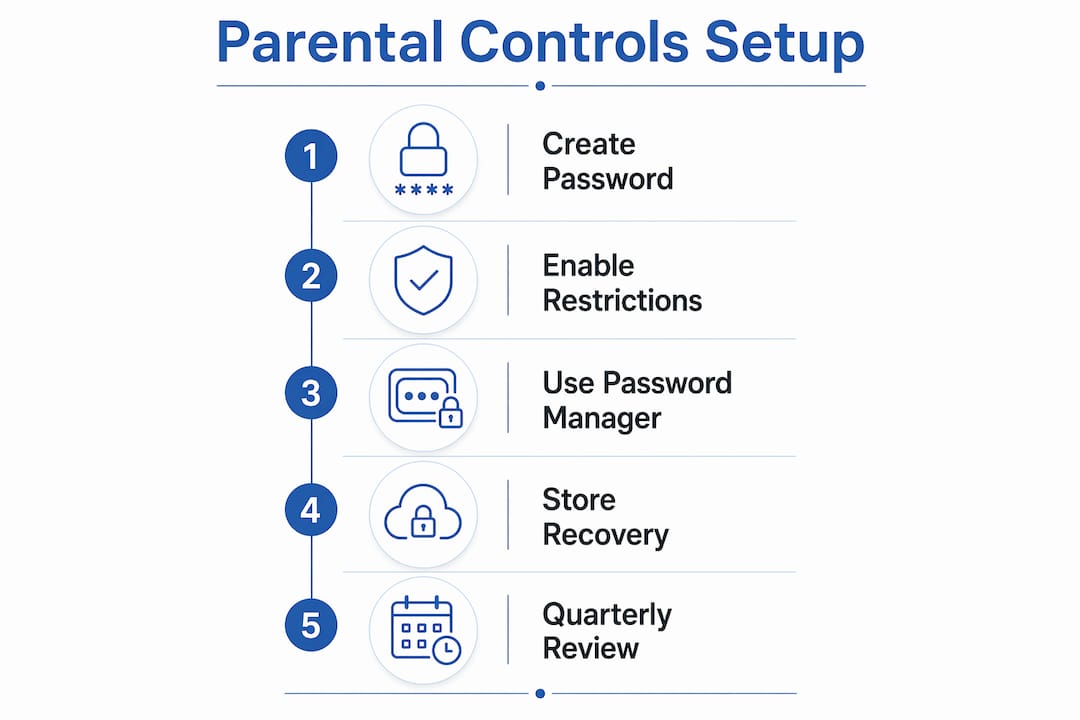
Setup takes less time than most parents expect. Configuring parental controls on a mobile device takes about 30 minutes per child. That is a small investment for months of reliable protection.
Follow these steps to build a solid system:
-
Choose your tools. Pick a family plan password manager (1Password Families, Bitwarden, or Dashlane Friends and Family are well-regarded options). Select your parental control platform based on your devices.
-
Create individual accounts for each child. Using shared adult accounts for children creates security risks. Separate child accounts enable tailored controls and protect your adult data from exposure.
-
Set a unique parental control password. This password must be different from your device unlock code. Children watch you unlock your phone. If the parental control PIN matches, they will find it.
-
Store the password in your family password manager. Share access with your co-parent or a trusted second adult. This prevents a single point of failure if you forget the password or lose access to your account.
-
Enable multi-factor authentication. Turn on MFA for your primary parental account, your recovery email, and your password manager. This blocks unauthorized changes even if a password is guessed.
-
Configure screen time and content filters. Set age-appropriate limits with password protection turned on. Test each restriction before considering the setup complete.
-
Add a second administrator. Distributing admin responsibilities between parents ensures access and recovery reliability. One account going down should never lock you out of your child’s device.
Pro Tip: Store your parental control recovery codes in your password manager the same day you set up the controls. Recovery codes expire or get lost fast, and you will need them the moment you forget your PIN.
Common mistakes that break parental controls password security
Most parental control failures come down to a handful of predictable errors. Knowing them in advance keeps your setup from unraveling.
-
Reusing your device unlock code. Reusing device unlock codes for parental control settings is a common failure. Children observe and replicate codes to disable controls. Use a distinct passcode they have never seen you enter.
-
Sharing passwords too broadly. Telling older children the parental control password “just this once” removes the protection entirely. Treat the parental control password like a master key. Only adults who need it should have it.
-
Relying on one administrator account. If you are the sole admin and you lose access to your account, you lose control of every device. Always set up a second trusted adult with admin rights.
-
Skipping regular audits. Parental controls require regular auditing and updates as children mature. A 10-year-old and a 15-year-old need different restrictions. Outdated controls push children to find workarounds rather than respecting boundaries.
-
Ignoring recovery setup. Parents who skip recovery options face a hard reset when they forget their PIN. A hard reset often wipes device settings and loses your configuration entirely.
-
Skipping MFA on the recovery email. Your parental control password is only as secure as the email account used to reset it. If that email has no MFA, it is the weakest link in your chain.
Pro Tip: Schedule a 15-minute quarterly review of your parental controls. Check that passwords are still unique, restrictions still match your child’s age, and your recovery options still work. Put it in your calendar like a bill payment.
How to recover parental controls passwords when things go wrong
Losing access to your parental control settings is stressful. Stay calm. There is almost always a recovery path.
-
Check your family password manager first. Family-plan password managers provide emergency access features that let parents recover children’s accounts if passwords are forgotten. Open the app and search for the stored credential before trying anything else.
-
Use the built-in forgot password or recovery option. Google Family Link, Apple Screen Time, and most third-party apps have account-level recovery tied to your primary email or phone number. Trigger the reset from a trusted device.
-
Contact your co-parent or second administrator. If you set up a second adult admin, they can reset or reconfigure the controls without any data loss. This is why having two admins matters.
-
Reset the device account if all else fails. On Windows or macOS, you can reset a child’s local account password from an administrator account. On iOS, a full device restore through Apple Configurator is the last resort.
-
Audit and change credentials after recovery. Once you regain access, change the recovered password immediately. Store the new one in your password manager. Check whether any restrictions were changed during the period you were locked out.
Recovering access is only half the job. After any lockout, review your logs for unauthorized changes to content filters, screen time limits, or app permissions. A child who found a workaround may have quietly adjusted settings before you noticed.
Family password sharing should be treated as a lifecycle governance problem with scoped sharing, recovery planning, and clear limits. That framing changes how you think about recovery. It is not a one-time fix. It is an ongoing system.
Key takeaways
Strong parental controls password security requires both the right tools and consistent maintenance to stay effective over time.
| Point | Details |
|---|---|
| Use a family password manager | Store and share parental control credentials securely with emergency access built in. |
| Create individual child accounts | Separate accounts prevent children from accessing adult data and enable tailored restrictions. |
| Never reuse your device unlock code | A unique parental control passcode stops children from observing and replicating your PIN. |
| Set up two administrators | Two trusted adults with admin rights eliminate single points of failure during lockouts. |
| Audit controls every quarter | Update restrictions as children grow to prevent workarounds and keep limits relevant. |
What I have learned after testing dozens of parental control setups
After reviewing and testing parental control solutions across Windows, macOS, iOS, and Android, the single biggest gap I see is not the software. It is the password layer around it.
Parents spend real time choosing the right app, then protect it with a four-digit PIN they also use to unlock their phone. That undoes everything. The parental control is only as strong as the credential protecting it.
The shift that changes everything is adopting a family plan password manager before you set up any controls. When the password manager is in place first, every credential you create goes straight into a secure vault. Recovery is built in from day one.
I have also seen parents fall into a set-and-forget mindset. They configure controls when their child is eight and never revisit them. By twelve, the child has found three workarounds and the parent has no idea. Regular review cycles, aligned with your child’s development, are not optional maintenance. They are the whole point.
One honest caution: no parental control software is foolproof. ESET, Bark, Qustodio, and Google Family Link all have gaps. The password security layer does not fill those gaps. It just makes sure the controls you do have cannot be switched off without your knowledge. Pair software with open conversations about digital rules, and you get a system that actually holds.
— TechStackTeam
Tools Techstacktoday recommends for family password security
Choosing the right password manager and parental control software is easier when you have tested comparisons in front of you. Techstacktoday reviews and ranks both categories with no paid placements, so the results reflect real performance.

The best password managers for families include options with emergency access, family vaults, and co-parent sharing built in. Techstacktoday also covers VPN services that add a network-level safety layer on top of your device controls. Check the full VPN rankings and deals to find a plan that fits your household. Both categories are updated regularly so you always see current pricing and features.
FAQ
What is parental controls password security?
Parental controls password security is the practice of protecting device and app restrictions with strong, unique credentials that only parents control. It prevents children from disabling filters, changing screen time limits, or accessing blocked content.
Why should I use a password manager for parental controls?
Password managers store your parental control credentials securely, enable sharing with a co-parent, and provide emergency access if you forget your PIN. Passkeys do not offer the same structured recovery paths for family setups.
How often should I update my parental control settings?
Review and update parental controls at least once per quarter. Restrictions that made sense for a younger child often become too tight or too loose as children grow, which pushes them to find workarounds.
What happens if I forget my parental control password?
Check your family password manager first for the stored credential. If it is not there, use the built-in account recovery option tied to your primary email. A second administrator can also reset access without a full device restore.
Is it safe to use the same PIN for parental controls and device unlock?
No. Children observe you unlocking your device and will use the same code to disable parental controls. Always set a separate, unique passcode for parental control settings that your child has never seen you enter.