A family password vault is a shared, encrypted platform where every household member stores, accesses, and shares passwords without ever texting them in a group chat or writing them on a sticky note. Tools like 1Password Families and Keeper Family Plan make this possible by giving each person a private account while still allowing controlled sharing of household credentials. The result is stronger security, zero password reuse, and no more “what’s the Netflix password?” texts at 9 p.m. This family password vault setup guide walks you through every step, from picking the right tool to organizing vaults and preparing for emergencies.
What you need before setting up a family password vault
Choosing the right tool is the first real decision. Not every password manager supports family plans with private vaults, shared access controls, and multi-device sync. Look for these features before you commit:
- Private vaults per member so banking and personal accounts stay separate from shared household logins
- Shared vault support for Wi-Fi passwords, streaming services, and school portals
- Family organizer role that lets one adult manage invitations and account recovery
- Two-factor authentication (2FA) support at the account level
- Emergency access or recovery options in case a member forgets their master password
Here is a quick comparison of the two most popular options for families:
| Feature | 1Password Families | Keeper Family Plan |
|---|---|---|
| Members included | Up to 5 (extendable) | Up to 5 |
| Private vaults | Yes, per member | Yes, per member |
| Shared vaults | Yes, multiple | Yes, shared records |
| Family organizer role | Yes | Yes (admin) |
| Emergency kit / recovery | Emergency Kit PDF | Account transfer options |
| 2FA support | Yes | Yes |
The Keeper Family Plan requires each member to create their own private Keeper account with a unique master password, which means no single point of failure across the household. 1Password Families works similarly, with a family organizer managing the group while each member holds their own credentials.
Before you set anything up, enable two-step verification on the email account you will use to register. The UK National Cyber Security Centre recommends 2SV as a critical layer of protection before adding any shared credentials to a vault. Your master password should be at least 16 characters, memorable to you, and not used anywhere else.
Pro Tip: Write your master password on paper and store it somewhere physically secure, like a locked drawer or home safe. Do not save it digitally anywhere outside the vault itself.
How to set up your family password vault step by step
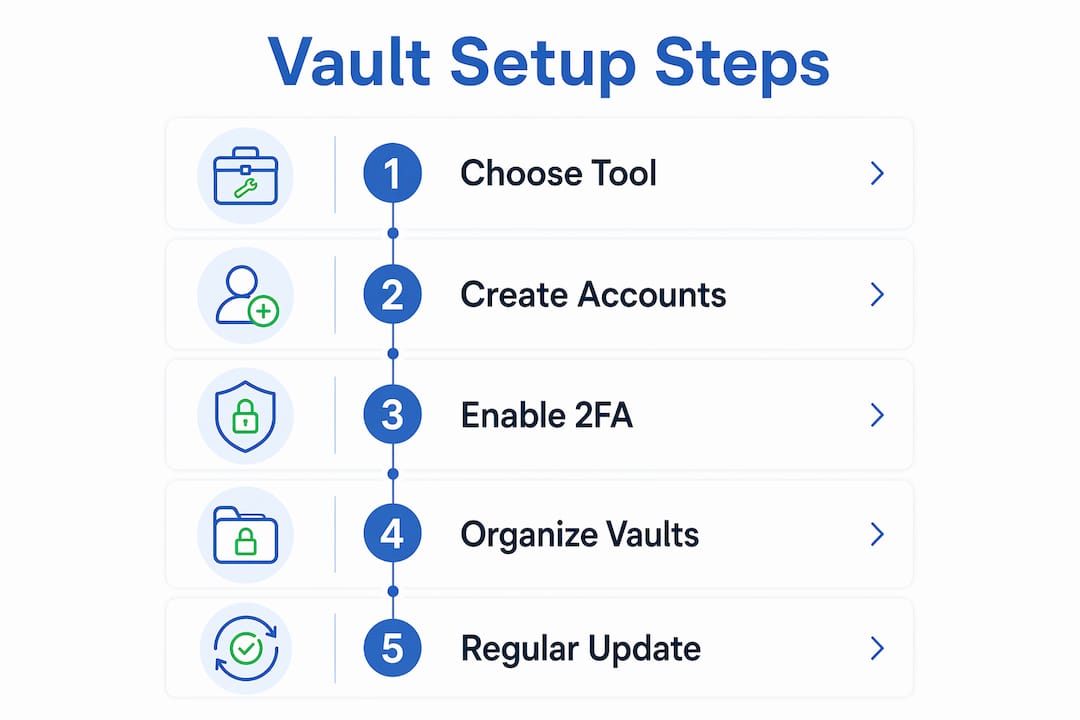
Follow these steps in order. Skipping ahead, especially past the recovery steps, is the most common reason families get locked out later.
-
Create the organizer account. Go to 1Password.com or KeeperSecurity.com and sign up for the family plan. You become the family organizer or admin. Use a strong, unique master password and save it somewhere secure immediately.
-
Enable two-factor authentication. Before you do anything else, turn on 2FA in your account settings. Use an authenticator app like Google Authenticator or Authy rather than SMS when possible. This single step protects the entire family vault if your email is ever compromised.
-
Download your Emergency Kit. 1Password generates an Emergency Kit PDF that contains your account email, secret key, and space to write your master password. Print it, fill it in, and store it offline. This is not optional. It is the only way to recover your account if you lose access.
-
Invite family members. Send email invitations from the organizer dashboard. Each person receives a unique invitation link and creates their own account with their own master password. Each member gets a unique account password and secret key, which means no one shares a single login.
-
Set up shared vaults. Create a vault called “Family” or “Household” and add passwords that everyone needs: the home Wi-Fi, streaming services, and shared school portals. Add members to this vault from the organizer dashboard.
-
Set up private vaults. Each member’s private vault is already created by default. Remind everyone to move their banking logins, personal email, and any sensitive accounts into their private vault, not the shared one.
-
Install apps and browser extensions. Have each family member install the password manager app on their phone and the browser extension on their computer. Walk through this together if possible. Autofill only works reliably once the extension is active.
-
Import existing passwords. Most browsers let you export saved passwords as a CSV file. Import these into the vault during setup so no one starts from scratch. Delete the CSV file immediately after importing.
-
Assign a second family organizer. Assigning multiple organizers means no single person holds all recovery power. If the primary organizer loses access, the second can restore it. Pick a trusted adult in the household for this role.
Pro Tip: Schedule a 20-minute family setup session rather than doing it all yourself. Walking each person through their own account creation takes less time than fixing access problems later.
How to organize and manage vaults effectively
A well-organized vault saves time and prevents the wrong person from seeing the wrong thing. The core principle is simple: shared vaults hold what the household needs together, and private vaults hold what each person needs alone.
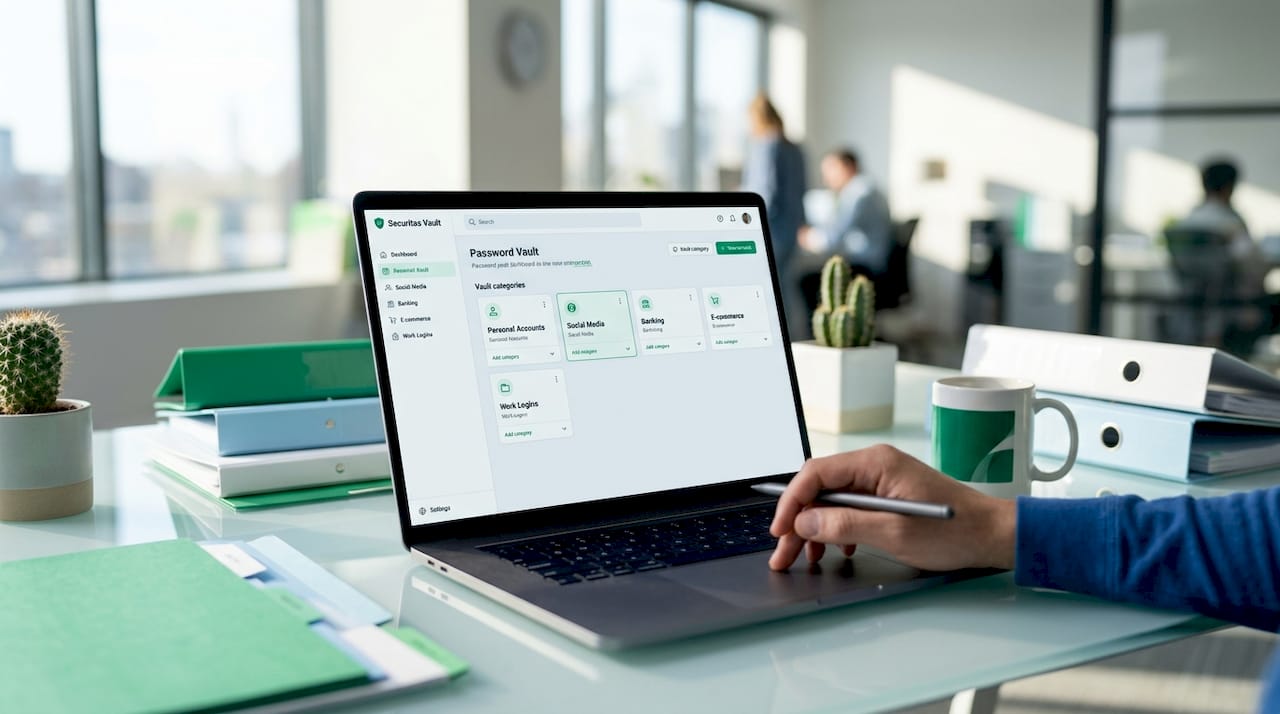
Shared vaults work best for household credentials, while private vaults keep sensitive personal data separate and reduce risk when access changes. Here is a practical vault structure for most families:
| Vault name | Who has access | Example contents |
|---|---|---|
| Household | All members | Wi-Fi, streaming, smart home apps |
| School | Parents + kids | School portals, library accounts |
| Medical | Parents only | Insurance logins, pharmacy accounts |
| Emergency | Parents only | Emergency contacts, home alarm codes |
| Personal (each member) | Individual only | Banking, personal email, social media |
Access control matters more than most families realize. When a teenager moves out or a shared account changes, you need to remove that person from specific vaults without disrupting everyone else. Keeping sensitive credentials in private or parent-only vaults means you never have to change a banking password just because a family member’s access was updated.
Temporary vs. ongoing access should also be planned deliberately. Some password managers support time-limited sharing links for one-off access needs, like giving a house sitter the door alarm code for a week. Using these features prevents password sprawl, which is the slow accumulation of shared credentials that no one remembers granting.
- Create a new vault for any category that involves more than three logins
- Review vault membership every six months and remove anyone who no longer needs access
- Never store credit card PINs or Social Security numbers in a shared vault
- Use the notes field in each entry to record security questions or account recovery details
Security best practices and emergency preparedness
The most common reason family vaults fail is not hacking. Real operational failures come from poor recovery planning: lost master passwords, missing emergency kits, and no backup organizer. Fix this before you add a single password to the vault.
Here is your security checklist:
- ✅ Enable 2FA on every family member’s account. An authenticator app is stronger than SMS. The NCSC confirms that 2FA protects accounts even when a password is exposed in a breach.
- ✅ Store the Emergency Kit offline. Print it, fill in the master password, and keep it in a physically secure location. A digital copy on the same device defeats the purpose.
- ✅ Assign a second organizer. This is the single most overlooked step. If the primary organizer is locked out, the second can restore access for the whole family.
- ✅ Keep devices updated. A password manager is only as secure as the device running it. Enable automatic OS updates on every phone and computer in the household.
- ✅ Never share master passwords. Each member’s master password is theirs alone. Sharing it removes the privacy and security benefit of individual accounts entirely.
⚠️ Warning: Do not skip the Emergency Kit step and assume you will remember your master password. Account lockouts are permanent without recovery materials. Complete this step before inviting any family member.
For families who want an extra layer of protection, pairing your vault with enterprise-grade 2FA practices reduces the risk of unauthorized access even further. If a family account is ever compromised, knowing how to secure accounts after a credential leak is a practical skill worth having before you need it.
Pro Tip: Set a calendar reminder every six months to review vault access, update the master password if needed, and confirm that the Emergency Kit is still stored safely.
Key takeaways
A family password vault succeeds when every member has their own account, shared vaults are organized by access level, and recovery materials are stored offline before the vault goes live.
| Point | Details |
|---|---|
| Choose the right tool | 1Password Families and Keeper Family Plan both offer private vaults and shared access for up to 5 members. |
| Enable 2FA before setup | Turn on two-factor authentication before adding any credentials to protect the entire household. |
| Organize vaults by access level | Separate shared vaults (Wi-Fi, streaming) from private vaults (banking, personal email) to control access cleanly. |
| Store the Emergency Kit offline | Print and secure the Emergency Kit PDF before inviting family members to avoid permanent lockouts. |
| Assign a second organizer | A backup organizer is the only reliable way to recover the family account if the primary admin loses access. |
Why most families get this wrong the first time
Here at TechStackToday, we have tested and reviewed over 50 privacy tools, and the pattern we see most often with family setups is the same every time. The organizer sets everything up, imports all the passwords, invites the family, and then skips the Emergency Kit because it feels like paperwork. Three months later, they get a new phone, lose the authenticator app, and the vault is gone.
The uncomfortable truth is that the security steps most people skip are not optional extras. They are the entire point. A vault with no recovery plan is just a locked box with no spare key.
We also see families treat the shared vault like a group text. Everything goes in: banking, streaming, the kids’ school logins, and the home alarm code. That approach works until it does not. The day you need to remove someone’s access, you realize you have to change every password in the vault because you cannot separate what they saw from what they should not have.
The fix is not complicated. Set up private vaults first. Add people to shared vaults only when they genuinely need access. Review that access twice a year. Do not wait for a problem to make you do it right.
One more thing: pace the rollout. Do not try to get the whole family set up in one afternoon. Get the organizer account running, secure it properly, and then bring in one family member at a time. It takes longer, but everyone actually uses the vault instead of ignoring it.
— TechStackTeam
Find the right password manager for your family
Choosing between 1Password Families, Keeper, and other options is easier when you have hands-on test data to compare. Techstacktoday has reviewed and ranked the best password managers based on real-world performance, not paid placements.
You can also explore Techstacktoday’s full VPN service rankings to pair your new vault with a privacy layer that protects your household’s internet traffic. For families thinking about broader digital safety, the identity theft protection reviews cover services that monitor for exposed credentials and alert you before damage is done. Every review on Techstacktoday is updated regularly and based solely on performance metrics.
FAQ
What is a family password vault?
A family password vault is a shared, encrypted password manager that gives each household member a private account while allowing controlled sharing of household credentials like Wi-Fi and streaming logins.
Which is the best password vault for families?
1Password Families and Keeper Family Plan are the two most tested options, both supporting up to 5 members with private vaults, shared access, and 2FA. Techstacktoday’s password manager reviews compare them in detail.
What happens if I forget my master password?
Without a stored Emergency Kit or backup organizer, account recovery is not possible. Print your Emergency Kit PDF and assign a second family organizer before you add any passwords to the vault.
Should kids have their own vault accounts?
Yes. Each child should have their own account with their own master password, giving them access only to the vaults appropriate for their age. This keeps personal data separate and teaches good password habits early.
How often should we update our family vault?
Review vault membership and access every six months. Update passwords for any account that has been shared outside the vault, and confirm that the Emergency Kit is still stored securely.