Stop automatic image loading first. That single setting kills most tracking pixels on sight, in Gmail, Outlook, and Apple Mail alike. Turn on your provider’s built‑in tracking protection next, and treat any link inside an email as suspect until you’ve checked it. Pixels and links are two different threats, and you need to handle both.
TL;DR:
- Blocking remote images in your email client prevents most tracking pixels but does not stop link-based tracking which still logs your clicks.
- Tracking pixels reveal your open time and approximate location when images load automatically, but proxy servers obscure IP addresses and timing for some providers.
- Use caution with browser extensions by verifying permissions, prefer open-source options, and test their effectiveness regularly across all devices and clients.
- Long URL parameters and background CSS requests can track you without images, so always preview links before clicking and check network requests for suspicious activity.
- Combining provider protections, manual link caution, and regular testing offers better privacy than relying on a single method, especially as senders adapt their tracking techniques.
Table of Contents
- How to Block Email Trackers Right Now
- How Does Email Tracking Actually Work?
- Blocking Trackers on Every Email Client You Use
- Are Browser Extensions Worth the Risk?
- How Do You Know If Your Blocking Actually Works?
- What You Give Up When You Block Trackers
- What Our Testing Taught Us About Email Privacy Tools
- Beyond Pixels: Catching Trackers That Don’t Use Images
- Where Email Tracking Is Headed Next
- How Senders Try to Get Around Your Blocking
- Why We Think Link Tracking Deserves More Attention
- Where a VPN Fits Alongside Your Email Defenses
- Sources
- FAQ
How to Block Email Trackers Right Now
You don’t need to overhaul your entire inbox today. You need five moves, done in order, on every device you check email from.
- Turn off automatic remote images. In Gmail, go to Settings > General > Images and select “Ask before displaying external images.” This one change stops the majority of tracking pixels before they ever load.
- Turn on your provider’s tracking protection. If you’re on Proton Mail, enable Enhanced Email Tracker Protection in settings.
- Treat links as untrusted by default. Hover before you click, and don’t assume a “view in browser” link is safe just because the sender looks familiar.
- Add a browser extension for webmail, cautiously. More on permissions in a moment.
- Use an alias or masked email for newsletters and one‑time signups so tracked opens never touch your real address.
Pro Tip: After you change any setting, send yourself a test email with an image and a link, then check whether the image loads automatically and whether the link redirects through a tracking domain. If nothing loads and the link goes straight to the destination, your defense is working.
How Does Email Tracking Actually Work?
Two separate mechanisms do the work, and confusing them is why most people leave gaps.
A tracking pixel is a tiny, invisible image embedded in the email body. The moment your client fetches that image from a remote server, the sender logs your open time, your approximate location from your IP address, and often your device type. A tracked link works differently: it’s a normal-looking hyperlink that first routes through the sender’s tracking domain, records the click, then redirects you to the real destination.
This distinction matters because provider proxies only solve half the problem. Gmail and Apple both preload images through their own servers, which masks your real IP address and blurs open data. But neither proxy touches link clicks — the moment you click, your device talks directly to the sender’s server. Blocking pixels and cleaning links are two separate jobs.
Blocking Trackers on Every Email Client You Use
Settings live in different menus depending on the client, and you have to repeat this on every device where you check mail, not just your primary one.
- Gmail (web): Settings gear > See all settings > General > Images > “Ask before displaying external images,” then save changes at the bottom.
- Outlook (web and desktop): File > Options > Trust Center > Trust Center Settings > Automatic Download, then check “Don’t download pictures automatically.”
- Apple Mail (iOS and macOS): Settings/Preferences > Mail > toggle off “Load Remote Images,” separate from Mail Privacy Protection, which handles proxy masking automatically once enabled.
- Thunderbird: Settings > Privacy & Security > uncheck “Allow remote content in messages.”
Privacy International’s guide walks through nearly identical steps across these same clients, confirming that disabling remote content is the consistent first move regardless of platform.
One caveat worth knowing: Gmail’s own image proxy caches images on Google’s servers, so even with autoload on, senders get a distorted picture of your IP and open time rather than accurate data. That’s a middle ground, not full protection, since open counts and rough timing still leak through. If you want the cleanest result, keep autoload off everywhere and add your provider’s dedicated tracker protection on top.
Are Browser Extensions Worth the Risk?
Extensions cover webmail in your browser only. They won’t touch your phone’s native Mail app or Outlook’s desktop client, so relying on one extension and calling it done leaves your mobile inbox exposed.
- Look for extensions that block pixel requests and strip known tracking parameters from links.
- Check the permissions screen before installing. A request for access to “all sites” on an email-only tool is a warning sign worth taking seriously.
- Favor open-source projects you or the community can audit, and check the update history. A tool untouched for two years is a tool nobody’s watching.
Pro Tip: Trocker is a good benchmark for what a well-scoped extension looks like: it’s open-source, blocks pixels locally, and never sends your data to an outside server, which is exactly the behavior you should demand from any similar tool.
Extension developers themselves warn about broad permission requests, so read the permissions prompt the same way you’d read a contract.
How Do You Know If Your Blocking Actually Works?
Settings changes feel real, but the only way to confirm they work is to test them.
- Send yourself a diagnostic email containing both a remote image and a tracked-style link, then check whether the image loads without a prompt and whether the link redirects through a third-party domain.
- Run the message through an email privacy tester tool to get a readout on pixel and link status.
- Watch for provider notices, Proton and similar services often flag “trackers blocked” or show that a link’s tracking parameters were stripped.
- Repeat the test on every client and device you use. A pass on Gmail web tells you nothing about your phone’s Mail app.
What You Give Up When You Block Trackers
Blocking remote images isn’t free. Newsletters built around image blocks can turn into a wall of alt text, and some promotional emails lose their entire layout without the images that hold the design together.
The fix isn’t an all-or-nothing choice. Whitelist senders you trust completely, your bank, your utility company, a newsletter you’ve read for years, and leave the blanket block in place for everyone else. Switching to plain-text mode for suspect senders is another workaround, and it happens to be more accessible for screen readers too. Layered defenses beat a single switch flipped once and forgotten.
What Our Testing Taught Us About Email Privacy Tools
A hands-on testing approach with real accounts can be applied here, installing the tool, sending controlled test messages, and measuring what actually gets blocked instead of trusting the marketing page.
Three metrics matter most: the blocked-pixel rate on a batch of test emails, the link-clean rate on redirected URLs, and whether protection holds across web, desktop, and mobile, not just the browser tab you tested in.
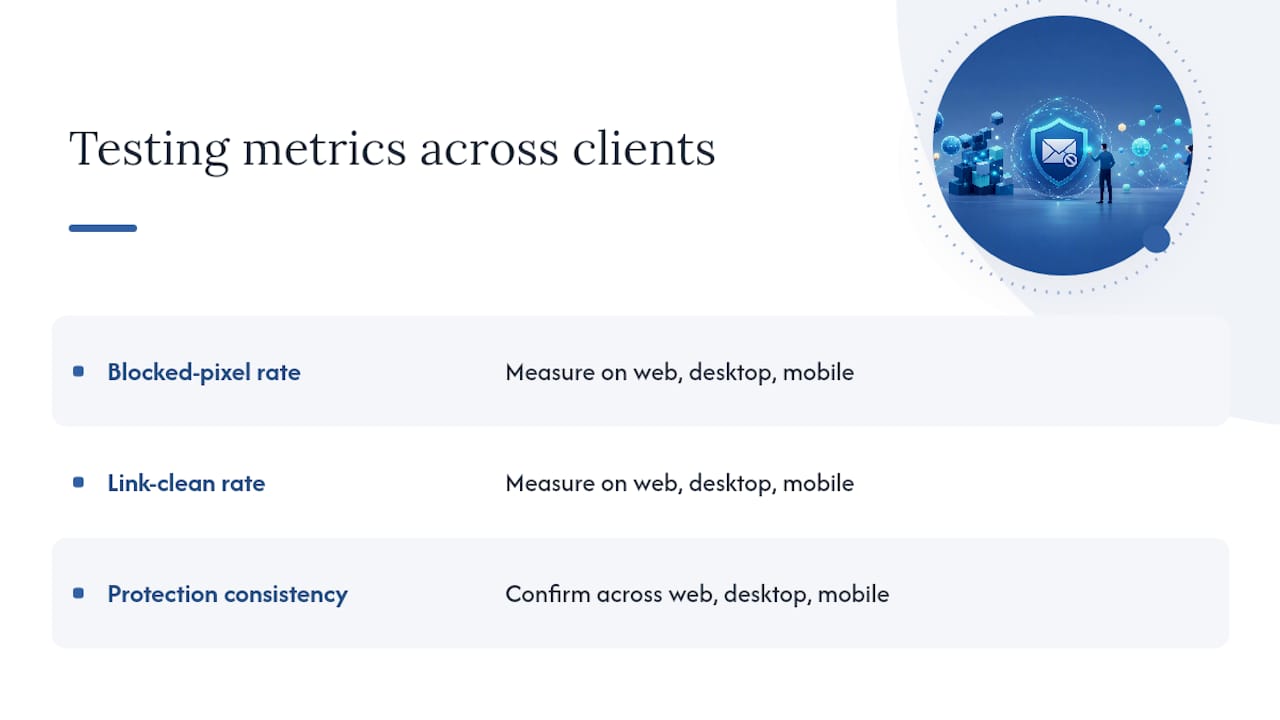
Run this checklist yourself: disable remote images on every client, enable your provider’s tracker protection, install one well-scoped extension for webmail, and re-test monthly since tracking methods shift faster than most users expect.
Beyond Pixels: Catching Trackers That Don’t Use Images
Not every tracker announces itself as an image request. Some senders skip pixels entirely and rely on techniques that slip past image-blocking settings.
Watch for links with long strings of parameters after a question mark, things like utm_source, mc_eid, or a jumble of random characters. These are tracked links even though they look like ordinary hyperlinks, and disabling remote images does nothing to stop them. The only real defense is checking the actual destination before clicking, either by hovering over the link on desktop or long-pressing it on mobile to preview the URL.

Some senders also use CSS-based tracking, background styles or font requests that fetch from a remote server the same way an image would, just without looking like a typical <img> tag. Browser developer tools expose this: open the network panel while previewing an email and look for outbound requests to unfamiliar domains, especially ones firing the instant you open the message.
Redirect chains are another quiet method. A single click can bounce through two or three tracking domains before landing on the real page, each hop logging a bit more data. If a link’s preview URL looks nothing like the sender’s actual domain, treat it as a tracker regardless of how legitimate the email looks otherwise.
None of this requires technical expertise to catch, just a habit of checking before you click rather than after.
Where Email Tracking Is Headed Next
Email tracking hasn’t stood still just because pixel-blocking became mainstream. As more clients auto-block remote images by default, sender-side tracking has shifted toward methods that survive that block.
Link tracking has grown as a workaround, since a tracked redirect works whether or not images ever load. Proton’s own research into link tracking protection points to this exact shift: senders increasingly treat the click, not the open, as the reliable signal.
Fingerprinting techniques are creeping into email too, using combinations of device type, rendering engine, and timezone data pulled from how a message renders rather than from a single pixel request. It’s harder to block with one setting because it isn’t one request, it’s a pattern built from several small signals.
Provider-side proxying, the same technology behind Apple Mail Privacy Protection and Gmail’s image cache, has become the industry’s default answer to pixel tracking. Expect more providers to adopt similar proxy layers, which will keep pushing sophisticated senders toward link-based and behavioral tracking instead. The arms race hasn’t ended, it’s just moved to a different battlefield.
How Senders Try to Get Around Your Blocking
Marketers and tracking vendors know image-blocking is now standard, so plenty of senders build workarounds directly into their campaigns.
One common trick is disguising the tracking pixel’s file extension, naming it logo.png or header.gif instead of something obviously tracking-related, hoping it slips past both your attention and any pattern-based blocker. Another is embedding the pixel request inside a CSS background property rather than a standard image tag, since some basic blockers only scan for <img> elements.
On the link side, senders rotate through multiple redirect domains so no single domain becomes an obvious red flag, and some inject tracking parameters into what looks like a plain URL rather than routing through a dedicated tracking subdomain. A link that reads yourbank.com/statement?ref=8f3k2 might be entirely legitimate, or it might be carrying a unique identifier tied to your email address specifically, there’s often no way to tell just by looking.
Some senders also use “trigger” pixels that only fire once your client has proven it renders remote images at all, essentially fingerprinting your settings before deciding whether to serve the real tracking payload later in the same message or a follow-up. This is part of why marketers value open and click data so highly, it’s a direct read on engagement they’re reluctant to lose, which is exactly why the workarounds keep evolving. None of these tricks defeats a genuinely disabled remote-image setting combined with cautious link behavior, but they explain why “set it once and forget it” isn’t a real strategy here.
Why We Think Link Tracking Deserves More Attention
Pixel blocking gets all the headlines, but link tracking is the piece most people ignore, and it’s growing precisely because senders know image blocking is now common. A layered approach, provider protection plus a scoped extension plus manual link caution, holds up far better than any single fix. Re-test your setup every few months, since clients update their defaults quietly and your protection can quietly lapse with them.
— TechStackTeam
Where a VPN Fits Alongside Your Email Defenses
Blocking pixels and cleaning links protects what happens inside your inbox. It doesn’t touch what your internet connection reveals every time you open a webmail tab, your IP address, your general location, and your traffic patterns are all still visible to your network provider and to any site that cares to look. That’s a different layer of exposure, and it’s where a VPN becomes a reasonable adjunct rather than a replacement for anything covered above.

VPN services can be tested using real accounts and real usage, with an emphasis on unbiased rankings not influenced by paid placements. If you’re checking webmail on public Wi‑Fi at a coffee shop or an airport, a VPN masks your IP address on top of whatever tracker protection your email client already provides. Our VPN services reviewed and ranked comparison breaks down which providers actually deliver on speed and no-logs claims versus which ones just market well. If you want the fuller picture of how VPNs protect against surveillance, that’s a good next stop before you pick one.
Sources
For direct provider guidance, see Gmail’s image settings help page, Proton’s tracker protection documentation, and Trocker’s extension homepage for the open-source option discussed above.
FAQ
How Do I Know If Someone Is Using a Tracking Tool on My Emails?
Check for an invisible 1×1 pixel image embedded in the message source, or watch for outbound network requests firing the instant you open an email in your browser’s developer tools. A sudden read receipt or unusually precise “seen” notification from a sender is another common tell.
How Do You Block Someone Who Is Tracking Your Email?
Disable automatic remote image loading in your client’s settings, turn on your provider’s built-in tracker protection if it offers one, and avoid clicking links directly from senders you don’t fully trust.
Are Email Trackers Illegal?
Tracking pixels themselves aren’t illegal, but many jurisdictions require senders to disclose tracking and get consent, particularly for marketing emails under laws like the EU’s ePrivacy rules; enforcement and specific requirements vary by region, so check the rules that apply where you and the sender are located.
How Can You Tell If Someone Is Tracking Your Email?
Look for external image requests that fire the moment you open a message, unusually specific “read” confirmations from a sender, or long parameter strings attached to links inside the email. Running a test email through an email privacy tester gives you a clearer readout than eyeballing the message alone.
Does Blocking Trackers Break My Email Layout?
Sometimes. Newsletters built heavily around images can look broken with remote content disabled, which is why whitelisting trusted senders individually works better than a blanket block for everyone.