A DNS leak means your device is asking your internet provider, not your VPN, where websites live. Your IP address stays hidden, but your list of visited sites does not. Don’t panic. Most leaks take about 10 minutes to find and fix, and you can do it today.
This guide shows you how to confirm a leak, fix the real cause (not just swap who sees your lookups), and keep it from coming back after updates or dropped connections.
TL;DR
- ✅ A DNS leak happens when lookups travel outside your VPN tunnel, usually to your ISP’s resolver. Test with the VPN on and look for a resolver tied to your ISP or home location.
- ⚠️ Changing your DNS provider alone does not stop a leak. It only changes who receives the leaked queries.
- 🔧 The usual culprits: browser secure DNS, IPv6, a dropped tunnel, split tunneling, and devices that ignore your settings.
- 🛡️ Real protection means DNS locked to the tunnel, IPv6 handled, a working kill switch, and a retest after every big update.
Table of Contents
- What a DNS leak actually is
- Why leaks happen
- How to test for a DNS leak (5 minutes) ⏱️
- DNS leak fix: step by step
- Don’t just swap who sees your lookups
- Protecting your whole home network
- Work and enterprise networks are different
- How to keep leaks from coming back
- What to look for in a VPN with real DNS protection
- Our perspective: test it like a leak, not a feature
- Ready to pick a VPN that keeps DNS in the tunnel?
- FAQ
- Sources
What a DNS leak actually is
Every time you type a site name, your device asks a DNS resolver for the matching IP address. Without a VPN, that resolver is normally run by your ISP. With a VPN, those questions should travel inside the encrypted tunnel to the VPN’s own resolver.
A leak is any lookup that escapes that path. Your web traffic can be fully encrypted while the lookups go out in the open. The ISP cannot see page contents, but it can see a running list of domains. That list says a lot: your bank, your doctor, your news sources, your dating apps.
If you want the mechanics behind the tunnel, our explainer on how VPN tunneling works covers it step by step.
Leak protection is not the same as DNS privacy
These get mixed up constantly, so separate them now:
- Leak protection means DNS requests never leave the tunnel.
- DNS privacy means choosing who you trust to see your lookups. Whoever runs the resolver still sees the domains you ask for, even when the connection to it is encrypted.
A good setup does both. A VPN’s own resolver, inside the tunnel, is the simplest way to get there. The IETF’s operational guidance on DNS is a useful read on how much trust any resolver operator carries.
The same logic applies to “private” features elsewhere. A hidden or private mode inside an app, like private mode on dating apps, hides you from other users, not from the network carrying your requests. Your lookups still need their own protection.
Why leaks happen
Leaks are rarely one big failure. They come from small gaps. Here are the common ones, with the quick fix for each.
| Cause | What happens | Quick fix |
|---|---|---|
| Browser secure DNS (DoH) | The browser sends lookups to its own chosen resolver, skipping the VPN’s | Turn off secure DNS or point it at your VPN’s resolver |
| IPv6 not handled | IPv6 lookups go around an IPv4-only tunnel | Use an app that tunnels or blocks IPv6 |
| Tunnel drops | Traffic flows normally until the VPN reconnects | Enable the kill switch, then test it |
| Split tunneling | Apps you excluded use your ISP’s DNS | Review exclusions, keep sensitive apps inside |
| Devices ignoring settings | Smart TVs, consoles and IoT gear use hardcoded DNS | Set DNS rules at the router |
| Manual DNS on the adapter | Your old DNS entry overrides the VPN’s | Reset the adapter to automatic |
Tunnel failure is more common than you think
A 2022 study of 80 desktop VPNs used a tool called VPNalyzer to induce tunnel failure. The researchers found 26 providers leaked user traffic during the failure, and 8 of those leaked DNS traffic. Even among apps with a kill switch, 6 of the 80 still leaked.
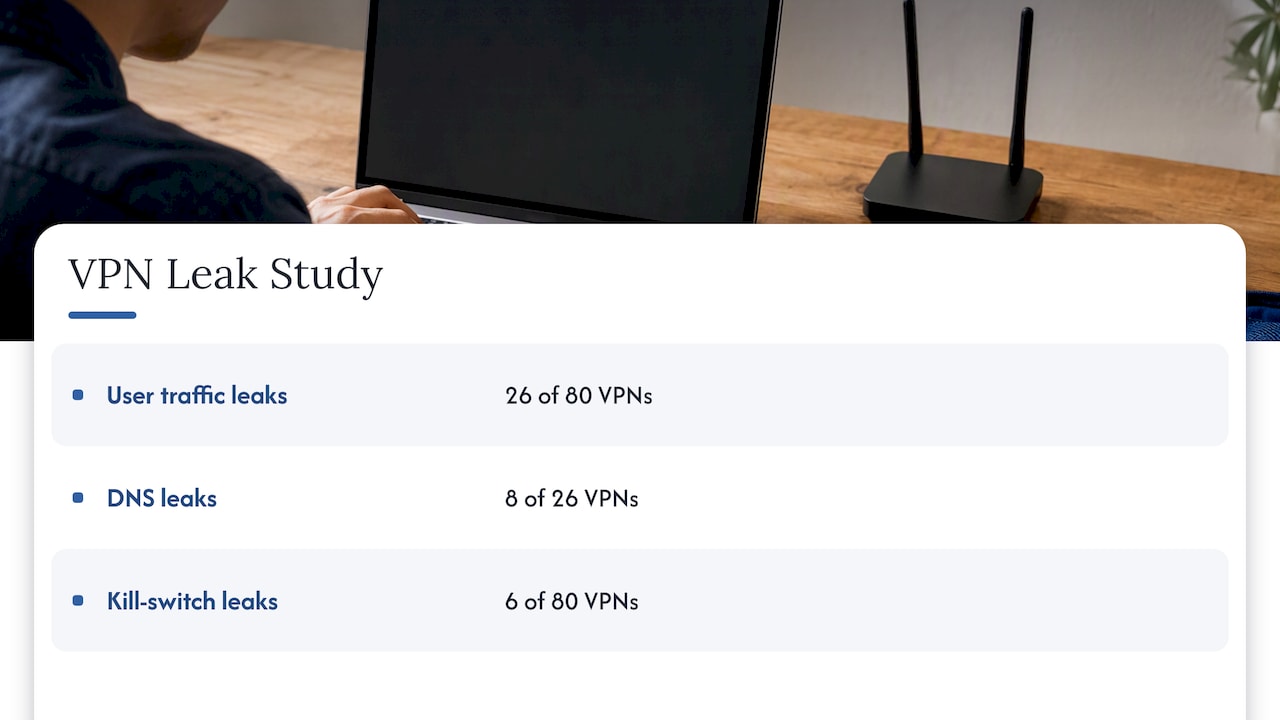
Two lessons follow. A kill switch is necessary but not proof. And the moments that matter most are the ones normal tests never check: a dropped connection, a sleep and wake cycle, or an operating system update.
How to test for a DNS leak (5 minutes) ⏱️
Test first. Don’t change anything until you know what you are fixing.
- Disconnect the VPN and run a DNS leak test. Write down the resolvers shown. This is your baseline, and it usually names your ISP.
- Connect the VPN and use the full-tunnel setting, not split tunneling, for this test.
- Run the test again using the extended or full option if the tool offers one.
- Compare the two lists. If any resolver matches your baseline, or belongs to your ISP, you have a leak.
- Test in a second browser. A leak in one browser but not another points at browser DNS settings.
How to read the results
Don’t expect the resolver city to match your VPN server city. Resolvers sometimes sit in shared infrastructure elsewhere, and that is not automatically a problem. The real red flag is a resolver belonging to your own ISP or located at your home. That confirms lookups are escaping.
Watch for false alarms from browser DNS
Modern browsers can send lookups to a third-party resolver over HTTPS. The traffic is still encrypted inside the tunnel, yet the test sees an unfamiliar resolver and may flag it. If your results look strange, turn off secure DNS in the browser (steps below) and retest. That separates a real leak from a testing quirk.
What a standard test misses
A one-time web test shows only a snapshot of normal operation. It will not catch leaks that appear when the tunnel fails or after a system update resets your network settings. We cover how to check those below.
DNS leak fix: step by step
Work through these in order. Retest after each one so you know which step solved it. ⏱️ Allow about 10 minutes.
Step 1: Update and restart your VPN app
Old app versions miss newer leak protections. Update, restart the app, and switch on any setting named DNS leak protection or similar. Then retest.
Step 2: Turn off secure DNS in your browser
Browser DoH can bypass the DNS your VPN supplies. In the settings, look for “Use secure DNS” (Chrome and Edge, under Privacy and security) or the DNS over HTTPS option (Firefox, under Privacy and security). Switch it off or set it to your VPN’s resolver. Restart the browser and retest.
Step 3: Deal with IPv6
Many leaks come from IPv6 lookups slipping around a tunnel that only carries IPv4. Choose a VPN app that tunnels or blocks IPv6 traffic. If yours does not, disable IPv6 on your network adapter as a stopgap. Check the VPN’s help pages first, since this setting varies by app.
Step 4: Remove manual DNS entries
If you or an old tool set DNS servers by hand on your adapter, that entry can override the VPN. Set the adapter back to automatic DNS, reconnect, and test.
Step 5: Pick the right protocol and settings
Some protocols and clients handle DNS better than others. Try another protocol in your app’s settings and retest. Our guide to how VPNs protect against surveillance explains what each layer actually covers.
Step 6: Check split tunneling
Excluded apps skip the tunnel, and sometimes their lookups do too. Keep browsers and anything sensitive inside the tunnel. Our split tunneling checklist walks through safe rules.
Step 7: Test the kill switch
Turn on the kill switch, connect, then break the connection on purpose. Switch off Wi-Fi for a few seconds, or disable the VPN adapter, and watch whether traffic stops. If pages still load, the switch is not protecting you. Keep in mind the research above: some kill switches still leaked.
Don’t just swap who sees your lookups
This is the biggest mistake in most DNS leak guides. They tell you to point your device at a public DNS provider and call it fixed. As one technical guide puts it, that approach changes who receives the leaked queries, it does not stop the leak.
There are two separate problems:
- Your queries are escaping the tunnel.
- Someone you did not choose is receiving them.
Swapping DNS servers on your device can address problem two while leaving problem one in place. A true fix makes the tunnel the only path for DNS. That often takes operating system settings or firewall rules, especially for devices that ignore normal network settings.
Protecting your whole home network
Per-device fixes have a gap: not every device runs your VPN app. Smart TVs, game consoles and IoT gadgets often use hardcoded or ISP-provided DNS and ignore what you set on the operating system.
For those, configuring DNS at the router level is more robust than per-device changes. Two routes work:
- Run the VPN on the router. Every connected device then uses the tunnel. See our VPN router setup guide for the eight steps and troubleshooting tips.
- Set DNS and block rules at the router. Point the router at a resolver you chose, and block outbound DNS from anything that tries to go elsewhere.
Note the tradeoff. A router-level VPN protects everything but can slow some devices, and exclusions get harder to manage. For a family with many gadgets, it is usually worth it.
Work and enterprise networks are different
If you manage a small business network, encrypted DNS cuts two ways. The National Security Agency notes that encrypted DNS protects privacy but can limit an organization’s ability to monitor or block malicious domains. Its enterprise recommendation is to use designated encrypted resolvers and block other unauthorized encrypted DNS connections.
In plain terms: pick one approved resolver, enforce it, and block the rest. If your staff use personal VPNs on company laptops, ask your IT provider to check how that interacts with your filtering.
How to keep leaks from coming back
A fix that works today can fail next month. Build these habits:
- ✅ Retest after major OS updates. Updates can reset network settings.
- ✅ Retest after changing VPN protocol, app version or router.
- ✅ Retest the kill switch, not just the standard leak page.
- ✅ Keep browser secure DNS consistent across every browser you use.
- ✅ Recheck new devices. A new TV or console is a new potential leak.
Watch out for free VPNs, too. Cost and quality are linked here. Our look at what a VPN really costs compares the cheap headline price with the upfront bill.
What to look for in a VPN with real DNS protection
Skip the marketing line that says leak-proof. Look for these specifics:
- DNS requests handled by the provider’s own resolvers inside the tunnel
- IPv6 either tunneled or blocked
- A kill switch that you can switch on and test
- Clear settings for split tunneling
- Router support if you have many devices
- Independent audits and honest transparency. Our piece on warrant canaries shows how to verify what a provider says
A VPN is also not the same as a proxy. A proxy often leaves DNS handling to your device, which is one more reason lookups escape. Our VPN vs proxy comparison explains the gap.
Our perspective: test it like a leak, not a feature
We test every VPN we review with real accounts, and DNS handling is one of the first things we check. We don’t take a feature page at face value. A toggle called leak protection tells you what a vendor wants you to believe. A resolver list with the tunnel up, then a retest after we break the connection, tells you what actually happens.

Here is our honest view. Most people do not need exotic tools. They need a VPN app that locks DNS to the tunnel, handles IPv6, and has a kill switch that holds up when tested. Then they need to retest now and then. Our rankings are not influenced by affiliate payouts, and every review is updated monthly, so a provider that starts leaking does not keep its spot because of an old result.
If you are only confirming your setup, the free test steps above are enough. If a leak keeps returning no matter what you change, treat it as a sign the app is the problem and consider switching.
— TechStackTeam
Ready to pick a VPN that keeps DNS in the tunnel?
If your tests keep showing a leak, the fastest fix may be a better app. See our VPN services reviewed and ranked, with deals for hands-on results, including how each handled our DNS checks. We earn affiliate commissions on some signups, and you can read how that works in our affiliate disclosure.
FAQ
Is a DNS leak test legit?
Yes, the tests do what they say: they show which resolvers answer your lookups. They are a snapshot, though, not a guarantee. Browser secure DNS can trigger false alarms, and a normal test will not reveal leaks during a tunnel failure, so retest under those conditions too.
How can I fix a DNS leak?
Update your VPN app, turn off browser secure DNS, handle IPv6, and remove manual DNS entries. Then enable the kill switch and test it by breaking the connection. Retest after each step so you know what worked.
Is a leaked DNS request dangerous?
It does not expose page contents or passwords. It does expose the domains you visit to whoever receives the queries, usually your ISP. That history can be revealing, which is why it matters for anyone using a VPN for privacy.
Does changing my DNS server stop leaks?
Not by itself. It changes who sees leaked queries rather than stopping the leak. The real fix keeps DNS inside the VPN tunnel and blocks any other path.
Sources
- Systematic Investigation of the VPN Ecosystem (VPNalyzer study)
- How to fix a DNS leak, DNS Leak
- NSA: Adopting Encrypted DNS in Enterprise Environments
- RFC 9726: Operational Considerations for Use of DNS in IoT Devices