Your memory is not a security strategy. Understanding why password managers beat memory starts with one uncomfortable fact: most people reuse the same few passwords across dozens of accounts, and attackers know it. You probably have 50 to 100 online accounts. Your brain can reliably hold maybe five to seven unique passwords. That gap is where breaches happen. This guide walks you through the data, the real advantages of password managers, the honest limitations, and exactly how to get started.
Table of Contents
- Key takeaways
- Why password managers beat memory
- What password managers actually do for you
- Memory vs password manager vs browser storage
- Limitations of password managers you should know
- How to get started with a password manager
- My honest take on password managers
- Find the right password manager today
- FAQ
Key takeaways
| Point | Details |
|---|---|
| Memory fails at scale | Human recall cannot generate or retain dozens of strong, unique passwords across all your accounts. |
| Reuse is the top breach cause | 74% of breached passwords were reused, making memory-based management a direct liability. |
| Encryption protects your vault | Password managers use AES-256 and zero-knowledge architecture so even the provider cannot see your data. |
| Autofill blocks phishing | Password manager autofill only activates on verified domains, stopping credential theft on fake sites. |
| MFA is non-negotiable | Combining a strong master password with multi-factor authentication locks down your vault against most attacks. |
Why password managers beat memory
Here is what no one tells you outright: your brain is not built for modern password security. Human memory evolved to recognize patterns, not store random strings of 20 characters. So you do what everyone does. You simplify. You reuse. You add a “1” at the end and call it a day.
The data is sobering. 74% of passwords found in breached credential databases were reused across multiple services. That means a single breach at one site hands attackers a working key to your other accounts. This attack method, called credential stuffing, is automated. Attackers run breached username and password pairs against hundreds of websites within hours.
The cognitive burden also makes you predictable. When people are forced to create complex passwords, they follow recognizable patterns. Capitalize the first letter. Add a number at the end. Swap an “e” for a “3.” Security researchers can map these patterns and crack them far faster than a truly random password.
“Password reuse remains the largest single cause of credential-related breaches.” — SudoTool security research
There is also the reset trap. When you forget a password, you reset it. That reset often goes to your email. If your email uses the same password as another compromised account, attackers already have it. Memory limitations for passwords do not just inconvenience you. They create a compounding chain of risk.
- You reuse passwords because creating unique ones is mentally taxing
- Simple patterns make your passwords predictable and easy to crack
- Forgotten passwords lead to resets that expose your email account
- One breach cascades into multiple account takeovers
What password managers actually do for you
The UK’s National Cyber Security Centre calls password managers a core security benefit specifically because they remove the cognitive burden of password recall. That framing matters. The goal is not just convenience. It is removing the human memory bottleneck entirely.
Here is how password managers work in practice. When you create a new account, the manager generates a random, unique password, something like "Kx7$mP2@wQn4`. You never see it again. You do not need to. The manager stores it, encrypted with AES-256, inside a vault that only your master password can unlock. The provider never has access to your data because of zero-knowledge architecture.
The functional advantages stack up fast:
- Auto-generation: Every account gets a unique, randomized password with no mental effort from you
- Autofill accuracy: The manager fills in credentials only on the correct domain, so it will not autofill on a phishing copy of your bank’s website
- Cross-device sync: Log in on your phone, laptop, and tablet without re-entering anything
- Breach alerts: Many managers notify you when a stored password appears in a known data breach
- Secure sharing: Share a Netflix password with a family member without ever texting it in plaintext
The autofill-only-on-correct-domains feature is underrated. Phishing attacks rely on you not noticing a fake URL. Your password manager notices every time. It simply will not fill in your credentials on paypa1.com instead of paypal.com. That one feature alone blocks a massive category of attack.
Pro Tip: Turn off your browser’s built-in password saving after switching to a dedicated manager. Having two systems creates confusion and leaves credentials in less-secure browser storage.
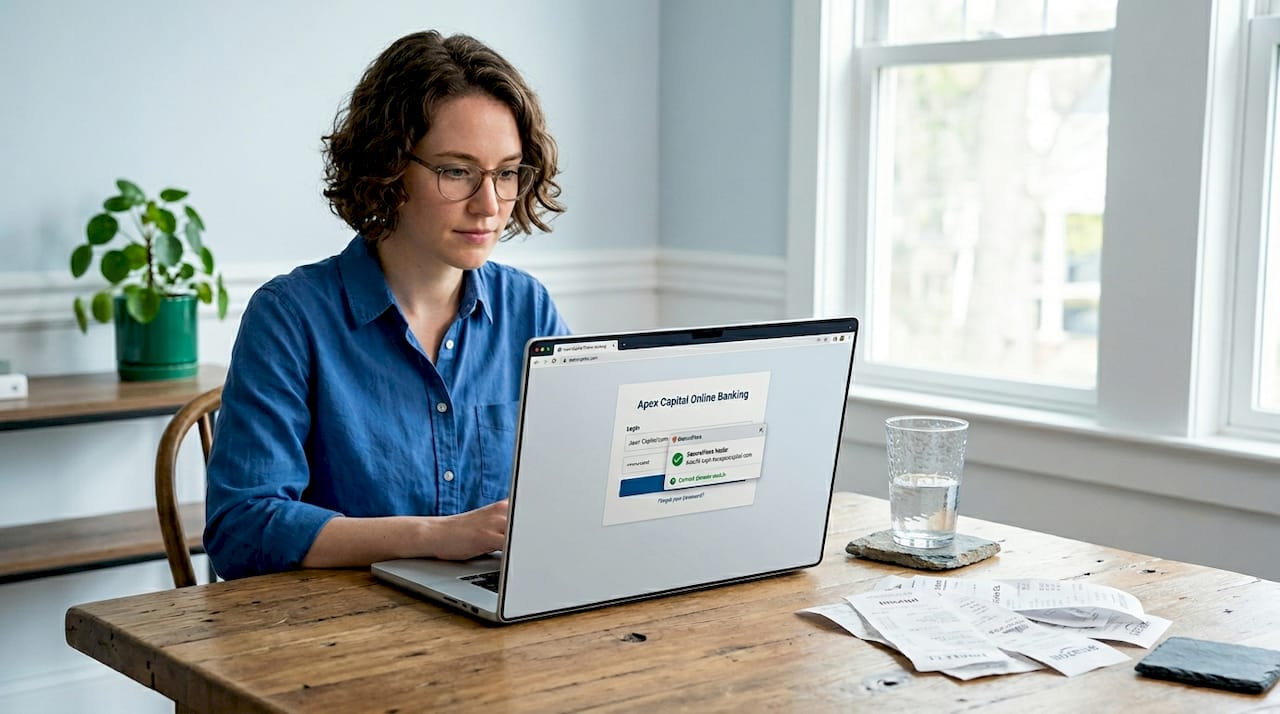
Managing dozens of accounts becomes genuinely effortless when a manager handles generation, storage, and autofill. That is the core promise of password manager advantages, and it delivers.
Memory vs password manager vs browser storage
Not all alternatives to memory are equal. Let us look at the three methods most people actually use: remembering passwords, saving them in the browser, and using the “remember me” checkbox.
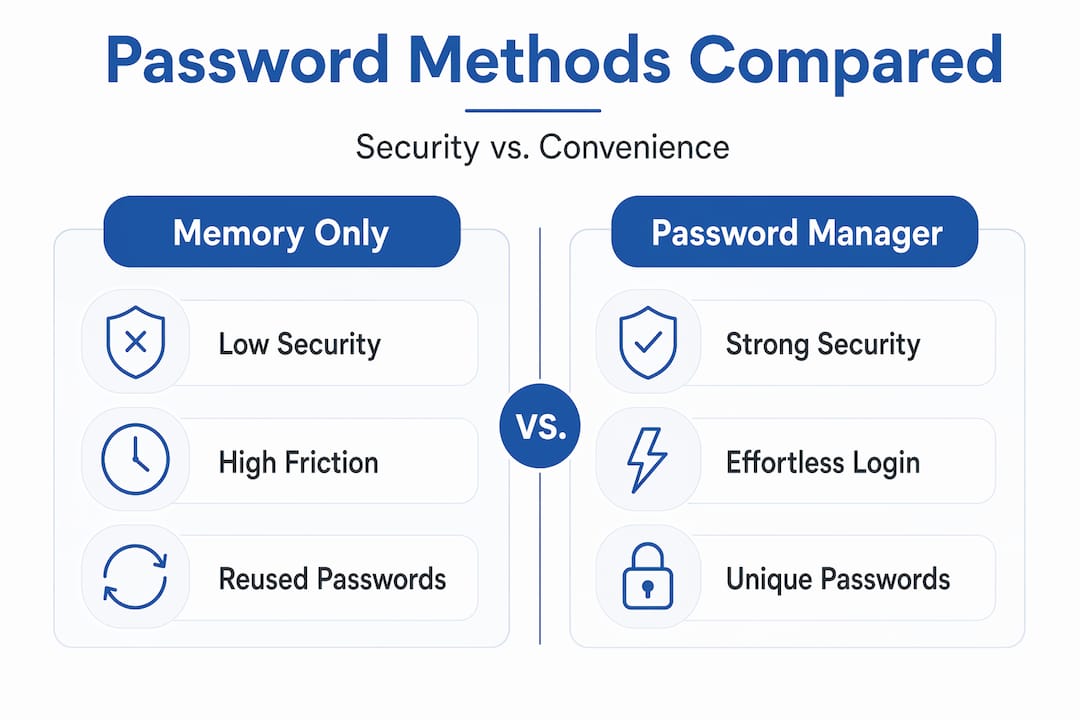
| Method | Security level | Convenience | Key risk |
|---|---|---|---|
| Memory only | Low | High friction | Reuse, predictable patterns |
| Browser password saving | Medium | High | Accessible if device is unlocked |
| “Remember me” / persistent login | Low | Very high | Session hijacking, local access |
| Dedicated password manager | High | High after setup | Master password or vault compromise |
Browser password saving has improved. Microsoft Edge, for example, now keeps credentials out of cleartext memory until they are actually needed, which reduces the window for memory-scraping attacks. That is a real improvement. But browser password storage still lacks the zero-knowledge encryption, breach monitoring, and cross-browser compatibility that dedicated managers offer.
The “remember me” function deserves special attention because it is the most misunderstood option. Checking that box does not store your password. It stores an active session cookie, keeping you logged in indefinitely. Unlike password managers that require authentication before filling credentials, “remember me” leaves an exploitable session open to anyone who picks up your unlocked device or steals your browser cookies.
The security gap between browser saving and a dedicated password manager is especially clear when you travel. On a public network or a borrowed computer, browser-stored credentials are far more exposed. A secure VPN connection paired with a dedicated password manager gives you a much tighter security posture on the road.
Limitations of password managers you should know
Password managers are not perfect. Treating them as an unbreakable solution creates its own risk. You need to understand where the weak points are.
The most significant risk is local malware. Memory-scraping malware can extract decrypted credentials from your device’s RAM while your vault is open. Even advanced managers cannot fully prevent this if your operating system is already compromised. The defense is not a better password manager. It is keeping your device clean with updated software and avoiding shady downloads.
Other risks worth knowing:
- Master password phishing: Attackers can create fake login prompts for your password manager. Always check you are logging into the real app or browser extension.
- Single point of failure: If you forget your master password and have no recovery option set up, you can lose access to everything.
- Keyloggers: Malware that records keystrokes can capture your master password as you type it.
- Vault sync breaches: Cloud-synced vaults are encrypted, but if a provider suffers a breach, your encrypted data could be targeted. A strong master password with high iteration key derivation makes cracking it computationally cost millions of dollars, so the encryption holds.
Pro Tip: Enable biometric unlocking on your phone and set your vault to auto-lock after two minutes of inactivity. This stops the most common local-access scenario: someone picking up your unlocked device.
Also disable browser autofill and enable MFA in your password manager settings. Those two configuration choices cut your attack surface significantly.
How to get started with a password manager
Switching sounds harder than it is. Here is how to do it right:
- Pick a reputable manager. Look for zero-knowledge architecture, AES-256 encryption, a transparent audit history, and strong reviews. Techstacktoday publishes tested password manager rankings that are not influenced by paid placement.
- Create a strong master password. Make it a passphrase you can actually remember. Four or five unrelated words, like “correct-horse-battery-staple” style, work well. This is the one password worth memorizing.
- Enable multi-factor authentication immediately. Use an authenticator app, not SMS, for your vault’s MFA. This is your most important single security action.
- Import your existing passwords. Most managers let you import from your browser or a CSV file. Do this in one session so you do not leave stragglers behind.
- Update weak and reused passwords. Your manager will flag duplicates. Start with your email and financial accounts, then work through the rest.
- Disable browser password saving. Go into your browser’s settings and turn off the built-in password manager. One system, one vault.
- Set up emergency access or recovery. Most managers offer a recovery kit or trusted-contact option. Store yours somewhere physically secure.
Pro Tip: When you are traveling, make sure your password manager is set up on your mobile device before you leave. If you also use a secure mobile data connection abroad, you minimize interception risk when syncing your vault.
If you want help deciding which manager fits your needs, Techstacktoday’s password manager reviews cover the top options with real-world testing, not vendor claims.
My honest take on password managers
I have watched people cycle through the same mistakes for years. They convince themselves their memory-based system is fine because nothing has gone wrong yet. Then one breach notification arrives and they spend a frantic evening trying to remember every account that used the same password.
In my experience, the hesitation to switch is almost always about the setup cost, not the ongoing effort. Once a manager is running, it actually removes friction from your daily life. Logging in takes seconds. You stop getting locked out. You stop reusing passwords out of desperation.
Yes, password managers have real limitations. They are, as one security founder put it, a way to handle the risks of an already-broken system. Passwords themselves are a flawed primitive. Passkeys are emerging as a stronger long-term replacement and many major platforms now support them. But we are not in a passkey-only world yet. Until we are, a password manager is the most practical tool you have.
Do not wait for a perfect solution. Set up a manager this week. Get MFA on your vault. Update your email password first. That is enough to dramatically reduce your real-world risk.
— TechStackTeam
Find the right password manager today
You now know exactly why password managers beat memory and what to look for in a secure solution. The next step is picking one you can actually trust.
Techstacktoday has reviewed and ranked the best password managers in 2026 based on hands-on testing, zero-knowledge verification, and real-world performance. No paid rankings. No vendor influence. Just honest assessments of what works. Browse the full list, compare features side by side, and find a manager that fits your setup today. While you are at it, check out Techstacktoday’s VPN service rankings to layer your privacy protection beyond the password vault.
FAQ
Why can’t I just memorize strong passwords?
Human memory cannot reliably hold dozens of unique, complex passwords without resorting to predictable patterns or reuse, both of which attackers exploit directly.
Are password managers actually safe?
Yes, when properly configured. They use AES-256 encryption and zero-knowledge architecture, meaning even the provider cannot access your data. The main risks come from weak master passwords, no MFA, or a malware-infected device.
What happens if I forget my master password?
You could lose access to your vault if you have no recovery option in place. Set up your manager’s emergency kit or recovery code during initial setup and store it somewhere physically secure.
Do password managers work across all my devices?
Most reputable password managers sync across devices through encrypted cloud storage, so your credentials are available on your phone, laptop, and tablet without any manual transfer.
Should I still use my browser’s built-in password saving?
No. Browser saving is more convenient but less secure than a dedicated manager. Disable it after migrating to a dedicated password manager to avoid splitting credentials across two systems.