Yes. When configured correctly, password managers are substantially safer than reusing passwords or keeping them in a notes app. The one thing to verify before you trust any vault: it uses a strong key derivation function like Argon2id and you’ve turned on multi-factor authentication. Skip either step, and you’ve built a safe with a cardboard door.
TL;DR:
- Using a strong key derivation function like Argon2id and enabling multi-factor authentication significantly enhances your password manager’s security.
- Cloud-based managers are more vulnerable to protocol exploits than self-hosted or local options, especially if they lack regular security audits or transparency.
- Browser extensions pose a higher security risk due to potential vulnerabilities from third-party add-ons and outdated or poorly maintained software.
- Proper configuration, including a long master passphrase and disabling autofill on high-value accounts, is critical to minimize the attack surface.
- Regularly reviewing active sessions, revoking unused device access, and choosing vendors with transparent security practices strengthen your overall password safety.
Table of Contents
- What Is Password Manager Security, and How Does It Actually Work?
- Which Type of Password Manager Fits Your Threat Model?
- Have Password Managers Actually Been Hacked?
- How Do You Actually Harden Your Password Manager?
- What Should You Check Before Trusting a Password Manager?
- Does Syncing Passwords Across Devices Create New Risk?
- Are Browser Extensions Putting Your Passwords at Risk?
- Can Autofill Be Exploited to Steal Your Passwords?
- Why We Still Recommend Password Managers (And How We Test Them)
- Where to Check Vendor-Level Security Before You Choose
- Sources
What Is Password Manager Security, and How Does It Actually Work?
Every reputable password manager runs on the same basic promise: your data gets locked with AES‑256 encryption before it ever leaves your device, and it stays locked in transit too. That part is table stakes. The details that actually determine whether your vault survives an attack live one level deeper.
Zero‑knowledge architecture means the provider’s servers only ever see encrypted blobs. They can’t read your passwords, and in theory they can’t hand them over to anyone else either, because they never had the key. That’s the pitch. The limitation is that “zero‑knowledge” is a marketing term as much as a technical one, and it says nothing about how well the encryption was implemented or how the client-server protocol behaves under attack. A vendor can be technically zero‑knowledge and still ship exploitable code.
The real workhorse is the key derivation function, or KDF. This is the algorithm that turns your master password into the actual encryption key, and it’s the single biggest factor in how long your vault would survive an offline brute-force attempt if a stolen encrypted file ever ended up on someone else’s hard drive. Argon2id configurations force attackers to burn far more time and memory per guess than older PBKDF2 implementations, especially low-iteration ones still lingering in legacy accounts.
Here’s what actually matters in the mechanics:
- AES‑256 encrypts the vault contents themselves, both at rest and in transit.
- Argon2id (preferred) or PBKDF2 with high iteration counts derives your encryption key from your master password.
- A unique salt for each vault prevents attackers from precomputing password guesses across many victims at once.
- Key derivation happens client-side. Your master password never leaves your device.
Read more on how password managers store credentials securely if you want the full technical breakdown.
Which Type of Password Manager Fits Your Threat Model?
Not every password manager faces the same risks, because they don’t all work the same way. The category you choose changes your attack surface more than almost any other decision you’ll make.
- Browser and device‑built‑in managers integrate tightly with your operating system or browser, which is convenient, but they often sync poorly across platforms and inherit any vulnerability in the browser itself.
- Cloud‑based third‑party managers sync seamlessly across every device you own, but that convenience means your encrypted vault sits on someone else’s servers, which is a bigger target than your laptop.
- Local or self‑hosted managers never send your vault anywhere, cutting out server-side risk entirely, but you’re now responsible for backups, updates, and device security with no safety net.
- Passkeys eliminate the password altogether, using public-key cryptography tied to your device, which removes the “stolen master password” failure mode completely but shifts risk to device loss and account recovery.
Carnegie Mellon’s guidance on local versus cloud tools is worth reading if you’re deciding which model fits your risk tolerance, particularly if you handle sensitive work credentials.
Have Password Managers Actually Been Hacked?
Yes, and the details matter more than the headline. Researchers behind a comparative security analysis demonstrated real attacks against cloud-based password managers using what’s called a malicious‑server threat model. Instead of brute-forcing encryption, the attack exploits weaknesses in the protocol between the client and server, in some cases recovering or even modifying vault contents without ever cracking AES‑256 directly.
Separately, researchers at ETH Zurich found implementation vulnerabilities in tested managers that allowed viewing or altering stored passwords, prompting recommendations for third-party audits, greater transparency, and clearer migration paths for cryptographic upgrades.
The important distinction is between a server breach and a design flaw. A breach means attackers got into a company’s infrastructure. A cryptographic or implementation flaw means the product itself has a hole, regardless of whether anyone ever breaks in. “This vendor has never been hacked” tells you almost nothing about which risk you’re avoiding, because plenty of vulnerable products simply haven’t been targeted yet.
What should reassure you isn’t a clean track record. It’s what a vendor does after a flaw surfaces: publishing a patch timeline, commissioning an audit, and giving users a path to migrate to stronger encryption parameters without losing their vault.

How Do You Actually Harden Your Password Manager?
Configuration is where most of the real risk reduction happens, and most of it takes less than twenty minutes.
- Build a long master passphrase. Four or five random words beat an eight-character password with symbols, because length defeats brute-force math far more efficiently than complexity does.
- Keep recovery options offline. Print your recovery key or store it on a hardware device, never in an email you might lose access to during the exact crisis you’re trying to recover from.
- Turn on strong MFA immediately, and prefer a hardware security key or a separate authenticator app over SMS.
- Don’t store TOTP codes inside the same vault that holds your passwords. Centralizing both defeats the point of two-factor authentication, since one compromised vault now unlocks everything at once.
- Limit autofill on sensitive accounts and require re-authentication for banking, email, and anything tied to account recovery elsewhere.
- Encrypt your device disk, keep your OS patched, and lock your screen automatically. A password manager can’t protect you from an unlocked laptop.
- Document emergency access for a trusted contact or heir, using your provider’s built-in legacy access feature if one exists, rather than leaving a written password taped to a drawer.
Pro Tip: Treat your master passphrase like a physical key, not a password. Write it down once, store the paper somewhere secure, and never type it anywhere except your password manager’s own unlock screen.
For more on choosing a passphrase that actually holds up, see this guide on what makes a strong master password.
What Should You Check Before Trusting a Password Manager?
Marketing copy tells you almost nothing. These signals do:
- A recent third-party security audit, with the findings and remediation notes actually published, not just referenced.
- Public documentation of which KDF the vendor uses and at what parameters, plus a stated migration path for users still on older, weaker settings.
- An active bug bounty program with a clear disclosure policy and a history of timely patches.
- Open-source client code or reproducible builds, which let independent researchers verify what the software actually does.
- Support for hardware security keys and passkeys, along with granular controls over autofill and shared vault access.
The password manager reviews on Techstacktoday walk through exactly which vendors publish this information and which stay vague.
Does Syncing Passwords Across Devices Create New Risk?
Syncing is the feature that makes password managers usable day to day, and it’s also the feature that expands your attack surface the most. Every device you sync to becomes a potential entry point, whether that’s an old phone you forgot to log out of, a shared family tablet, or a work laptop with looser security policies than your personal machine.
The encryption itself typically travels well. A properly implemented sync protocol never exposes your master password or unencrypted vault data to the server relaying updates between devices. The risk usually isn’t the sync mechanism cracking under cryptographic pressure. It’s the weakest device in your sync chain becoming the actual point of failure. If one laptop lacks disk encryption or a screen lock, your entire vault is only as safe as that one machine.
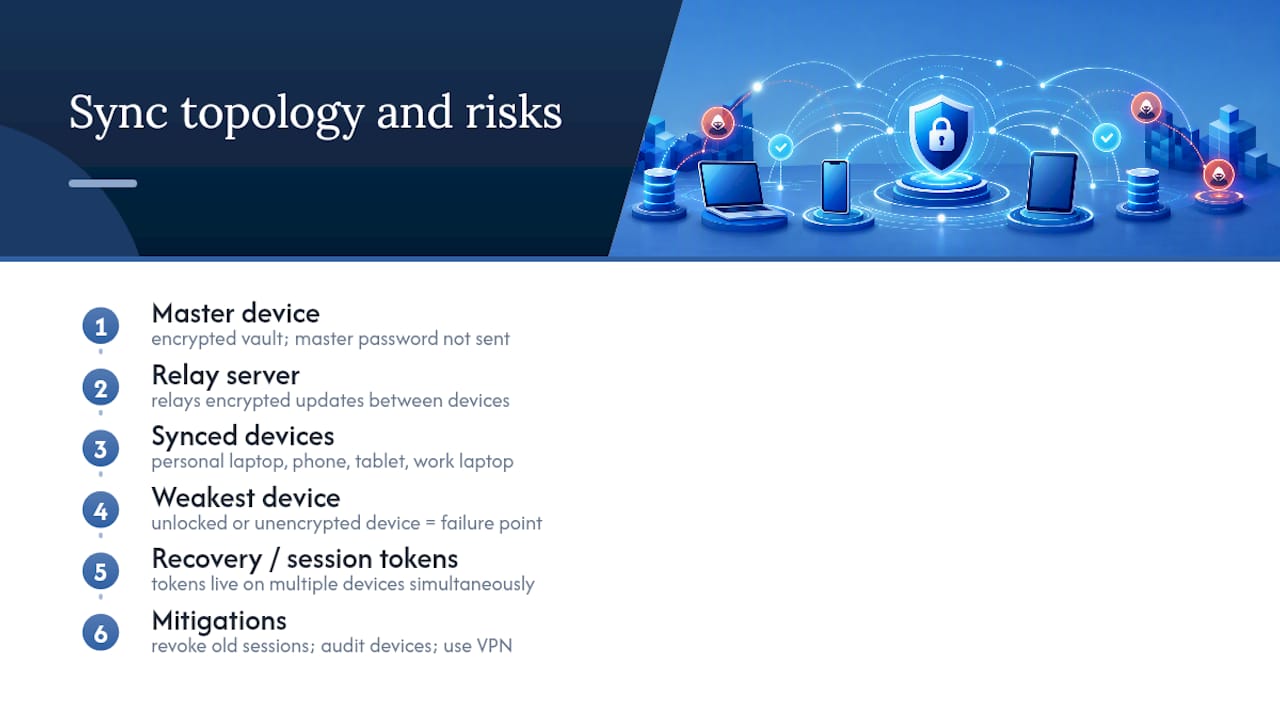
Cross-platform sync also means your recovery and session tokens live in more places at once. A session that stays authenticated on a device you’ve since lost, sold, or stopped using is a quiet liability most people never audit. Review your active sessions periodically and revoke access from devices you no longer use, the same way you’d check which apps still have access to your email account.
If you travel frequently or use public or shared networks, syncing over an unsecured connection adds another layer worth considering, which is part of why privacy-conscious users often pair password managers with a VPN on unfamiliar networks.
Are Browser Extensions Putting Your Passwords at Risk?
Browser extensions are how most people actually interact with their password manager day to day, and they’re also one of the more exposed pieces of the entire setup. An extension runs inside your browser with permissions to read and interact with the pages you visit, which is exactly what makes autofill convenient, and exactly what makes a malicious or compromised extension dangerous.
The risk isn’t limited to the password manager’s own extension. Other browser extensions installed alongside it, especially ones with broad page-access permissions, can sometimes observe or interfere with what’s happening on a page, including form fields your password manager just filled in. A browser stuffed with dozens of extensions from unaudited developers is a bigger liability than most people realize, regardless of how secure the password manager itself is.
Extension updates matter too. A password manager extension that hasn’t shipped a security update in months, or one pulled from an official browser store without explanation, is a signal worth taking seriously. Stick to extensions distributed through official stores, review permissions before installing anything new, and periodically audit what’s actually running in your browser. Fewer extensions generally means a smaller attack surface, and that’s true even when every one of them individually looks harmless.
Can Autofill Be Exploited to Steal Your Passwords?
Autofill is convenient enough that most people never question how it decides where to type your password, which is exactly the gap that’s been exploited before. Autofill mechanisms typically match credentials to a site based on its domain, but poorly implemented matching logic can be tricked by lookalike domains or invisible form fields injected onto a legitimate-looking page.
A common attack vector involves hidden or overlapping form fields designed to capture whatever a password manager autofills, even on pages the user never intended to submit a password to. This is why many security-focused managers now require a visible click or keyboard shortcut to trigger autofill, rather than filling fields automatically the instant a page loads. That extra step is a real security signal, not friction for its own sake.
There’s also a data-broader risk: if your password manager autofills into a compromised or malicious browser extension’s field, the credential can be exfiltrated before you ever notice a login attempt happened. Limiting autofill on high-value accounts, as covered in the hardening section above, directly reduces this exposure. So does disabling autofill on any page you didn’t navigate to directly, and treating unexpected login prompts, especially ones that appear without you initiating them, as a red flag worth investigating before typing anything.
Why We Still Recommend Password Managers (And How We Test Them)
Properly configured, a password manager beats writing passwords in a notebook or reusing the same one across accounts, full stop. The comparative risk isn’t close.
Our reviews weigh what actually predicts safety: published audit history, KDF transparency, bug bounty responsiveness, and how a vendor handles disclosure after something goes wrong. We treat marketing claims like “military-grade encryption” as noise until backed by documentation.
Use our rankings as a starting point for vendor-level scrutiny, not a substitute for checking a provider’s own security whitepaper before you commit your entire digital life to it.
— TechStackTeam
Where to Check Vendor-Level Security Before You Choose
Everything in this article tells you what to look for. Finding out which vendors actually deliver it is a separate research project, and it’s one Techstacktoday has already done the hard part of.

Our password manager reviews break down audit history, KDF parameters, and bug bounty responsiveness for every major vendor we’ve tested, so you’re not relying on a company’s own marketing page to judge its security posture. If you want the deeper technical rundown first, the guide on how these tools store your credentials walks through vault architecture in more detail than most vendor whitepapers do. Once you know what to check, comparing vendors side by side takes minutes instead of hours. Start with the rankings, cross-reference the security signals covered here, and pick the manager whose transparency actually matches its claims.
Sources
For general best practices, see the NCSC’s password manager guidance and Carnegie Mellon’s recommendations. For technical depth, review the cloud password manager security analysis from academic researchers.
- Carnegie Mellon University — Password Managers guidance
- Zero Knowledge (About) Encryption: A Comparative Security Analysis of Four Cloud-based Password Managers
- ETH Zurich — Password managers less secure than promised