Sharing passwords safely with family means using dedicated tools that protect your privacy while keeping access convenient for everyone in your household. The standard industry term for this practice is secure credential sharing, and the best way to do it is through a family password manager like 1Password Families, NordPass Family, or Norton Password Manager. These tools give each person their own login while letting an organizer control what gets shared and with whom. Done right, you never have to text a password again.
How to share passwords safely with family using a password manager
Family password managers are the most reliable method for secure password sharing in a household. They work by giving every family member an individual account while also providing a shared vault for household credentials like streaming services, Wi-Fi, and utility accounts. The organizer controls who can see, edit, or add items to the shared vault.
Here is what sets family password managers apart from other methods:
- Individual vaults: Each person keeps personal passwords private. Your bank login never touches the shared space.
- Shared vaults: Household accounts like Netflix or a home router login live here, accessible only to people you invite.
- Permission controls: The organizer can grant read-only or full-access rights per member, per item.
- No plaintext exposure: Family password managers give each person their own login and let organizers manage shared access, so passwords are never texted or emailed in the open.
The table below compares three leading options for family password management:
| Tool | Family plan | Shared vault | Organizer controls |
|---|---|---|---|
| 1Password Families | Up to 5 members | ✅ Yes | ✅ Full permission controls |
| NordPass Family | Up to 6 members | ✅ Yes | ✅ Role-based access |
| Norton Password Manager | Bundled with Norton 360 | ✅ Yes | ✅ Organizer-managed sharing |
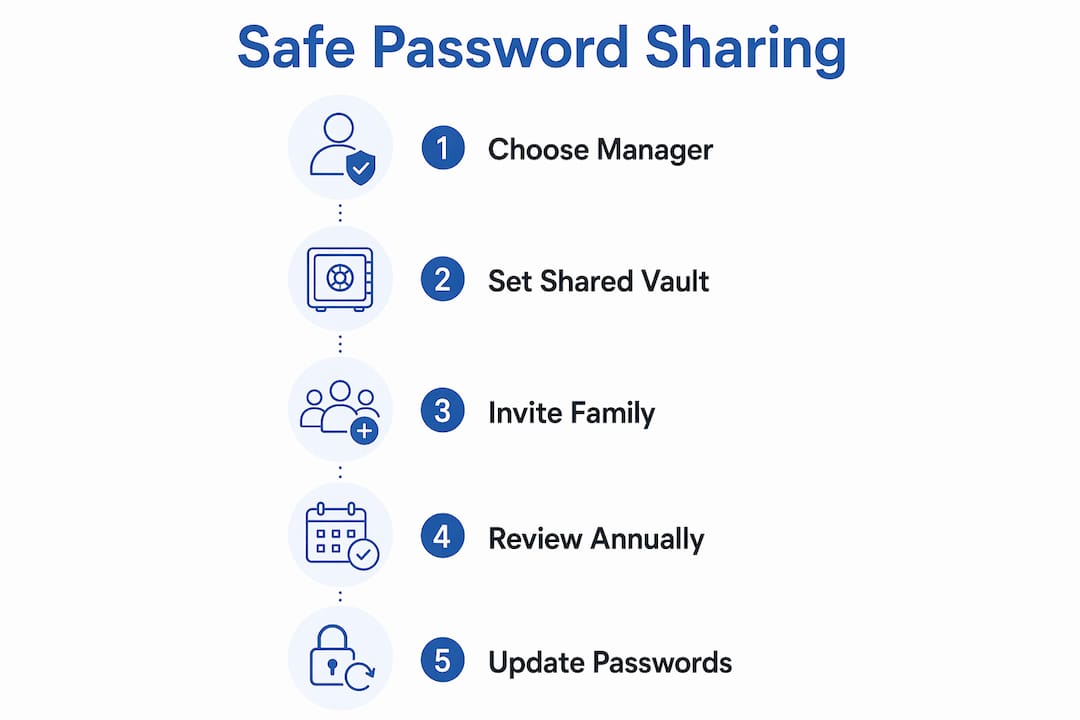
Pro Tip: Set up the shared vault first, then invite family members. This way you control what is visible before anyone logs in.
Separating personal and shared spaces is not just a convenience feature. Isolating personal credentials and sharing only necessary services under organizer control directly reduces your household’s security risk. If one device gets compromised, the attacker only reaches what that person’s account can access, not every password in the family.
You can explore Techstacktoday’s full breakdown of the best password managers to compare plans, pricing, and real-world performance before committing to one.
How to use Apple’s built-in password sharing with family
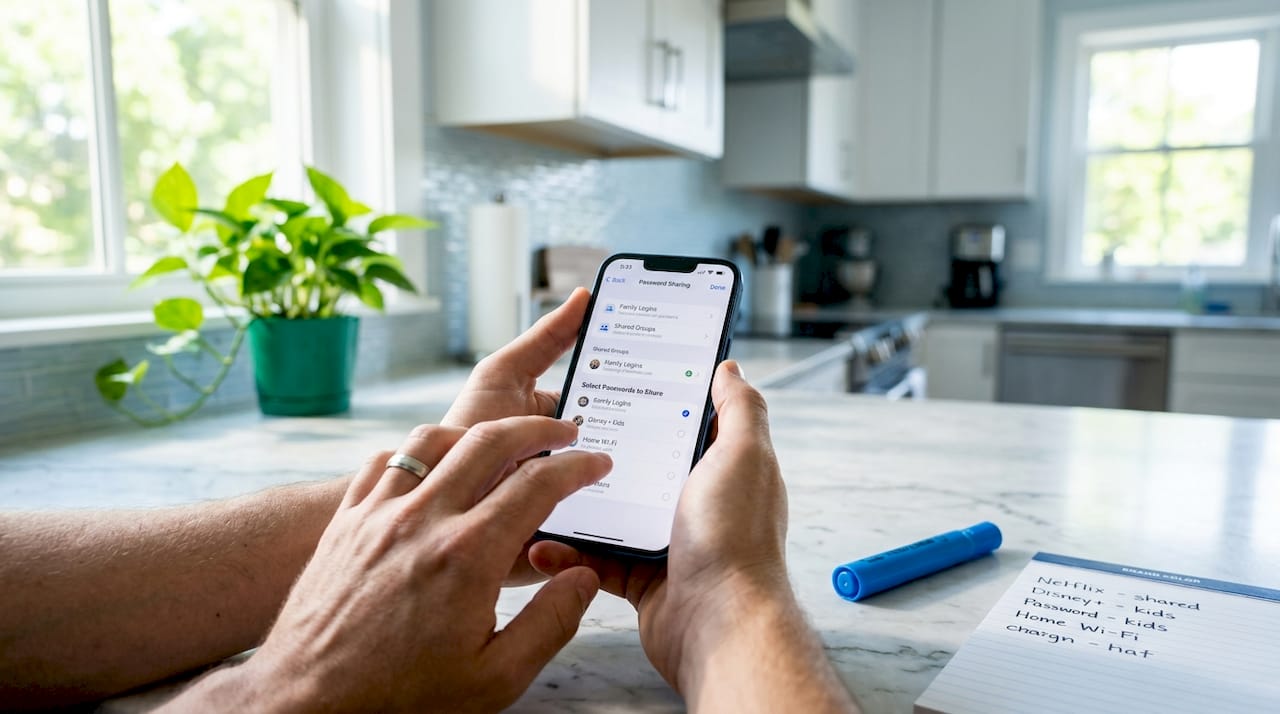
Apple users have a native option that requires no third-party app. The Apple Passwords app, available on iOS 18 and macOS Sequoia, lets you create a shared group that syncs automatically across devices via iCloud. This is one of the cleanest ways to share household credentials without any manual copying.
Follow these steps to set it up:
- Open the Passwords app on your iPhone or Mac.
- Tap the + icon to create a new shared group and give it a name (e.g., “Family Accounts”).
- Add family members using their Apple Account email addresses.
- Move relevant passwords into the group. Members can view and use them immediately.
- Any changes sync automatically. If you update the Wi-Fi password, everyone in the group gets the new version without you doing anything extra.
The Apple Passwords app lets users create shared groups via iCloud and synchronize password changes automatically in Safari and the app. That automatic sync is the key advantage. You update once, and the whole group stays current.
For Wi-Fi specifically, Apple offers a separate in-person sharing method. When a guest or family member tries to join your network, a prompt appears on your device asking if you want to share the password. You tap Share Password, and it transfers without either person ever seeing the actual characters. Apple’s in-person Wi-Fi sharing requires both devices to be updated, Bluetooth and Wi-Fi enabled, and both users signed into Apple Accounts.
Pro Tip: If the sharing prompt does not appear, check that the guest’s Apple Account email is saved in your Contacts. Apple uses that match to trigger the prompt.
Common issues include the prompt not appearing (usually a Contacts mismatch) or sync delays (usually an iCloud connection problem). Restarting both devices and confirming iCloud sync is active resolves most cases within minutes.
Why texting passwords to family is a real security risk
Sending a password over iMessage, WhatsApp, or email feels harmless. It is not. Sharing passwords via messaging apps risks interception and creates persistent unauthorized access long after the original share. Once a password sits in a chat thread, it is accessible to anyone who picks up that phone, accesses that email account, or finds a backup.
The specific risks break down like this:
- No expiration: A texted password stays in the conversation forever unless manually deleted.
- No access control: You cannot revoke it. Once sent, you have lost control.
- Forwarding risk: The recipient can forward it to anyone without your knowledge.
- Breach exposure: If the recipient’s email or messaging account is compromised, your password goes with it.
“The main strength of secure sharing is maintaining control after sharing: restricting who can view a credential and for how long prevents enduring exposure.” — 1Password on secure sharing
The safer alternative for one-off shares is a controlled link. Tools like 1Password generate share links with expiration tied to specific email addresses. The link stops working after a set time, and only the intended recipient can open it. That is a fundamentally different security posture than a text message.
Best practices for managing shared passwords in your household
Getting the setup right is step one. Keeping it secure over time is step two. Here is how to manage shared passwords without letting security slip.
-
Separate personal from shared. Use private vaults for anything personal (banking, health, work) and a shared vault only for household accounts. Minimizing blast radius by isolating personal credentials and using narrow shared vaults is the most effective structural defense for families.
-
Set permissions deliberately. Not every family member needs edit access to every shared item. Give teenagers read-only access to streaming accounts. Reserve full access for adults managing the household accounts.
-
Use link expiration for one-off shares. When sharing a password with someone outside your regular family group, use a time-limited link. Treat link expiration and email restrictions as core security controls, not optional settings, to prevent unauthorized reuse.
-
Review shared access every few months. People leave households, accounts change, and old shared items accumulate. A quarterly review of your shared vault takes ten minutes and removes credentials that no longer need to be shared.
-
Plan for emergency access separately. A trusted adult should have access to critical accounts in a genuine emergency, but that does not mean sharing everything. Emergency access plans work best when routine shared access covers daily services and tighter emergency access covers critical accounts only.
Pro Tip: Write down which accounts live in the shared vault and review the list with your household once a year. Treat it like a digital household inventory.
Password security for families also means updating shared passwords after any household change, such as a breakup, a child moving out, or a device being lost. Rotate the affected credentials immediately and update the shared vault so everyone has the new version.
Key takeaways
The most secure way to share passwords with family is through a dedicated family password manager that separates personal vaults from shared ones and gives the organizer full control over access and permissions.
| Point | Details |
|---|---|
| Use a family password manager | Tools like 1Password Families, NordPass Family, and Norton Password Manager prevent plaintext password exposure. |
| Apple’s built-in sharing works well | The Passwords app and in-person Wi-Fi sharing avoid insecure channels for Apple households. |
| Never text passwords | Messaging apps offer no expiration, no revocation, and no access control after sending. |
| Separate personal and shared vaults | Keep banking and personal accounts private; only put household services in the shared vault. |
| Plan emergency access deliberately | Restrict high-impact credentials to trusted users and keep that list short and current. |
What I’ve actually seen go wrong with family password sharing
After testing over 50 privacy and security services at Techstacktoday, the pattern I see most often is not a technical failure. It is a process failure. Families set up a password manager, create a shared vault, and then slowly drift back to texting passwords because it feels faster in the moment.
The problem with that drift is invisible until something goes wrong. A teenager’s phone gets stolen. An ex-partner still has access to the streaming account. A parent passes away and no one can get into the household accounts. These are not edge cases. They are common, and they are entirely preventable.
The tools I recommend most for families are 1Password Families and NordPass Family, not because they are the most technically advanced, but because they are the easiest to actually use consistently. Adoption matters more than features. A password manager your family uses imperfectly beats one they abandon after two weeks.
One thing most articles skip: the emergency access conversation. Deciding in advance who gets access to what, and under what circumstances, is as important as the technical setup. Password managers with emergency access features are genuinely useful here. Treat it like a digital version of keeping a spare key with someone you trust, not handing out copies to everyone.
The families who get this right are not the most tech-savvy ones. They are the ones who had one direct conversation about it and picked a tool they all agreed to use.
— TechStackTeam
Find the right password manager for your family
Techstacktoday has hands-on tested and ranked the leading password managers so you do not have to guess which one fits your household. No paid rankings. No sponsored placements. Just real-world performance data.

Start with the best password managers of 2026 to see side-by-side comparisons of 1Password, NordPass, Norton, and more, including family plan pricing and sharing features. If you want to go further, pairing a password manager with a top-rated VPN adds another layer of protection when your family connects on public networks. Both guides are updated regularly and reflect current pricing and features.
FAQ
What is the safest way to share passwords with family?
The safest method is a family password manager like 1Password Families or NordPass Family, which gives each member an individual account and lets an organizer control shared vault access without exposing plaintext passwords.
Can I share passwords securely without a third-party app?
Yes. Apple users can use the Passwords app to create a shared iCloud group or use the in-person Wi-Fi sharing prompt, both of which avoid sending passwords through insecure channels.
Why is texting passwords to family members a bad idea?
Texted passwords have no expiration, cannot be revoked, and remain accessible in chat history indefinitely. If either device or account is compromised, the password is exposed with no way to limit the damage.
How often should I update shared family passwords?
Review and rotate shared passwords at least once a year, and immediately after any household change such as a device loss, a breakup, or a family member moving out.
What is emergency access in a password manager?
Emergency access is a feature that lets a designated trusted person request access to your vault under specific conditions, such as incapacitation or death. It is designed for rare urgent situations and should be separate from everyday shared access.