The biggest examples of unsafe public Wi-Fi risks are evil-twin hotspots, captive-portal phishing, DNS hijacking, man-in-the-middle sniffing, malware pushed through fake update prompts, and session hijacking that steals your login cookies. Do this now: turn off auto-join on your phone and forget saved public networks, switch to your phone’s own hotspot or a no-logs VPN for anything sensitive, and never enter a password on a captive portal page. The FTC warns that a browser lock icon only confirms encryption, not that the network or login page is legitimate.
Pro Tip: If you’re about to check email or log into a bank account on public Wi-Fi, stop and switch to your phone’s cellular hotspot first. It takes ten seconds and closes off most of these risks entirely.
Don’t do these things on public Wi-Fi:
- Don’t type a password or PIN into any captive portal login screen.
- Don’t install “required” software, plug-ins, or updates that a Wi-Fi login page pushes at you.
- Don’t leave file sharing or AirDrop turned on in public settings.
Key Takeaways
Unsafe public Wi-Fi risks now center on infrastructure compromise and phishing rather than simple packet sniffing, and disabling auto-join plus using a VPN or hotspot closes off most of them.
| Point | Details |
|---|---|
| HTTPS isn’t full protection | It encrypts content but not DNS or SNI metadata, so your browsing destinations can still leak. |
| Evil twins exploit auto-join | Turn off auto-join and forget saved public SSIDs to stop rogue hotspots from connecting automatically. |
| Captive portals can phish you | Never enter passwords or install software prompted by a Wi-Fi login page. |
| Fake update prompts install malware | Documented ClickFix-style attacks push malware through compromised hotel and conference portals. |
| Use a tested VPN for sensitive sessions | Techstacktoday’s audited VPN rankings help you pick a no-logs provider before you travel. |
Table of Contents
- Real Examples of Unsafe Public Wi-Fi Risks in Action
- How Do These Wi-Fi Attacks Actually Work?
- How Can You Tell If a Network Is Under Attack?
- What Should You Do to Protect Yourself on Public Wi-Fi?
- What Recent Incidents Reveal About Public Wi-Fi Threats
- Frequently Asked Questions
- Sources
Real Examples of Unsafe Public Wi-Fi Risks in Action
You’ve probably sat down in a coffee shop, opened your laptop, and joined “Free_Airport_WiFi” without a second thought. That single habit is behind most of the incidents below. Here’s what these attacks actually look like when they happen to a real person, not a hypothetical one.
-
The coffee shop packet sniffer. A stranger sits two tables away running free sniffing software while you check webmail. If your email client uses an outdated plaintext connection, your login moves across the shared network unencrypted, and the attacker reads it in real time.
-
The airport evil twin. An attacker sets up a hotspot named “Airport_Free_WiFi_Official” with a stronger signal than the real network. Your phone auto-joins because it recognizes the name pattern. Once connected, every unencrypted request you send passes through the attacker’s device first.
-
The hotel captive-portal phishing page. You open your laptop in a hotel room and get a login page asking for your email and a “loyalty program” password. It looks convincing, but it’s a cloned page harvesting credentials you likely reuse elsewhere, feeding straight into credential theft schemes.
-
The conference DNS redirect. At a trade show, a compromised router quietly rewrites DNS responses. You type your bank’s web address correctly, but the poisoned DNS sends you to a near-identical fake site instead, and you hand over your credentials without realizing anything is wrong.
-
The fake update prompt (ClickFix-style). You connect to hotel Wi-Fi and a pop-up claims your browser or VPN client needs an urgent security patch. Clicking install runs malware instead. Microsoft documented exactly this pattern in compromised hotel login portals that pushed malware and stole enterprise credentials. PCWorld’s reporting on similar incidents backs this up.
-
The coworking space session hijack. An attacker on the same shared network intercepts your browser cookies for a site you’re logged into. With that stolen session cookie, they can access your account without ever knowing your password.
-
The unsecured file share leak. You leave file sharing enabled from a client meeting the week before. On the café’s open network, anyone nearby can browse your shared folders, a risk Kaspersky specifically flags as commonly overlooked.
-
The legacy app plaintext leak. An older app on your phone, maybe a weather widget or a niche shopping app, still sends data unencrypted. On public Wi-Fi, that data, including location and sometimes stored tokens, is visible to anyone monitoring the network.
HTTPS now protects most of what you type and read, but it doesn’t hide which sites you’re visiting or protect you from a compromised router serving fake pages before you ever reach the real internet, according to current security analyses.
How Do These Wi-Fi Attacks Actually Work?
Understanding the mechanics helps you spot the warning signs faster, and it explains why “the lock icon is green, so I’m safe” is outdated advice.
- Man-in-the-middle/packet sniffing: An attacker positions themselves between you and the router, reading traffic as it passes. TLS/HTTPS encrypts the content of that traffic, but the domain names you visit (via DNS and SNI) can still leak, per Techlicious’s breakdown of the current threat model.
- Evil-twin/rogue SSID: Your device’s auto-join feature connects to any network name it recognizes, and attackers exploit that by cloning trusted SSIDs with a stronger signal, then serving a fake captive portal to harvest credentials.
- DNS hijacking and router compromise: If an attacker controls the gateway itself, hotel or conference routers are common targets, they can rewrite DNS answers and serve convincing fake pages, sometimes even with a valid-looking certificate for a fake portal domain.
Most web traffic now runs over HTTPS, according to SpeedTestHQ, which is exactly why attackers shifted from broad sniffing to targeted phishing and infrastructure compromise instead.
How Can You Tell If a Network Is Under Attack?
Run through this checklist any time something feels off on public Wi-Fi:
- A captive portal asks for a bank password, Social Security number, or anything unrelated to Wi-Fi access.
- Your browser throws a certificate warning you weren’t expecting.
- You see two networks with nearly identical names (e.g., “Hotel_Guest” and “Hotel_Guest_5G_Free”).
- A pop-up demands you install an app or update immediately to “continue browsing.”
- Your phone shows unexpected sign-in alerts from accounts you weren’t actively using.
- Battery drain or data usage spikes with no obvious cause.
Ask staff to confirm the exact official SSID before connecting. Check your device’s Wi-Fi settings to confirm auto-join is off, and glance at the full URL in your browser bar, not just the app version of a captive portal, since spoofed domains often hide behind shortened or embedded browser views.
Pro Tip: Fake captive portals often use a domain that’s almost right but not quite (“hotel-wifi-login.net” instead of the hotel’s actual site). Always open the portal in your regular browser and read the full address before typing anything.

What Should You Do to Protect Yourself on Public Wi-Fi?
Prioritize these in order. The first group takes minutes and closes off nearly every risk described above.
Must-do:
- Disable auto-join and forget saved public networks on your phone and laptop.
- Use your phone’s mobile hotspot for anything involving passwords, banking, or work logins.
- Turn on two-factor authentication or passkeys for email, banking, and cloud accounts, since weak or reused passwords compound every other risk here.
- Confirm HTTPS is active and never enter credentials on a captive portal page.
- Keep your operating system and apps updated, since patched devices close known exploit paths attackers rely on.
- Use an audited, no-logs VPN whenever you must use a network you don’t fully trust.
Optional, for extra protection:
- Carry a travel router with built-in encrypted DNS.
- Turn on DNS over HTTPS (DoH) or DNS over TLS (DoT) in your device settings.
- Browse with HTTPS-Only Mode enabled.
- Disable file sharing entirely before you leave home.
- Use a hardware security key for your most sensitive accounts.
Pro Tip: When picking a VPN, look for one that’s published a third-party security audit and has a genuine no-logs policy. If a hotel or airport blocks VPN traffic outright, choose a provider offering obfuscated protocols so your connection doesn’t get flagged and cut off.
What Recent Incidents Reveal About Public Wi-Fi Threats
Security researchers keep finding the same pattern: infrastructure compromise, not casual sniffing, is the dominant threat now.
- Microsoft documented attackers infiltrating hotel Wi-Fi portals to push fake update prompts that installed malware and stole enterprise credentials.
- Security blogger Bruce Schneier has covered DNS hijacking techniques used to steal credentials on public networks.
- Survey data from Statista shows a meaningful share of adults still connect to unsecured Wi-Fi and enter personal data without any precautions at all.
Why simple habits beat panic
You don’t need to memorize every attack technique to stay safe. What matters is building two or three habits, auto-join off, hotspot or VPN for anything sensitive, updates current, and running them every time without thinking twice. Techstacktoday’s hands-on testing of VPNs and privacy tools exists precisely because the gap between knowing a risk exists and actually closing it is where most people get caught.
How Techstacktoday Helps You Choose the Right Protection
Reading about evil-twin hotspots and DNS hijacking is one thing. Picking a VPN that actually holds up under real conditions is another. Techstacktoday tests VPNs and password managers hands-on, in real network conditions, not just on paper specs, and ranks them without paid placements influencing the results.

If you’re ready to stop guessing which VPN actually protects your DNS traffic and blocks rogue portal redirects, our tested VPN rankings break down audited no-logs policies, obfuscated protocols for restrictive networks, and real-world speed loss. Start there, compare two or three options against your actual travel habits, and pick the one that fits before your next trip through an airport or hotel lobby.
Frequently Asked Questions
Is it ever safe to check email on public Wi-Fi?
It’s lower risk if the site uses HTTPS and you have two-factor authentication enabled, but a VPN or your phone’s hotspot removes most of the remaining exposure.
Can a hacker see what I’m doing on public Wi-Fi even with HTTPS?
They can often see which sites you visit and how much data you send, even when they can’t read the content itself, because DNS and SNI metadata aren’t always encrypted.
What’s the fastest way to protect myself if I have to use hotel Wi-Fi?
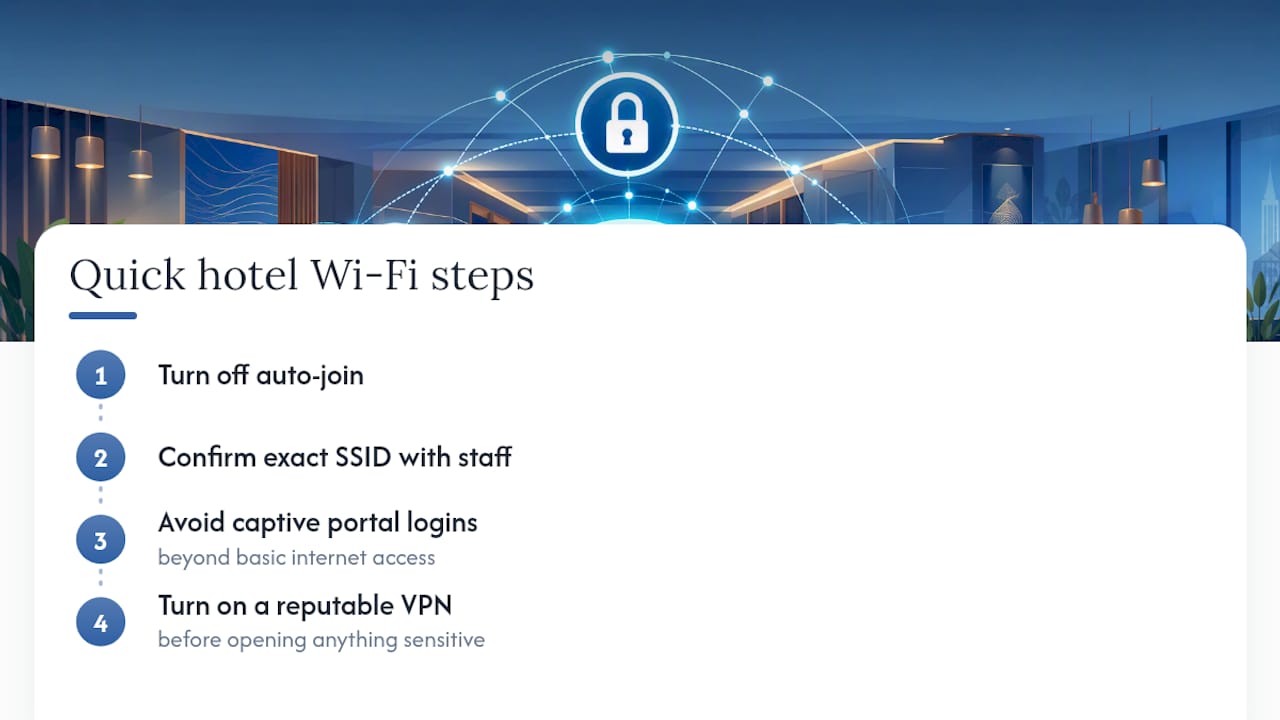
Turn off auto-join, confirm the exact SSID with staff, avoid captive portal logins beyond basic internet access, and turn on a reputable VPN before opening anything sensitive.
Do I need a VPN if I only browse HTTPS websites?
A VPN still adds value by encrypting your DNS queries and hiding your browsing metadata from the network operator, something HTTPS alone doesn’t cover.
How do I know if a Wi-Fi network is a fake evil twin?
Compare the exact network name with a staff member, watch for duplicate SSIDs, and be suspicious of a login page requesting anything beyond basic Wi-Fi access.
Sources
- Are public Wi‑Fi networks safe? What you need to know | FTC
- Public Wi‑Fi just got riskier. Follow these 4 security tips. | PCWorld
- How to protect your privacy on public Wi‑Fi: 3 risks, 5 fixes | Techlicious
- Public Wi‑Fi risks and why you don’t have to fear them | Kaspersky