Browser autofill is a browser-managed feature that matches saved profile data to form fields and either suggests or pre-populates values. The site you’re visiting has no control over it. Here’s what you need to know upfront:
- What gets stored: Names, addresses, email addresses, phone numbers, credit card numbers, and passwords. Browsers save these locally after you submit a form, often in a SQLite-based autofill database indexed by field name, value, and a frequency count.
- Who decides when to fill: The browser does, using field attributes, DOM position, and heuristics. Developers can guide that decision with the HTML
autocompleteattribute, but the browser makes the final call. - The developer hook: The
autocompleteattribute in the WHATWG HTML Living Standard lets developers attach semantic tokens likegiven-name,street-address, orcc-expto inputs, giving browsers a reliable signal instead of forcing them to guess. MDN’s documentation and Web are the two most practical references for implementing this correctly.
Key Takeaways
Browser autofill is a browser-managed pipeline that stores form data locally, matches it to fields using name attributes and autocomplete tokens, and fills multiple related fields simultaneously when you accept a suggestion.
| Point | Details |
|---|---|
| Local storage drives suggestions | Browsers store name/value pairs with frequency counts; higher counts surface entries first in suggestion lists. |
| Explicit tokens beat heuristics | Use semantic autocomplete tokens like given-name or cc-exp instead of generic on for reliable, accurate fills. |
| Privacy risk on shared devices | Address autofill requires no authentication by default; use separate OS profiles or guest mode on shared computers. |
autocomplete="off" has limits |
Browsers ignore off on credential fields to preserve password manager workflows; apply it only to one-time fields. |
| Techstacktoday for credential security | For cross-device credential storage beyond browser autofill, Techstacktoday’s password manager reviews cover tested, ranked options. |
Table of Contents
- How does browser autofill actually work under the hood?
- What do developers need to know about the autocomplete attribute?
- How do different browsers behave, and how do they interact with password managers?
- What are the real privacy and security risks of browser autofill?
- How do you view, edit, and clear autofill data in major browsers?
- Why does autofill fail, and how do you fix it?
- Developer best practices for autofill, accessibility, and conversion
- What does the research say about how browsers store and use autofill data?
- When browser autofill isn’t enough, here’s what to use instead
- Sources
How does browser autofill actually work under the hood?
The autofill pipeline has four distinct stages: collection, storage, matching, and presentation. Understanding each one explains why autofill works perfectly on some forms and silently fails on others.
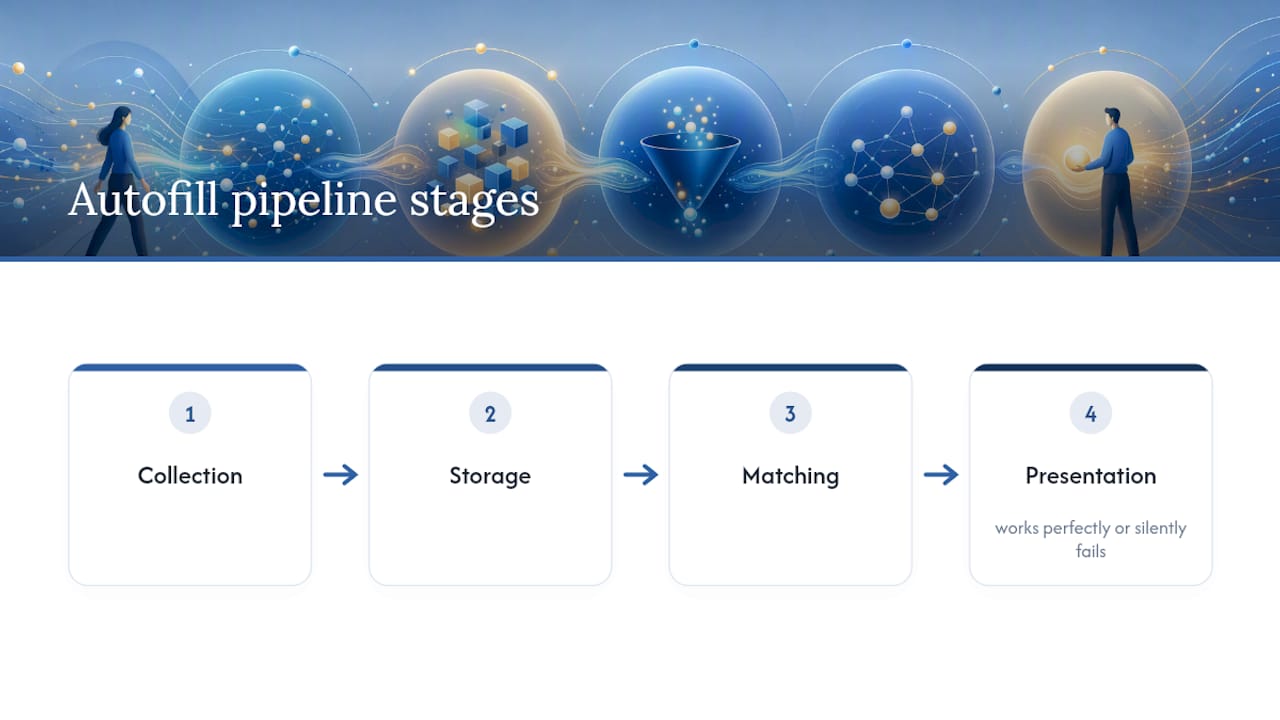
Collection and storage
Every time you submit a form, your browser inspects the submitted fields. It extracts the name attribute (and sometimes id or autocomplete) of each input along with the value you typed. That pair gets written to a local database. In Chromium-based browsers, this is a SQLite database with columns for pair_id, name, value, and count. The count column is the key detail most people miss: every time you submit the same name/value pair, the count increments. Higher counts move entries toward the top of suggestion lists.
Credit card numbers and passwords get separate treatment. Browsers encrypt payment data before storing it and tie it to OS-level authentication on many platforms. Passwords go into a dedicated credential store, not the general autofill database.
Runtime matching
When you land on a page with a form, the browser attaches listeners to each input field. The moment you click into a field or start typing, the autofill manager queries the database. It matches on the field’s name attribute and the prefix you’ve typed so far. If the autocomplete attribute is present with a semantic token, the browser uses that as a stronger signal and bypasses the heuristic guessing entirely.
Fields without a name attribute or with a generic name like field1 get no autofill. The browser simply has nothing to match against.
Presentation and acceptance
The browser renders a dropdown suggestion UI. You can accept a suggestion with Tab or the right-arrow key. When you accept, the autofill manager doesn’t just fill the active field. It scans the surrounding form for related fields and fills them all at once, using the stored profile. That’s why accepting an address suggestion fills street, city, state, and ZIP simultaneously.
- Browsers maintain multiple saved profiles and let you pick between them in the dropdown.
- “Last used” suggestions appear at the top for partially filled multi-step forms.
- Frequency and recency both influence suggestion order, with count being the primary sort key.
Pro Tip: If you want a specific address or name to appear first in autofill suggestions, use it consistently across forms. The browser’s count-based ranking will surface it automatically over time.
What do developers need to know about the autocomplete attribute?
The autocomplete attribute is the single most important tool you have as a developer. According to web.dev’s autofill guide, developers should supply explicit tokens rather than relying on the generic on value, because on forces browsers to fall back on heuristics that are far less accurate.
Anchor vs. expectation mantles
The WHATWG HTML spec defines two roles for autocomplete:
- Anchor mantle: The field is the primary target for a specific autofill category. The browser fills this field directly.
- Expectation mantle: The field’s value is expected to match a previously entered value (used for confirmation fields like “re-enter email”).
Most fields use the anchor mantle. The expectation mantle applies when you add new-password or similar tokens that signal the browser should treat the field differently from a standard fill.
Semantic tokens that matter most
| Token | Field type | Notes |
|---|---|---|
given-name |
First name | More reliable than name alone |
family-name |
Last name | Pair with given-name for split name fields |
email |
Email address | Works across all major browsers |
street-address |
Full street address | Use address-line1 / address-line2 for split fields |
postal-code |
ZIP / postal code | Triggers numeric keyboard on mobile |
cc-number |
Credit card number | Requires HTTPS; browsers may block on HTTP |
cc-exp |
Card expiration (MM/YY) | Some browsers split into cc-exp-month / cc-exp-year |
new-password |
Password creation | Signals browser to suggest a strong password |
current-password |
Login password | Triggers password manager integration |
one-time-code |
SMS OTP | Enables SMS autofill on Android and iOS |
Sectioning for multiple profiles
When a form has both billing and shipping addresses, use section prefixes: billing street-address and shipping street-address. The section-* token (e.g., section-billing) groups fields under a named scope, telling the browser these fields belong to a distinct profile subject.
Generic autocomplete="on" is weak because it gives the browser no information about what kind of data belongs in the field. A field named addr with autocomplete="on" could match a city, a street, or a country. A field with autocomplete="street-address" is unambiguous.
One more practical note: the :autofill CSS pseudo-class lets you style autofilled fields, but many browsers apply their own styles with !important internally, so you may not be able to fully override the yellow or blue background that appears after autofill. Work with it rather than against it.
Developer checklist:
- Login forms: use
usernameandcurrent-password - Registration forms: use
email,new-password, and name tokens - Payment forms: use
cc-number,cc-exp,cc-csc, andcc-name - One-time fields (OTP, security codes): use
one-time-code - Fields that must not autofill: use
autocomplete="off"selectively, not on the whole form
How do different browsers behave, and how do they interact with password managers?
Cross-browser autofill behavior is more inconsistent than most developers expect. Testing on one browser and shipping to production is a reliable way to break autofill for a significant portion of your users.
- Chrome: Uses the most aggressive heuristic matching. It will attempt to autofill fields even without explicit
autocompletetokens, using field names, labels, and DOM position. Chrome also integrates Google Pay for payment autofill when a Google account is signed in. - Firefox: More conservative with heuristics. Firefox respects
autocomplete="off"more consistently than Chrome for non-credential fields, but like all modern browsers, it ignoresautocomplete="off"on username and password fields to preserve its built-in password manager. - Edge: Documents “last used” suggestions explicitly and surfaces them prominently. Edge’s autofill feature notes that availability varies by device, market, and version, which matters for enterprise deployments. Edge integrates Microsoft Wallet for payment data.
- Safari: Tightest privacy defaults. Safari’s AutoFill pulls from iCloud Keychain and the Contacts app, which means it can autofill from data you never typed into a browser form. On iOS, Safari also supports
one-time-codefor SMS OTP autofill natively.
Password managers and built-in autofill
Built-in browser autofill and third-party password managers (like 1Password, Bitwarden, or Dashlane) can conflict. Most password managers inject their own overlay UI into form fields. When both the browser and a password manager try to suggest values for the same field, you may see two dropdowns or one overriding the other.
The practical rule: if you use a dedicated password manager, disable the browser’s built-in password saving to avoid duplicate prompts and conflicting fills. Keep address and payment autofill in the browser if you prefer convenience there.
Mobile vs. desktop differences
On mobile, autofill suggestions often appear above the keyboard rather than as an inline dropdown. iOS Safari and Android Chrome both support one-time-code for SMS autofill. Mobile browsers are also more likely to trigger autofill on tap rather than on focus, which can surprise users on forms with pre-filled placeholder text.
What are the real privacy and security risks of browser autofill?
Autofill is convenient, but it carries concrete risks worth understanding before you decide how much to rely on it.
- Shared device access. If someone else uses your browser profile, they can autofill your saved addresses and payment data into any form. No password prompt is required for address autofill in most browsers by default.
- Browser profile compromise. If malware or a malicious extension gains access to your browser profile directory, it can read the SQLite autofill database directly. Credit card data is encrypted, but address and name data typically is not.
- Session history caching. Setting
autocomplete="off"on sensitive fields also prevents browsers from caching those values in session history, which stops previously entered data from reappearing when a user presses Back. Without this, a shared-device user pressing Back on a checkout page may see the previous user’s data. - Hidden field autofill. Some older attack patterns exploited browsers autofilling hidden or off-screen fields. Modern browsers have largely addressed this, but dynamically injected fields can still trigger unexpected autofill in some cases.
What users should do
- Require authentication for payment data: enable the “Verify before autofilling payment methods” option in Chrome and Edge settings.
- On shared devices, use a separate OS user account or a guest browser profile. Never save payment data in a shared profile.
- Clear autofill data periodically: go to browser settings, find “Clear browsing data,” and select “Autofill form data.”
- For a broader view of protecting your payment identity online, the safe online shopping identity protection guide covers the full picture.
What developers should do
- Use
autocomplete="off"only for genuinely sensitive one-time fields (OTPs, security answers). Applying it broadly breaks accessibility. - Avoid hidden inputs that could be autofilled unintentionally. If a hidden field must exist, give it
autocomplete="off"explicitly. - Follow OWASP’s authentication guidance, which recommends proven credential-handling patterns and warns against brittle client-side hacks that attempt to block autofill in creative ways. Those hacks tend to break password managers without actually improving security.
Pro Tip: Combine browser-level controls (authentication for payments, separate profiles) with a dedicated password manager for credentials. The two layers cover different threat surfaces: the browser protects convenience data, and the password manager protects secrets.
How do you view, edit, and clear autofill data in major browsers?
You have full control over what your browser has saved. Here’s where to find it.
- Chrome: Go to
Settings > Autofill and passwords. You’ll find separate sections for “Google Password Manager,” “Payment methods,” and “Addresses and more.” Click any entry to edit or delete it. To clear all autofill form data, go toSettings > Privacy and security > Clear browsing data > Advancedand check “Autofill form data.” - Firefox: Go to
Settings > Privacy & Security > Forms and Autofill. Toggle autofill on or off for addresses. Saved logins are underSettings > Privacy & Security > Logins and Passwords. To remove a specific autofill suggestion while typing in a field, highlight it in the dropdown and press Shift+Delete. - Edge: Go to
Settings > Passwords, forms, and autofill. Edge separates passwords, payment info, personal info, and “Other info” (form history). The “Last used” suggestions can be cleared from the same panel. - Safari: Go to
Settings > AutoFillon macOS orSettings > Safari > AutoFillon iOS. Safari pulls contact data from your Apple ID and Contacts app. You can disable autofill for contact info, credit cards, and passwords independently.
Synced accounts change everything
When you’re signed into Chrome with a Google account, your autofill data syncs across devices. The same applies to Edge with a Microsoft account and Safari with an Apple ID. This is convenient but means a compromise of your cloud account exposes your autofill data on every synced device. If you sign out of the account, locally cached autofill data may still remain until you clear it manually.
For a full comparison of privacy tools that can help you manage your digital footprint beyond just autofill, the internet privacy tools comparison checklist is a practical starting point.
Why does autofill fail, and how do you fix it?
Autofill failure almost always traces back to one of a small set of causes. Here’s a diagnostic table with precise fixes.
| Cause | Fix |
|---|---|
Missing name attribute on input |
Add a descriptive name attribute; browsers cannot match fields without one |
Non-standard or generic name values (field1, input_a) |
Rename to semantic values (given-name, email) and add matching autocomplete tokens |
autocomplete="off" on the whole form |
Remove form-level off; apply it only to specific fields that genuinely need it |
| Field inside an iframe | Autofill is scoped to the top-level document in most browsers; move the form out of the iframe or test cross-origin behavior explicitly |
| Shadow DOM isolation | Fields inside a shadow root may not be reached by the browser’s autofill heuristics; add explicit autocomplete tokens and test in each target browser |
| Dynamic DOM insertion (fields added after page load) | Ensure fields are in the DOM before the user interacts; autofill listeners attach at page load in most browsers |
Invalid autocomplete token |
Use only tokens from the WHATWG spec; invalid tokens are ignored and the browser falls back to heuristics |
| HTTPS missing on payment forms | Browsers block payment autofill on HTTP; serve all payment pages over HTTPS |
Testing multi-step and multi-page forms
Multi-step forms are the hardest autofill case. When a form spans multiple pages or dynamically reveals fields, the browser may not recognize that step 2 belongs to the same form as step 1.
The fix: use consistent name attributes and autocomplete tokens across all steps. If you use section-checkout as a scope prefix on step 1, use the same prefix on step 2. The browser uses the section token to group fields across page loads when the origin matches.
Test by creating a minimal reproducible form with just two or three fields and explicit tokens. If autofill works on the minimal form but not your production form, the problem is in the production form’s naming or structure, not the browser.
Developer best practices for autofill, accessibility, and conversion
A short checklist you can act on today:
- Use explicit
autocompletetokens on every user-facing input. Genericonforces heuristic matching; tokens give the browser a direct answer. - Never block autofill on common fields like name, email, or address. Users with motor impairments and cognitive disabilities depend on autofill to complete forms. Blocking it without reason is a WCAG violation: WCAG 1.3.5 requires programmatic identification of input purpose for personal data fields.
- Keep
nameattributes andautocompletetokens consistent across form steps, pages, and A/B test variants. Inconsistency breaks autofill for returning users. - Protect one-time fields (OTPs, security questions, CAPTCHA responses) with
autocomplete="off"orautocomplete="one-time-code"as appropriate. - Test on mobile. Autofill UX on iOS Safari and Android Chrome differs from desktop. Tap behavior, keyboard triggers, and suggestion placement all vary.
- Don’t fight autofill styling. The
:autofillpseudo-class applies browser-level styles with!important. Work within those constraints rather than injecting JavaScript hacks to reset them.
On the conversion side, forms with correct autofill support reduce the number of keystrokes required to complete checkout or signup. According to web.dev, autofill is treated as a browser-managed feature specifically because it reduces friction, and that friction reduction directly correlates with lower form abandonment rates.
What does the research say about how browsers store and use autofill data?
The Chromium autofill design document describes the storage model in concrete terms: the autofill database indexes entries by pair_id, name, value, and count. Suggestion order is primarily driven by count, meaning the values you submit most often rise to the top. This is not a recency-only system. A value you submitted 20 times two years ago will outrank a value you submitted once last week.
The WHATWG HTML Living Standard specifies that the autocomplete attribute’s value must be an ordered set of tokens mapping to a field name, an optional hint set, and an optional scope. The spec’s distinction between the anchor mantle (the field being filled) and the expectation mantle (a confirmation field) is not widely understood, but it explains why new-password behaves differently from current-password even though both are password fields.
Key finding: The spec requires browsers to honor
autocomplete="off"by not pre-populating the field from stored data, but it explicitly permits browsers to ignoreofffor credential fields when a password manager is active. This is not a browser bug. It’s intentional spec behavior.
Practical recommendations that follow from these findings:
- Prefer explicit tokens over
onor no attribute at all. - Encrypt payment data at the OS level (browsers do this by default; don’t store raw card numbers in your own database).
- Test for browser exceptions, especially around
autocomplete="off"on login fields, before assuming the attribute will suppress autofill.
The autofill gap most developers ignore
The TechStackTeam spends a lot of time reviewing privacy tools, and autofill sits at an interesting intersection: it’s a convenience feature that most users never think about until it either fails or exposes something it shouldn’t.
The conventional wisdom is that autofill is a developer problem, something to fix with the right autocomplete tokens and move on. That’s too narrow. The real issue is that browser autofill creates a persistent local profile of your identity, one that syncs across devices when you’re signed into a browser account, and one that any extension with broad permissions can potentially read.
Most users don’t know their browser has been quietly building this profile for years. They don’t know that clearing cookies doesn’t clear autofill data. And they don’t know that signing into Chrome on a shared computer can expose their saved addresses and payment methods to the next person who uses that profile.
For developers, the accessibility angle is equally underappreciated. Disabling autofill on a checkout form to prevent “data leakage” is a real accessibility harm for users with motor disabilities who rely on autofill to complete forms independently. The OWASP authentication guidance makes this point clearly: security measures that break usability for vulnerable users are not good security measures.
The right approach is layered. Use autofill for what it’s good at (addresses, names, non-sensitive convenience data). Use a dedicated password manager for credentials. And audit your browser extensions regularly, because an extension with access to all page data can read autofill suggestions just as easily as it can read anything else on the page.
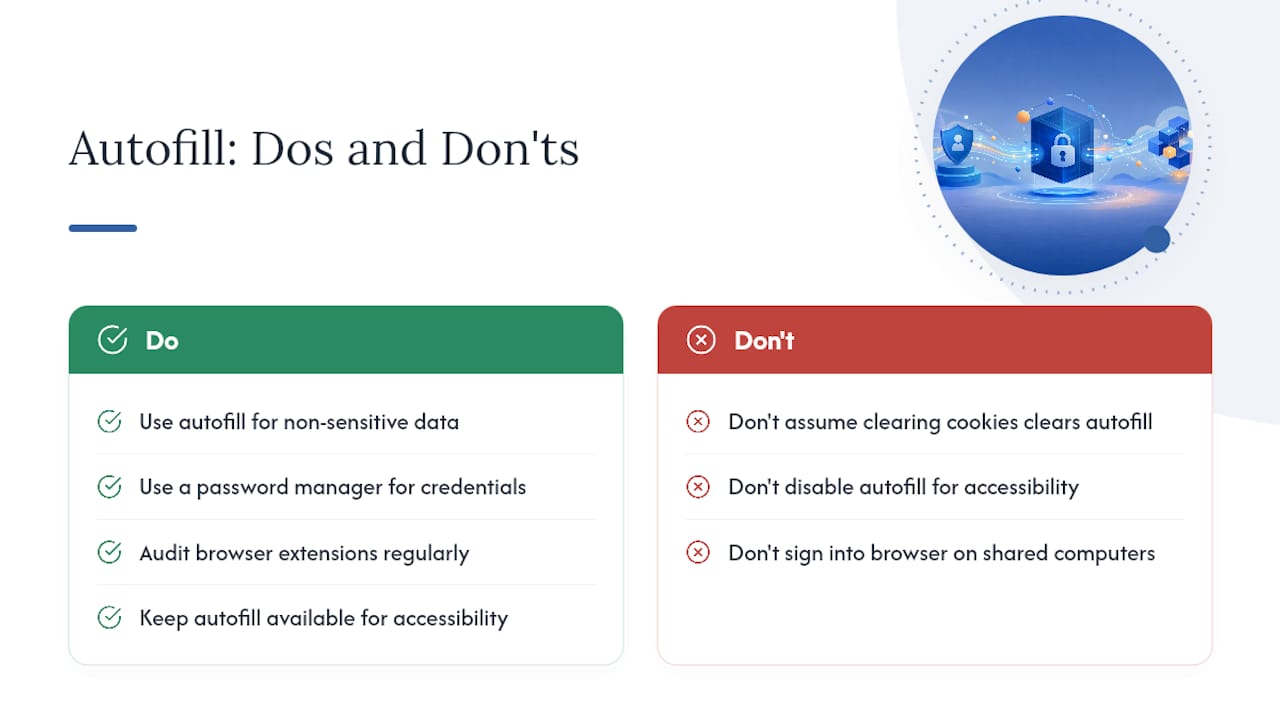
When browser autofill isn’t enough, here’s what to use instead
Browser autofill handles addresses and names well. For credentials and payment data, a dedicated password manager is a stronger choice, especially if you work across multiple devices or browsers.

A dedicated password manager encrypts your credentials with a master password that the browser vendor never sees. It works across every browser and device without tying your data to a Google, Microsoft, or Apple account. It also generates strong, unique passwords automatically, something browser autofill doesn’t do for non-password fields.
There are numerous reviews and rankings of privacy and security services, including various top password managers available in the US, tested in real-world scenarios with no paid rankings. If you’re ready to move beyond browser autofill for credential storage, start with the best password managers roundup, or read how password managers store credentials securely before you decide.
Sources
- Form Autofill
- Forms — WHATWG HTML Living Standard
- Web
- How to turn off form autocompletion – Security | MDN
- Complete Forms Faster with Autofill | Microsoft Edge
- Authentication Cheat Sheet – OWASP